
Run your day with the Work Screen
Requirements
- Available on: All plans
- Device access: Web browser (great on a front-desk tablet)
- Permission: Owner or Manager
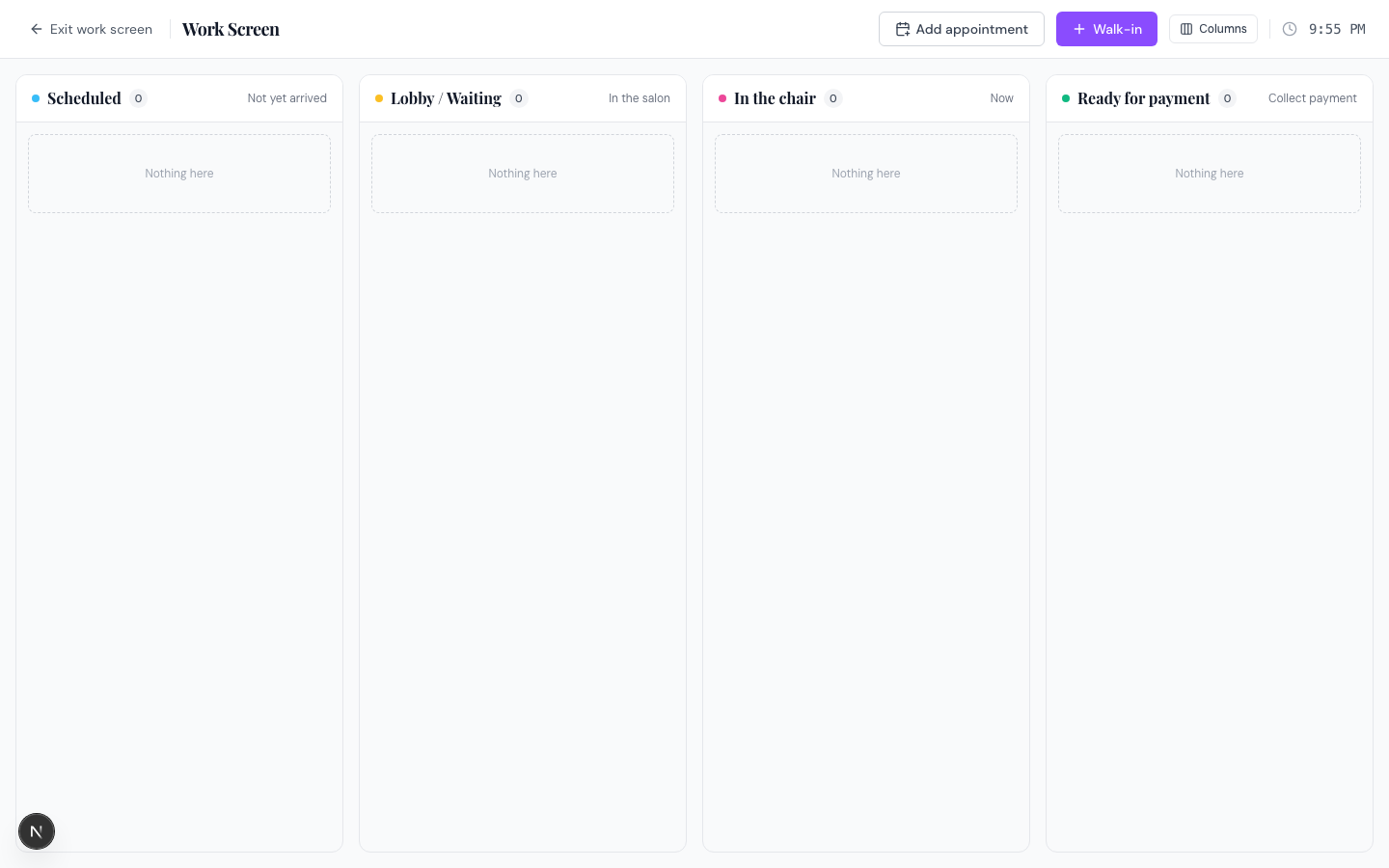
The Work Screen is your salon-floor board. It shows everyone in the building today as cards that move left to right as the visit progresses — from booked, to waiting, to in the chair, to paid. It refreshes on its own, so a tablet at the desk always shows the live picture.
How to open and use the Work Screen
-
Open Appointments, then click Work screen in the top-right. The board opens in a full-screen, distraction-free layout.
<!-- CAPTURE: route=/appointments | login=owner | state=list view | highlight=Work screen button | viewport=1440x900 -->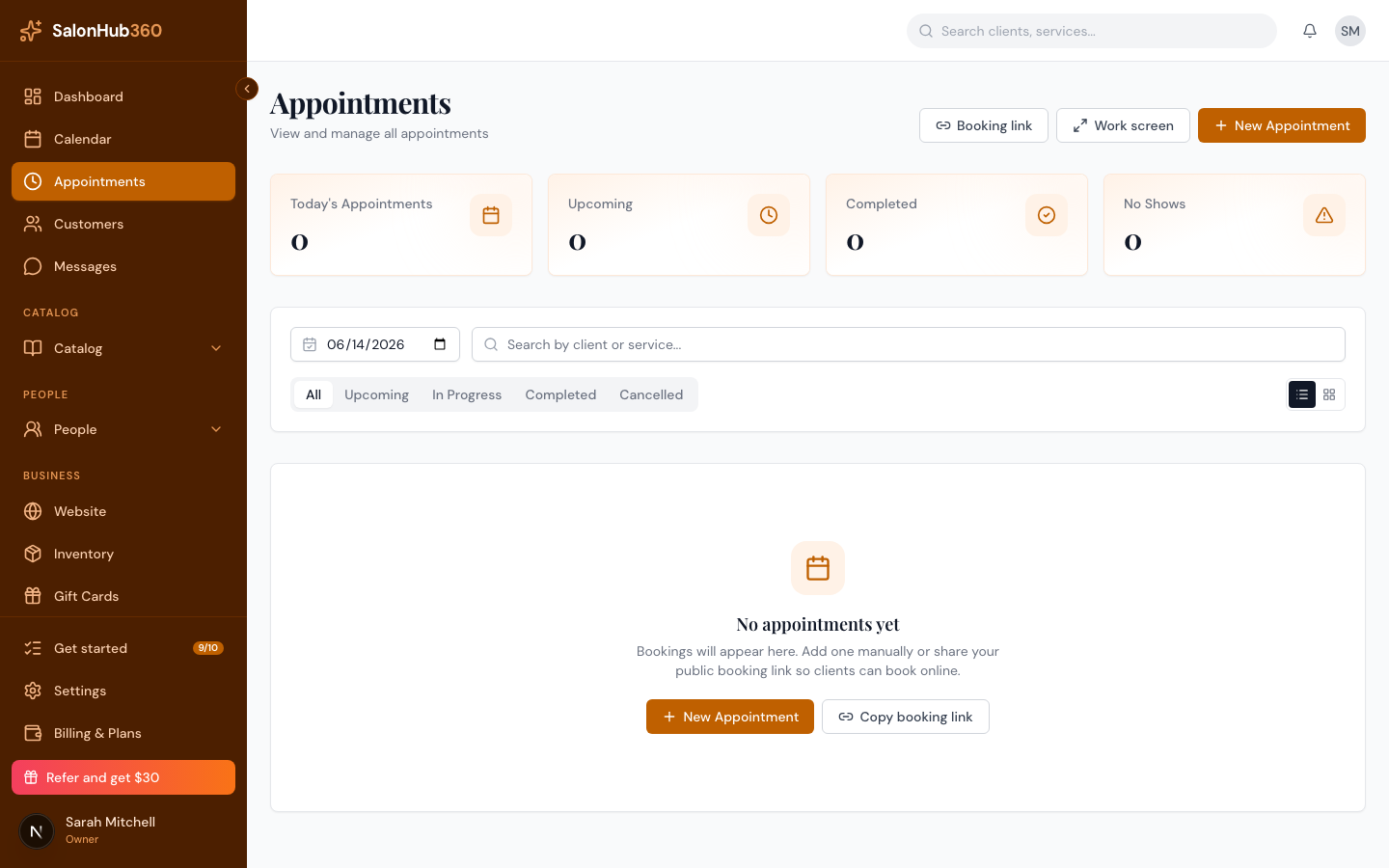
-
Read your day across the four columns:
- Scheduled — booked, client not here yet.
- Lobby / Waiting — checked in and waiting (plus any walk-ins).
- In the chair — service in progress, with a live countdown.
- Ready for payment — service done, balance to collect.
-
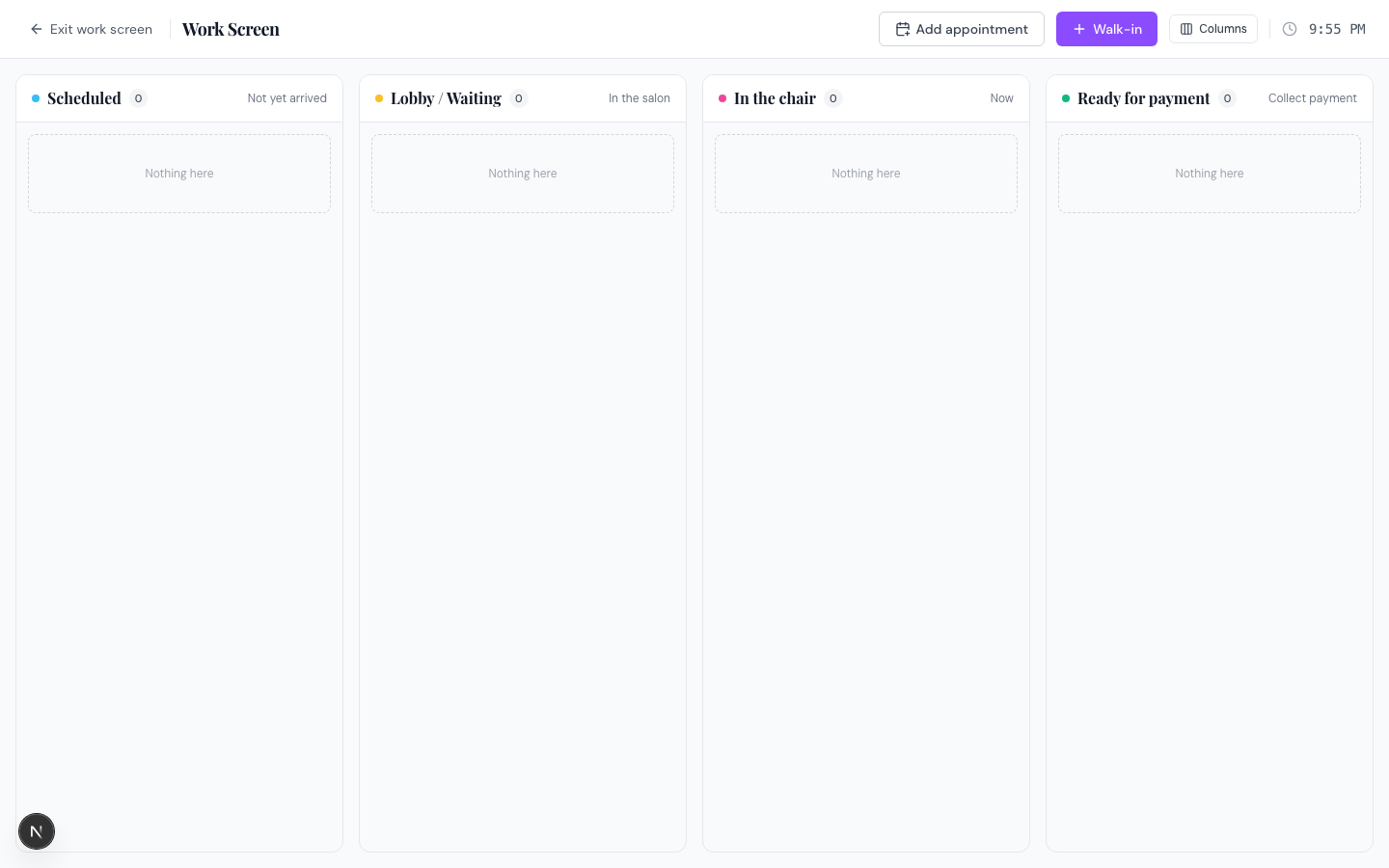
Move a client forward with the button on their card:
- Check in moves a scheduled client into the lobby.
- Start service prompts you to assign a chair, then starts a live timer.
- Finish service marks the service done and moves the card to Ready for payment.
- Take payment opens the payment dialog; once paid, the card leaves the board.
-
Need more options for a client? Click their card to open the side panel, where you can edit notes, Mark no-show, or cancel.
Good to know
- Live timer. When you start a service, the in-the-chair card counts down the service time and turns amber, then red, as it runs long — so you can see who's wrapping up and who's overdue.
- Auto-refresh. The board reloads on its own every minute. You don't need to refresh the page.
- Show or hide columns. Use the Columns button to hide Scheduled or Ready for payment. Lobby / Waiting and In the chair always stay on. Each tablet remembers its own layout.
- Add bookings on the fly. Use Add appointment to book a future slot, or Walk-in to add someone who just walked in.
Tip: Handling walk-ins and the lobby queue has its own guide — see Handle walk-ins & the lobby queue. Taking payment is covered in How to take a payment for an appointment.
Related articles