
How to take a payment for an appointment
Requirements
- Available on: All plans
- Device access: Web & mobile browser
- Permission: Owner or Manager (anyone with payment access)
In SalonHub360 you take payment per appointment using the Record Payment action in the appointment's detail panel. There's no separate register screen — every payment is tied to a specific appointment, which keeps your records clean.
Before you start
You can record manual tenders (cash, check, Zelle, Venmo, and more) at any time. To charge a card through SalonHub360, your SalonHub360 Payments account must be active.
How to take a payment
-
Open the appointment. From the left menu, go to Appointments and click the appointment's row — or click it on your Calendar. The detail panel opens.
<!-- CAPTURE: route=/appointments | login=owner | state=a completed appointment for Sarah Mitchell visible | highlight=appointment row | viewport=1440x900 -->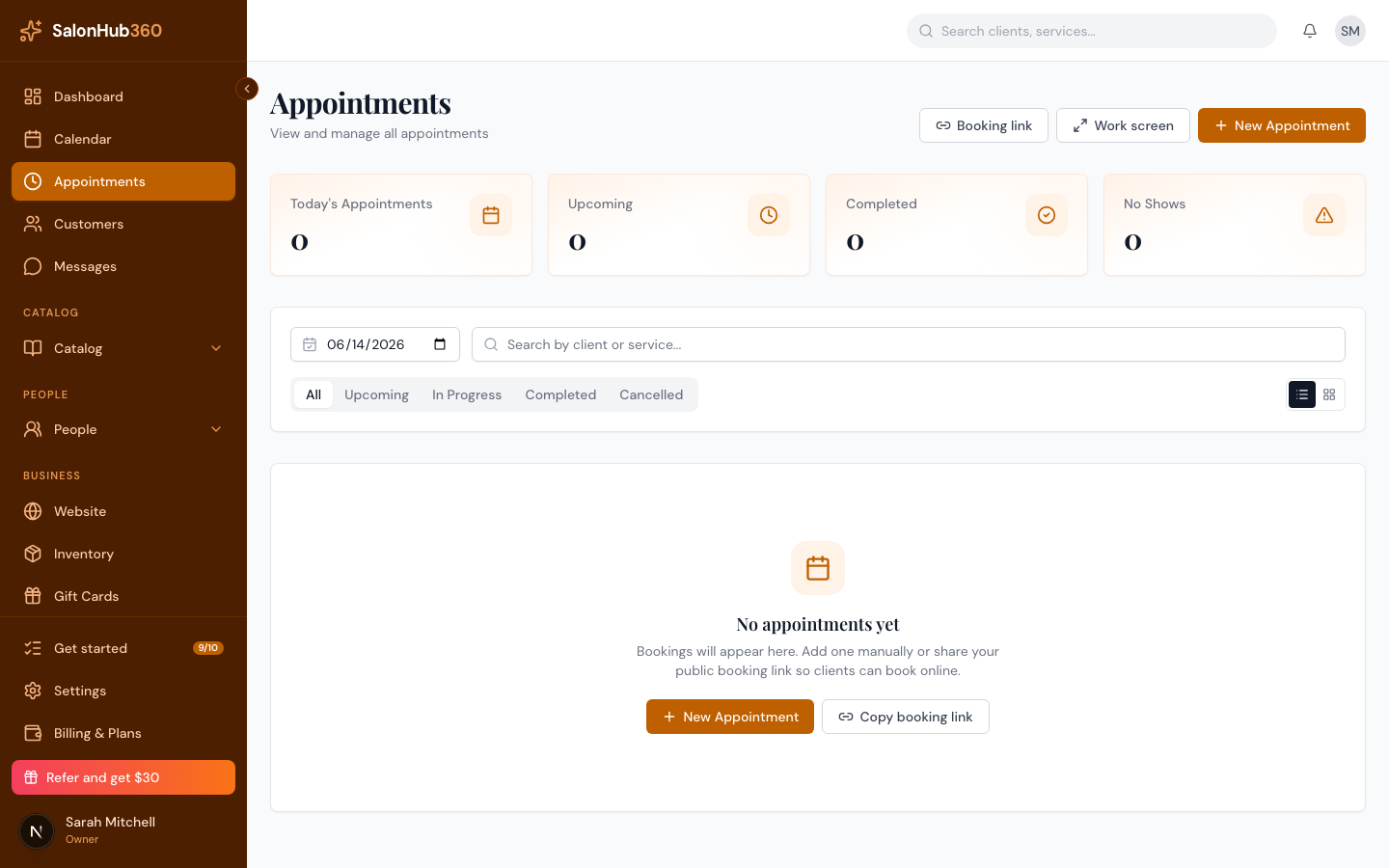
-
In the Payments section, review the amount due, then click Record Payment. The button shows the balance, for example Record Payment · $85.00 due.
<!-- CAPTURE: route=/appointments | login=owner | state=detail dialog open, Payments section, balance due | highlight=Record Payment button | viewport=1440x900 -->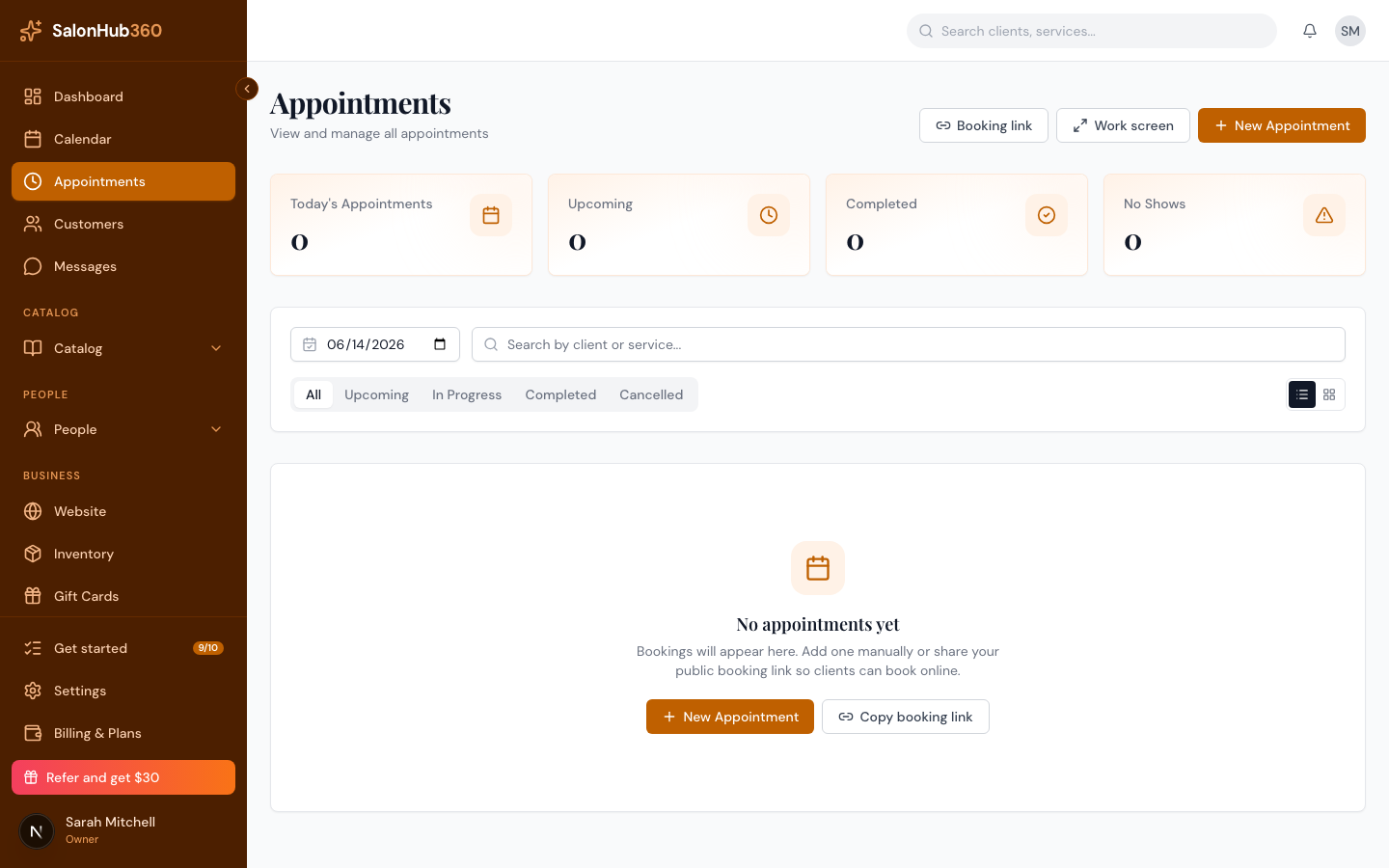
-
In the Record Payment dialog, enter the Amount. Add a Tip if your client is leaving one (see Add a tip to a payment).
<!-- CAPTURE: route=/appointments | login=owner | state=Record Payment dialog open, amount entered | highlight=Amount field | viewport=1440x900 -->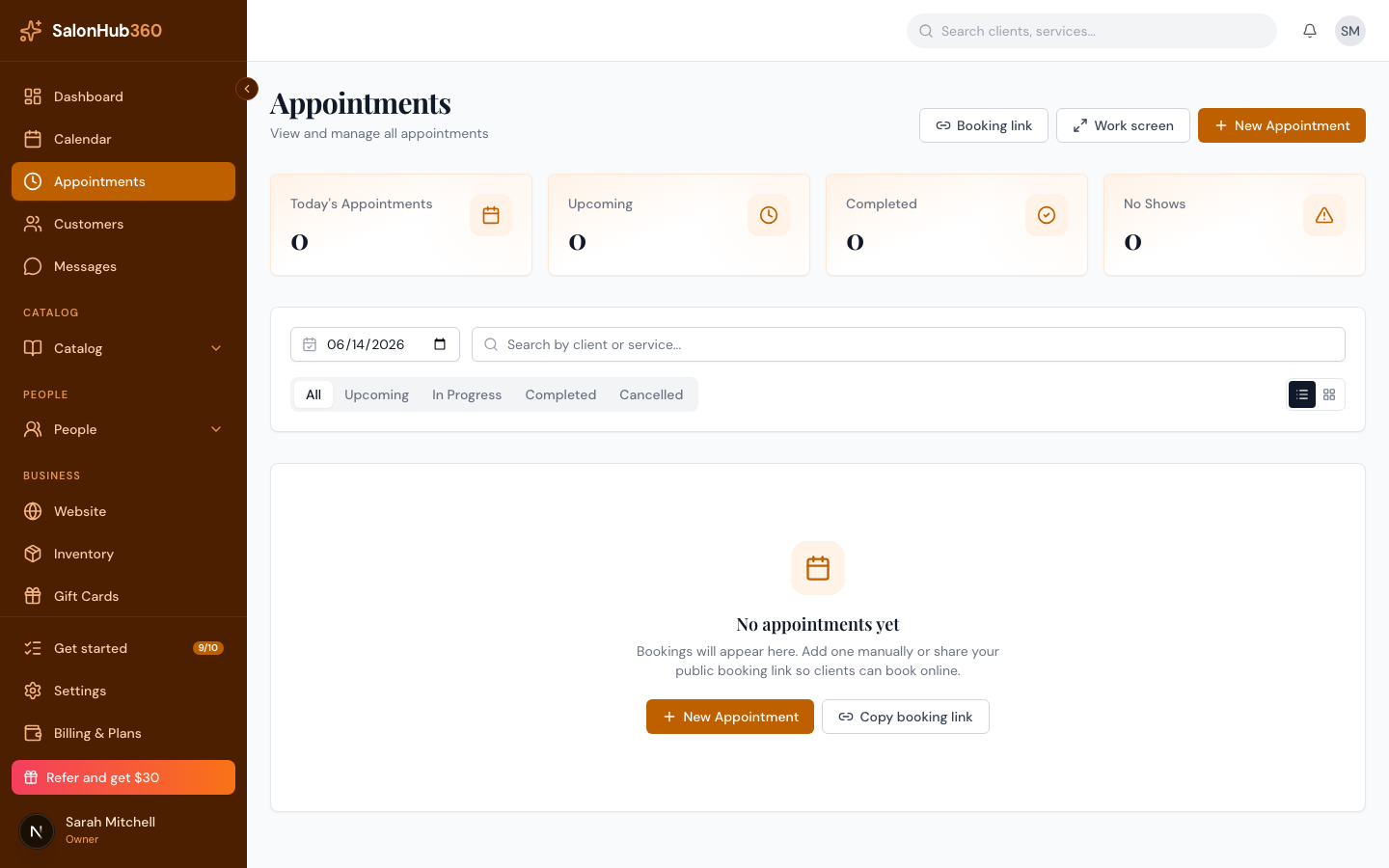
-
Choose a Method — Cash, Credit card, Check, Zelle, Venmo, Bank transfer, or another tender. For a manual method you can also set the Source and add a Reference # and Notes (for example, a Venmo confirmation).
-
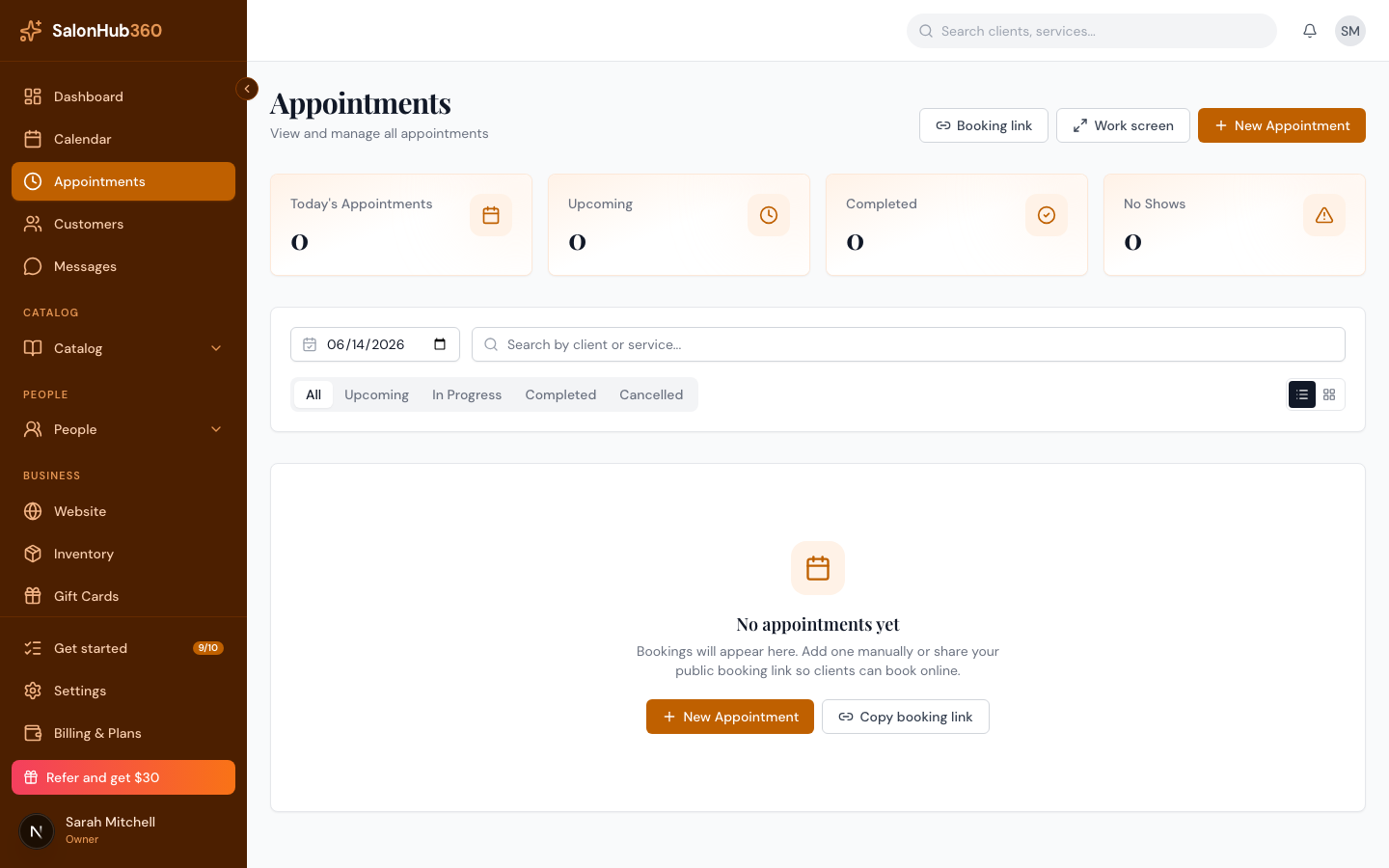
Finish the payment:
- For a manual tender, click Record.
- For Credit card, click Continue to card, enter the card details, and click Charge card.
-
The Payments summary updates. When the balance reaches zero it shows ✓ Paid in full, and the appointment's row gets a green Paid badge.
<!-- CAPTURE: route=/appointments | login=owner | state=detail dialog, paid in full | highlight=Paid in full line | viewport=1440x900 -->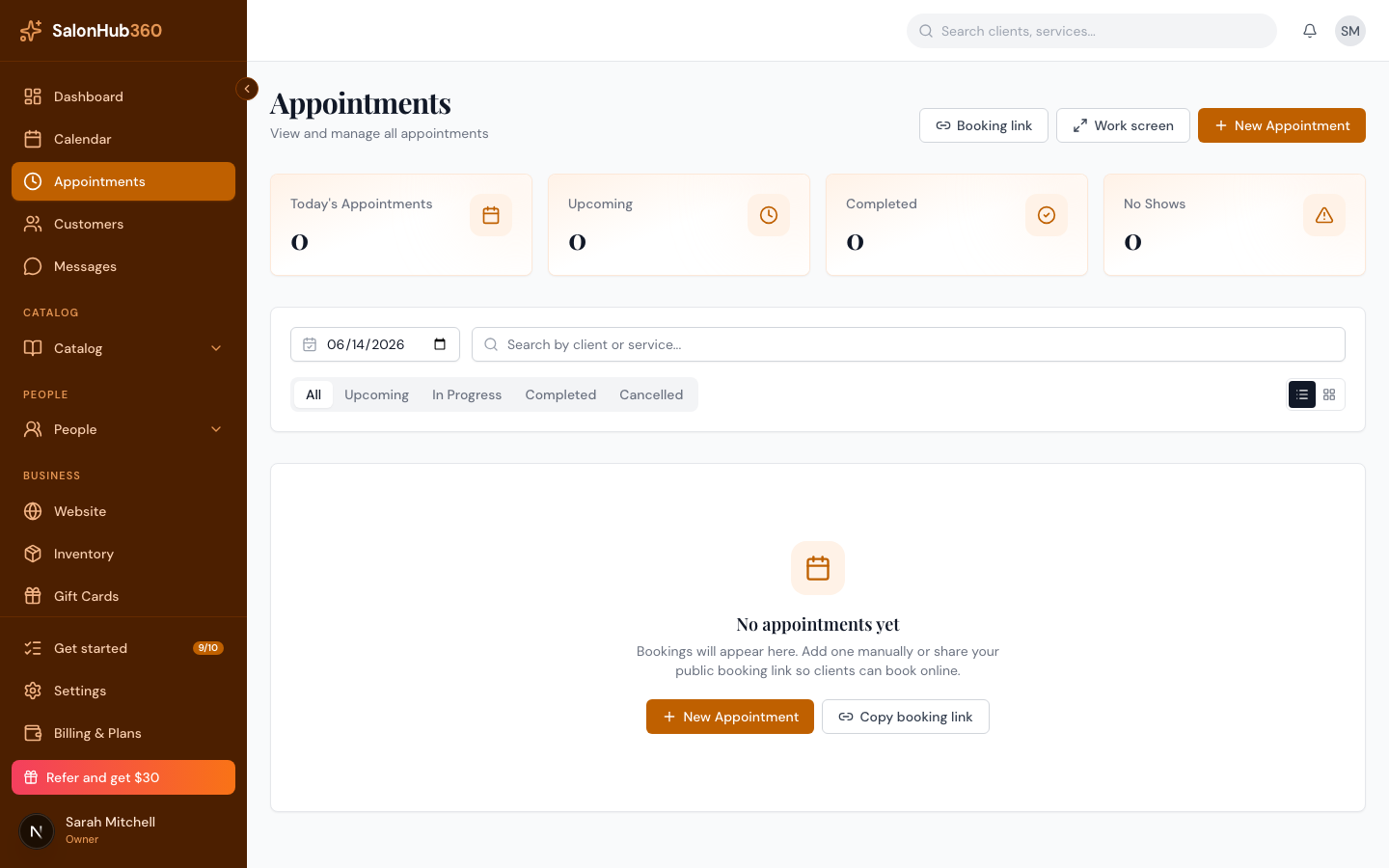
Note: You can split a payment across more than one method — record one tender, then click Record Payment again for the remaining balance. Each entry appears in the payment history below the summary.
Tip: Need to give money back? See Issue a refund (full or partial).
Related articles