
Handle walk-ins & the lobby queue
Requirements
- Available on: All plans
- Device access: Web browser (kiosk works on any tablet)
- Permission: Owner or Manager
Walk-ins don't have a booking yet, so they live in the lobby queue on the Work Screen until you seat them. You can add a walk-in yourself, or let clients check themselves in at your front-desk kiosk.
How to add a walk-in from the Work Screen
-
Open the Work Screen and click Walk-in in the top-right.
<!-- CAPTURE: route=/work-screen | login=owner | state=board view | highlight=Walk-in button | viewport=1440x900 -->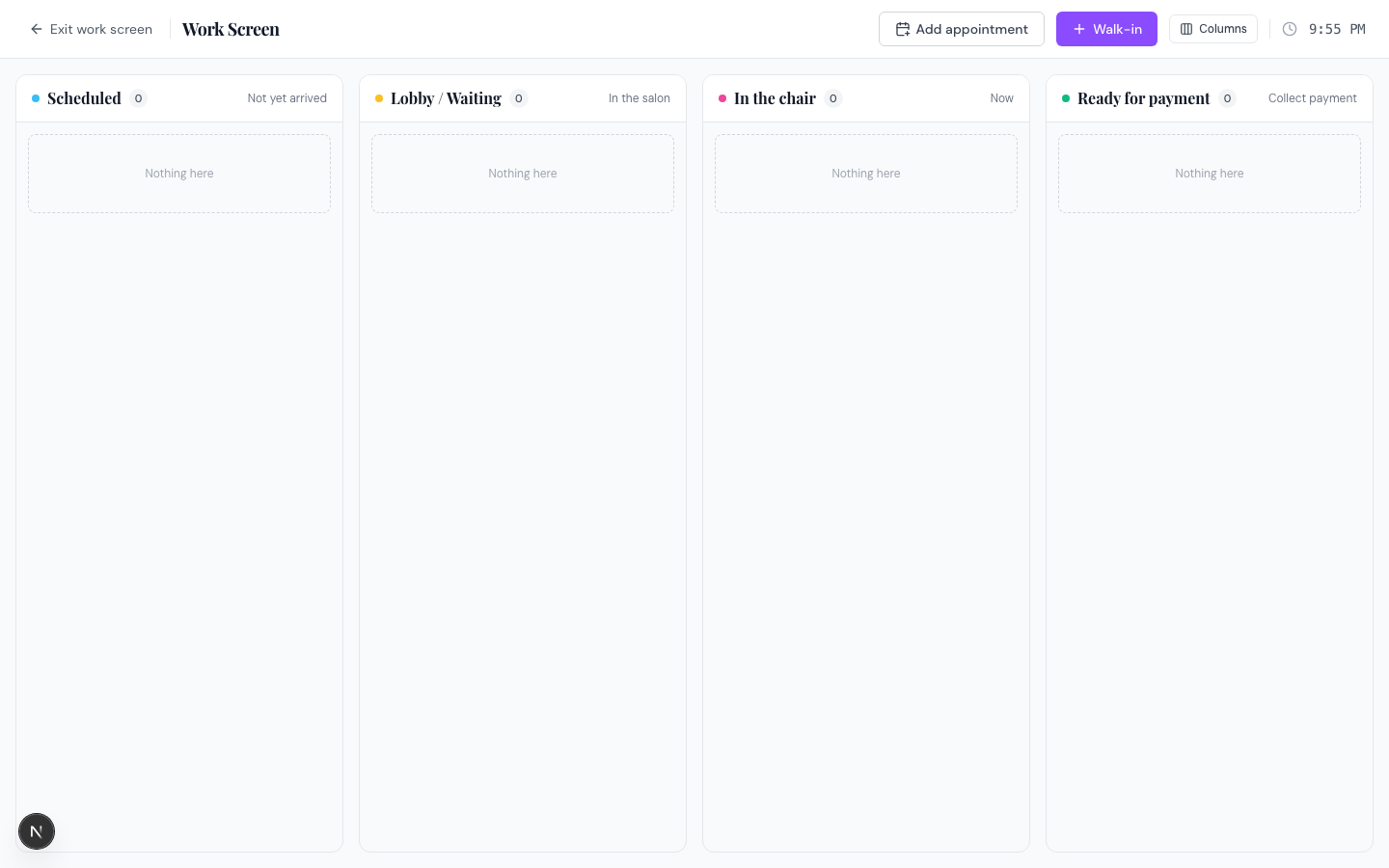
-
Enter the client's phone and first name (last name optional), and pick a service and preferred staff if you know them. Save. The walk-in appears as a card in the Lobby / Waiting column.
<!-- CAPTURE: route=/work-screen | login=owner | state=walk-in modal open | highlight=walk-in form | viewport=1440x900 -->
-
When you're ready to seat them, click Start service on their card. Choose the staff member and chair, and SalonHub360 turns the walk-in into a live appointment in the chair.
<!-- CAPTURE: route=/work-screen | login=owner | state=walk-in card in lobby | highlight=Start service button | viewport=1440x900 -->
Let clients check themselves in at the kiosk
Set up a tablet at your front desk on your check-in page at /s/your-slug/check-in (replace your-slug with your salon's slug). Clients tap one of two big buttons:
- I have an appointment — they enter their phone number, then tap their appointment to check in. They move straight into your Lobby / Waiting column.
- I'm a walk-in — they enter their phone, name, and optionally a service and preferred staff to join the waiting list.
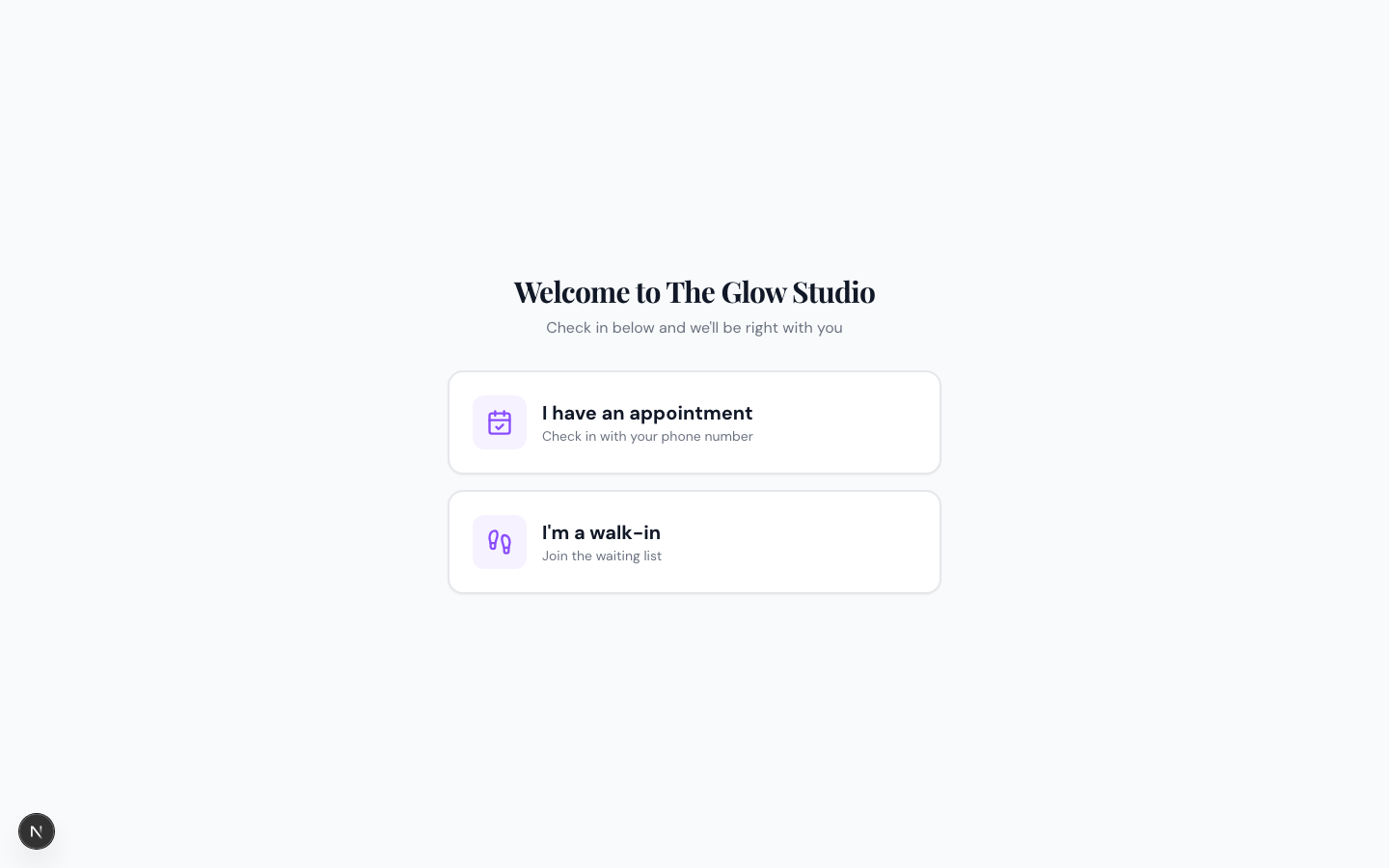
The kiosk resets to the welcome screen after each client, so the next person never sees the previous one's details.
Note: Self check-ins and walk-ins both land in the same Lobby / Waiting column on the Work Screen, so your team manages everyone from one place.
Tip: There's a client-facing version of these steps you can share — see Clients: Check in at the salon.
Related articles