
Navigate your calendar (day/week/month)
Requirements
- Available on: All plans
- Device access: Web & mobile browser
- Permission: Any staff
Your Calendar shows every appointment at a glance. Switch between day, week, and month views, jump to any date, and filter down to the staff or location you care about.
How to move around your calendar
-
In the left menu, open Calendar. It opens on today in Day view.
<!-- CAPTURE: route=/calendar | login=owner | state=day view with appointments | viewport=1440x900 -->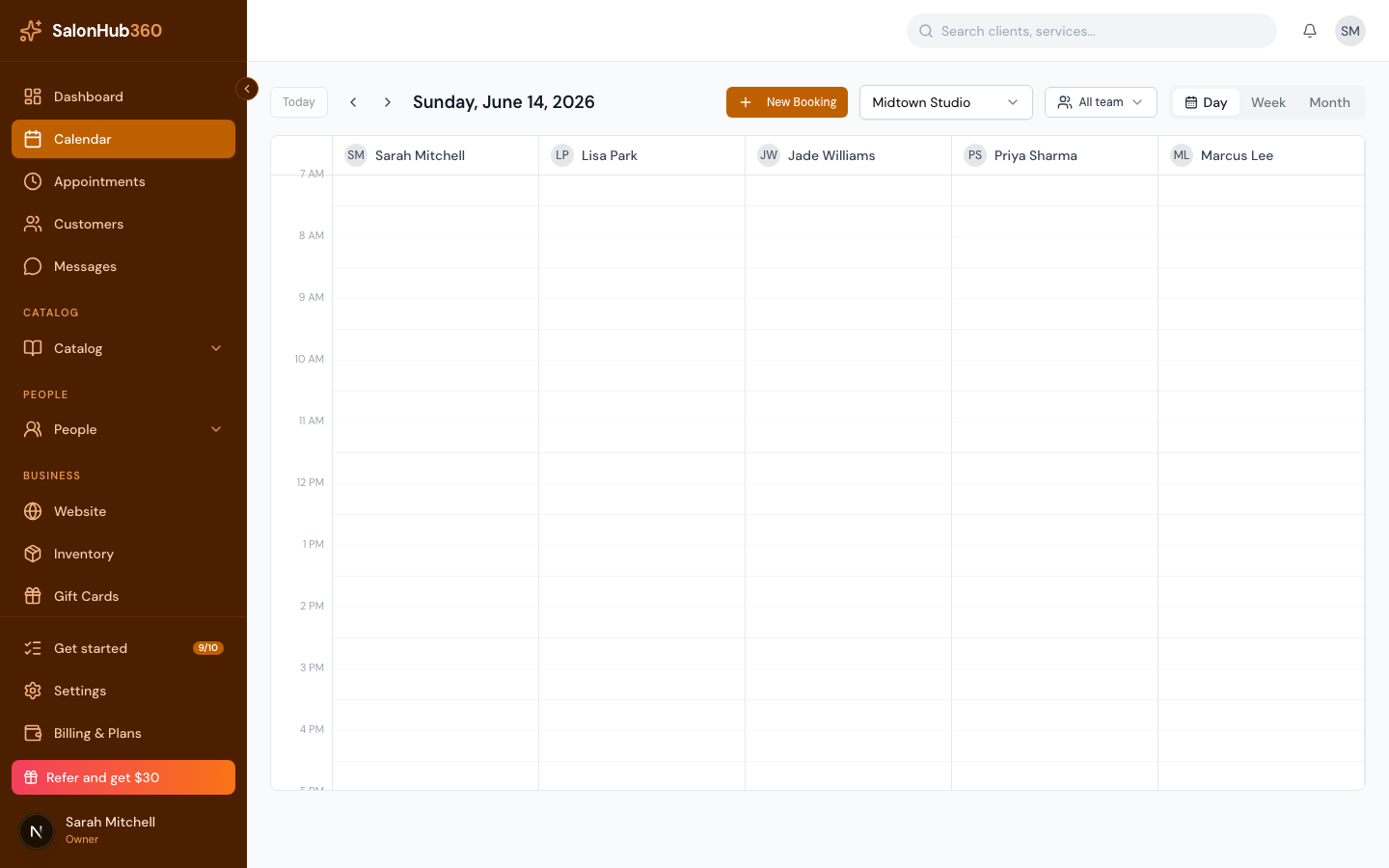
-
Switch views with the Day, Week, and Month toggle in the top-right.
<!-- CAPTURE: route=/calendar | login=owner | state=week view | highlight=Day/Week/Month toggle | viewport=1440x900 -->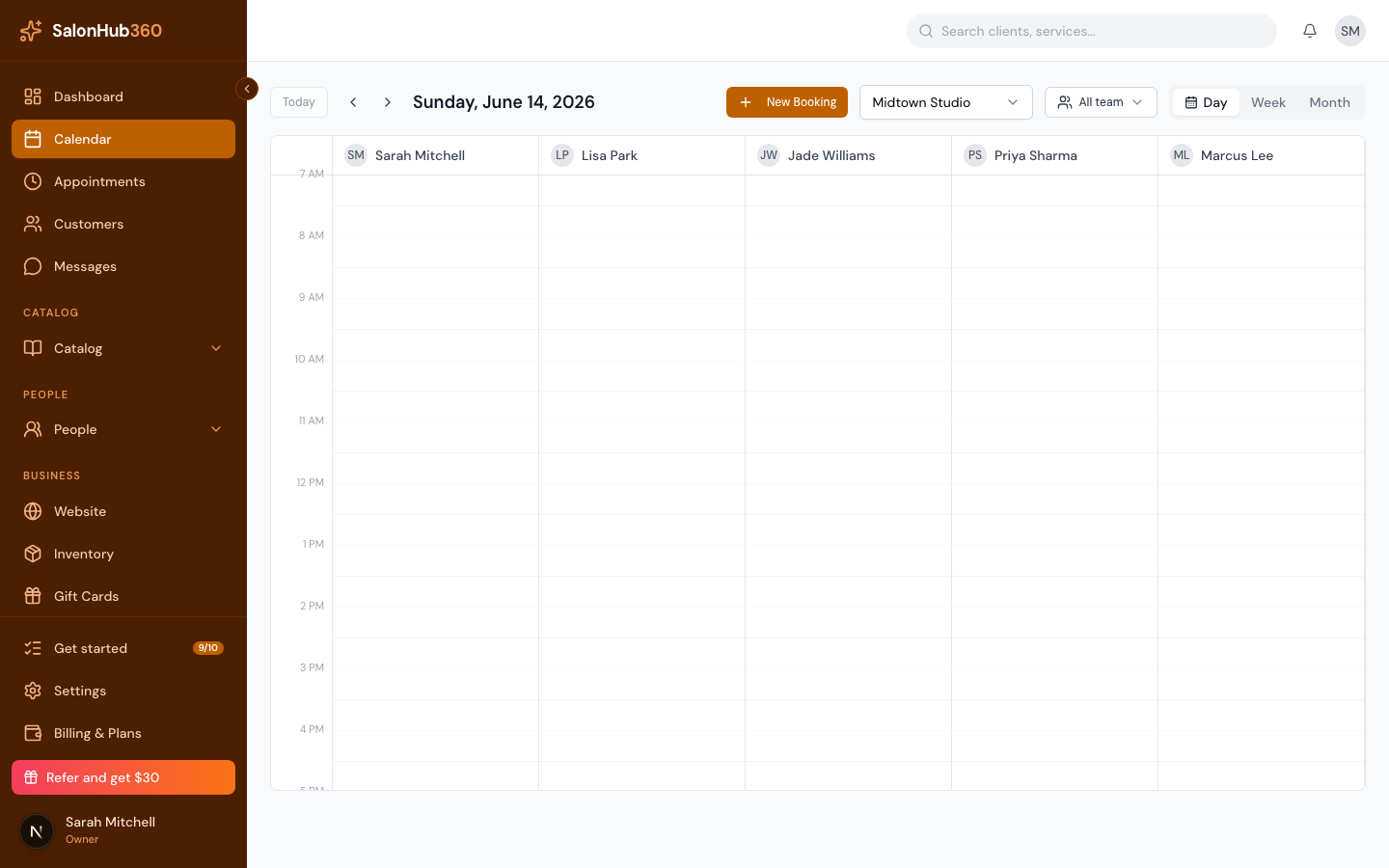
-
Move through time with the ‹ and › arrows, or click Today to jump back to the current date. The date label between them shows where you are.
-
Click any appointment to open its detail panel, where you can confirm, check in, edit, or reschedule it.
<!-- CAPTURE: route=/calendar | login=owner | state=appointment detail panel open | highlight=detail panel | viewport=1440x900 -->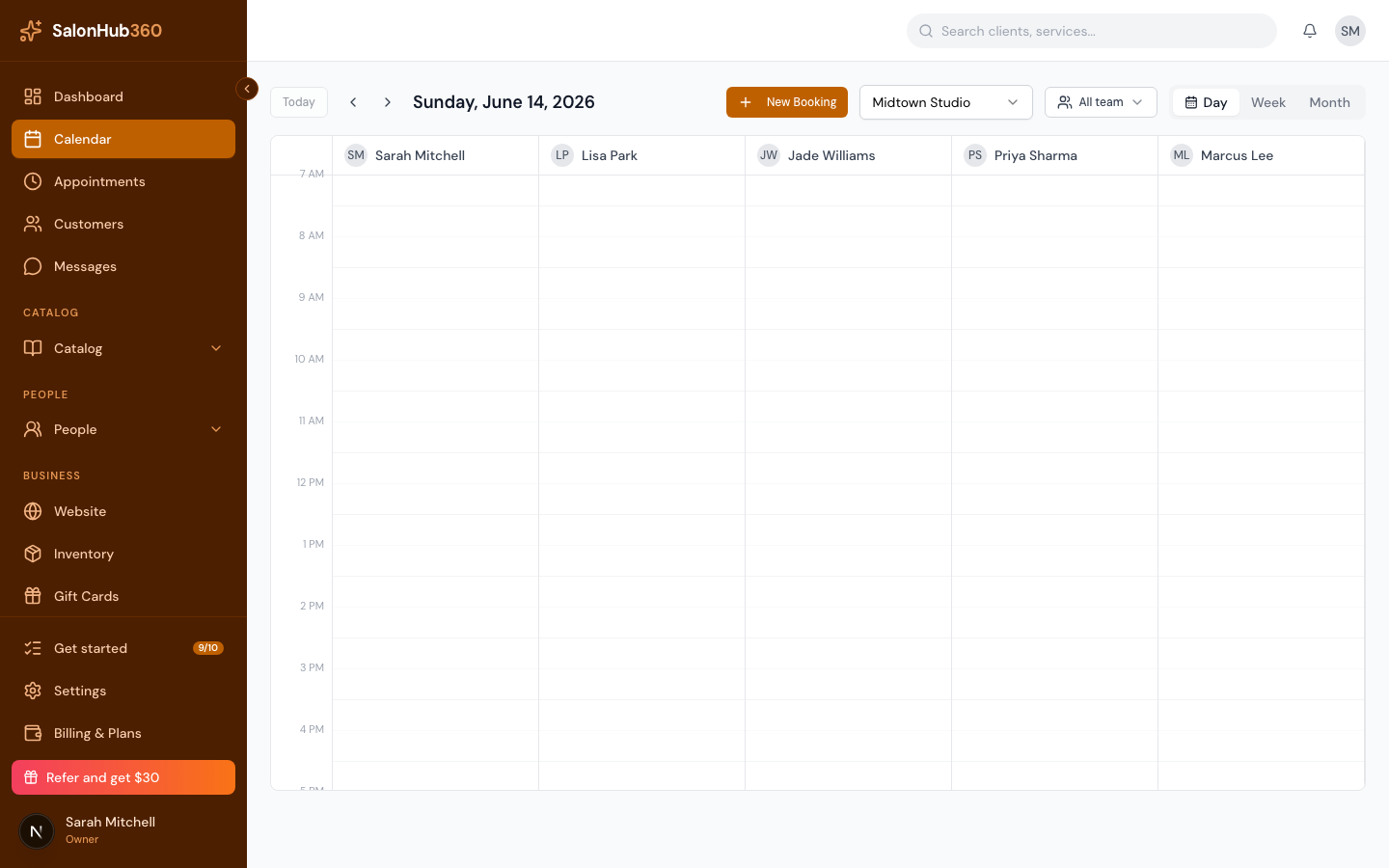
Reading your calendar
- Color-coded by service. Each appointment is tinted with its service's color, so you can read your day by service type at a glance. Set a service's color under Services.
- Month view counts. Each day cell lists its appointments. When a day has more than fits, you'll see a +N more indicator — click the date to open that day in Day view and see them all.
- Cancelled and completed appointments appear muted and struck through, so active bookings stand out.
Filter what you see
- Location. If you have more than one location, use the location selector in the header to switch between them. Each location has its own calendar.
- Staff. Use the staff filter to show All staff, only those Working today, or specific team members.
Note: Staff who can only see their own bookings (most providers) won't see the staff filter — their calendar is already scoped to just their own appointments.
Tip: Ready to add a booking? See Book an appointment from the calendar.
Related articles