
Clients: Check in at the salon
Requirements
- Available on: All plans
- Device access: In-salon tablet
- Permission: Client
When you arrive, let your salon know you're here using the check-in tablet at the front desk.
Check in for your appointment
-
On the welcome screen — Welcome to [your salon] — tap I have an appointment.
<!-- CAPTURE: route=/s/glow-studio/check-in | login=none (kiosk) | state=welcome screen with both choices | viewport=1440x900 -->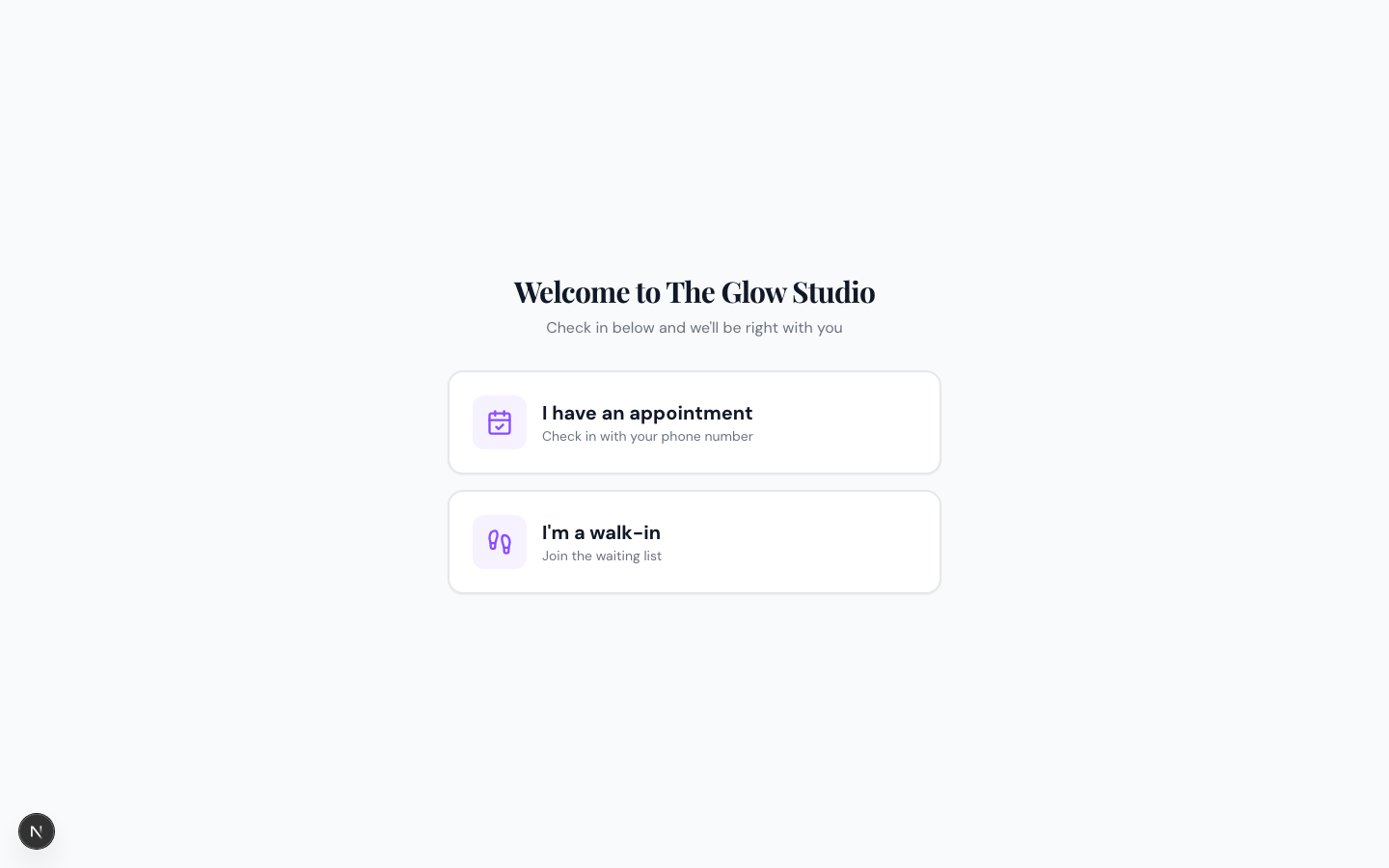
-
Enter Your phone number and tap Find my appointment.
<!-- CAPTURE: route=/s/glow-studio/check-in | login=none (kiosk) | state=appointment phone entry | viewport=1440x900 -->
-
Tap your appointment, then tap Check in. You'll see "You're checked in!" with a note to take a seat.
<!-- CAPTURE: route=/s/glow-studio/check-in | login=none (kiosk) | state=appointment found, Check in button shown | viewport=1440x900 -->
Check in as a walk-in
-
On the welcome screen, tap I'm a walk-in to join the waiting list.
-
Enter your Phone number, First name, and Last name. You can also choose a Service and Preferred staff, or leave them as Not sure yet and Any available staff.
<!-- CAPTURE: route=/s/glow-studio/check-in | login=none (kiosk) | state=walk-in form | viewport=1440x900 -->
-
Tap Join waiting list. You'll see "You're checked in!" with a note to wait in the lobby until you're called.
Note: If the tablet can't find an appointment for today, you'll be asked to see the front desk or Join as a walk-in instead.
Tip: Booking ahead is faster than waiting — see Clients: How to book an appointment online.
Related articles