
Staff logins, roles & permissions
Requirements
- Available on: All plans
- Device access: Web & mobile browser
- Permission: Owner or Manager
A staff member's role controls what they can see and do once they log in. This article explains the four roles and how to give, reset, or remove a login.
The four roles
| Role | What they can do |
|---|---|
| Owner | Full access to everything, including billing, plan changes, and SalonHub360 Payments setup. |
| Manager | Runs day-to-day operations — calendar, clients, staff, services. Cannot change billing or the subscription plan. |
| Receptionist | Front desk: bookings, customers, check-in, and taking payments. Cannot manage staff or edit services. |
| Provider | A stylist or service provider. Sees their own bookings and schedule, and their assigned clients. |
Note: New staff you add are set up as a Provider by default. Owners and Receptionists who can see all clients have full visibility; Providers see only the clients tied to their own appointments.
Logins are optional
Staff don't need a login to be useful. A bookable-only stylist appears in online booking and on your calendar without ever signing in. Give a login only when someone needs to use the app — for example, to view their schedule, check in clients, or take payments.
How to give, reset, or remove a login
-
In the left menu, open Staff, find the person, and click Edit.
<!-- CAPTURE: route=/staff | login=owner | state=Edit staff dialog open for a staff member with a login | highlight=Allow this staff member to log in section | viewport=1440x900 -->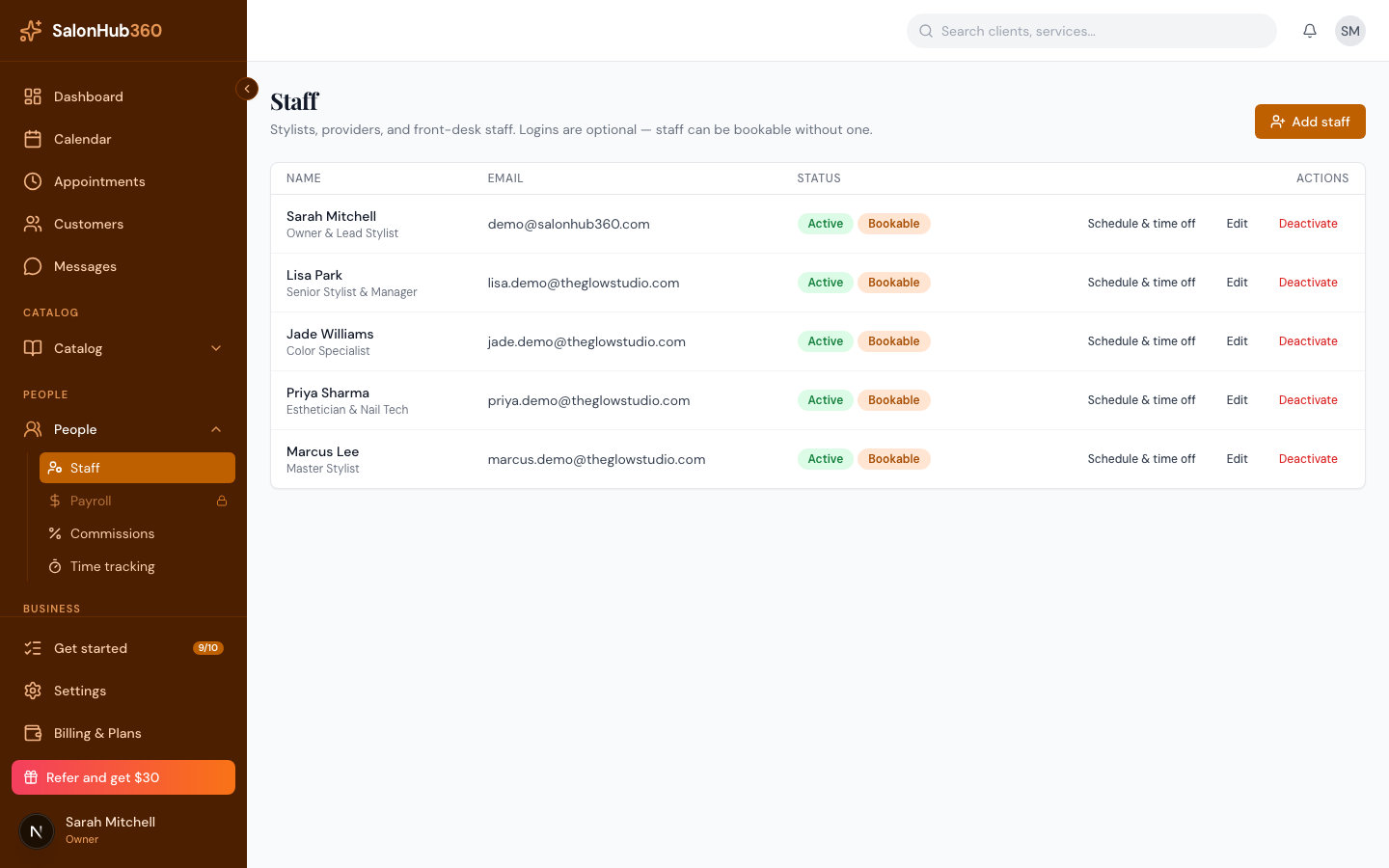
-
To add a login to a bookable-only staff member, use the Enable login panel: enter an Email and an Initial password (at least 8 characters), then click Enable login.
-
To reset a password, type a new password (at least 8 characters) in the Reset password box and click Reset password. Their account and bookings stay the same — only the password changes.
<!-- CAPTURE: route=/staff | login=owner | state=Edit staff dialog, Reset password box visible | highlight=Reset password button | viewport=1440x900 -->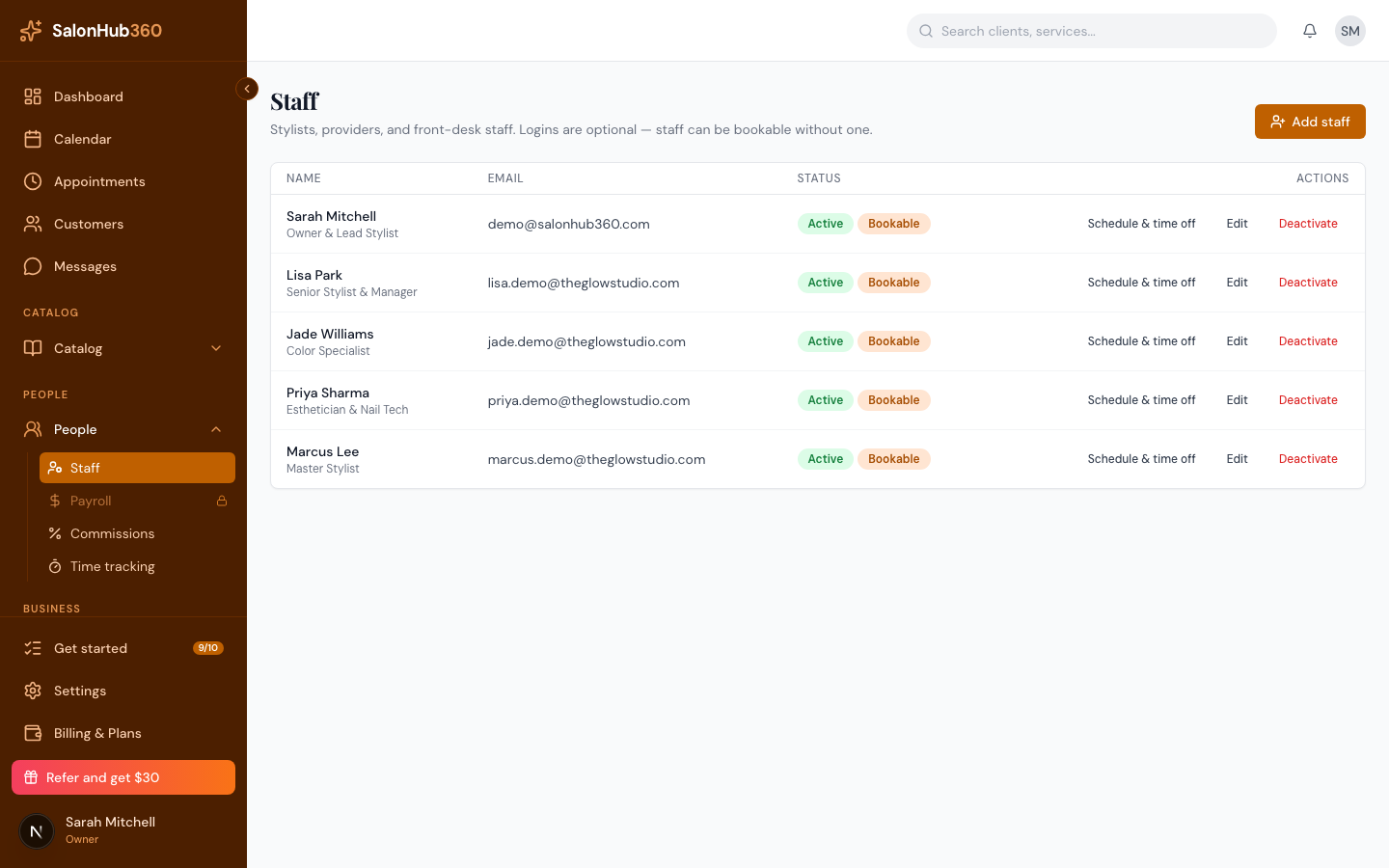
-
To remove a login, untick Allow this staff member to log in. They're signed out and can't log in until you enable it again. (You can't disable your own login.)
Note: Always share a new password through a secure channel — never in a public message. SalonHub360 shows the password only at the moment you set it.
Tip: To stop new bookings for someone without deleting them, use Deactivate on the staff list instead of removing their login.
Related articles