
Set staff schedules & breaks
Requirements
- Available on: All plans
- Device access: Web & mobile browser
- Permission: Owner or Manager
A staff member's weekly schedule tells SalonHub360 when they're available to be booked. Set their working hours for each day, plus an optional lunch break, so online booking only offers times they actually work.
How to set a weekly schedule
-
In the left menu, open Staff, find the person, and click Schedule & time off.
<!-- CAPTURE: route=/staff | login=owner | state=staff list | highlight=Schedule & time off link on a staff row | viewport=1440x900 -->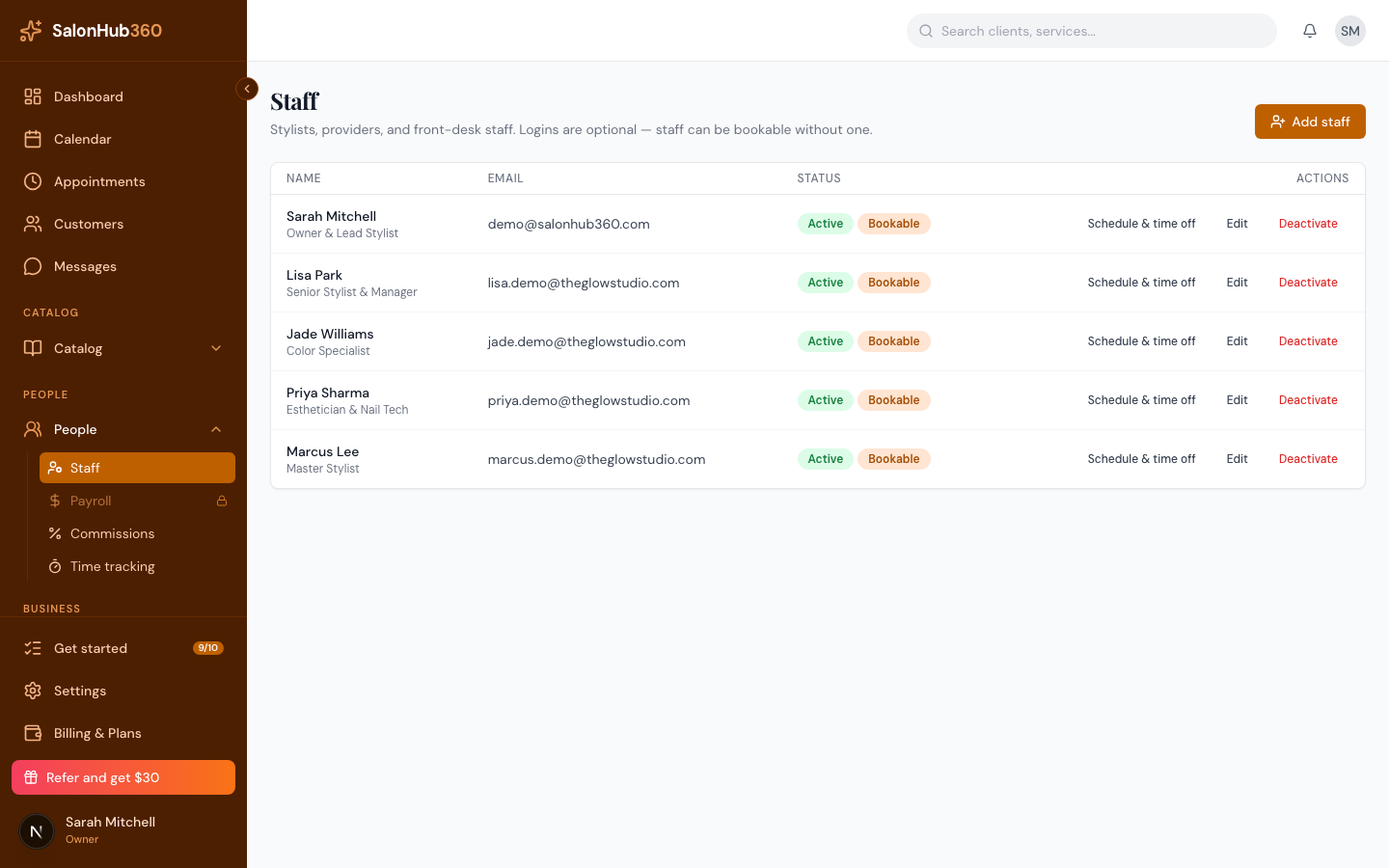
-
In the Weekly schedule section, tick Working for each day this person works.
<!-- CAPTURE: route=/staff/[id] | login=owner | state=weekly schedule with several working days set | highlight=Working checkbox on a day row | viewport=1440x900 -->
-
For each working day, set the start and end time. To add a lunch break, fill in the Break start and end times on the same row. Leave the break blank for no break.
<!-- CAPTURE: route=/staff/[id] | login=owner | state=a working day row expanded with start, end and break times | highlight=Break start and end fields | viewport=1440x900 -->
-
Click Save schedule. You'll see Saved once it's stored.
Note: If your salon has more than one location, a Location dropdown appears at the top of the schedule. Set hours per location — the schedule you see and save applies to the location selected there.
Note: Each day has one working window and one break. To take a person off entirely for a day, simply leave Working unticked — that day shows Off.
Tip: A schedule controls regular weekly hours. For one-off vacation or sick days, use Manage time off instead.
Related articles