
Manage time off
Requirements
- Available on: All plans
- Device access: Web & mobile browser
- Permission: Owner or Manager (to add and approve) · Any staff (to request their own)
Time off blocks a staff member from being booked for vacation, sick days, or personal time. Owners and managers can add time off directly; staff can request it from their own My Schedule page.
How to add time off
-
In the left menu, open Staff, find the person, and click Schedule & time off.
-
In the Time off section, choose a Type — Vacation, Sick, Personal, Unpaid, or Other — and optionally add a Reason.
<!-- CAPTURE: route=/staff/[id] | login=owner | state=time off form open | highlight=Type dropdown | viewport=1440x900 -->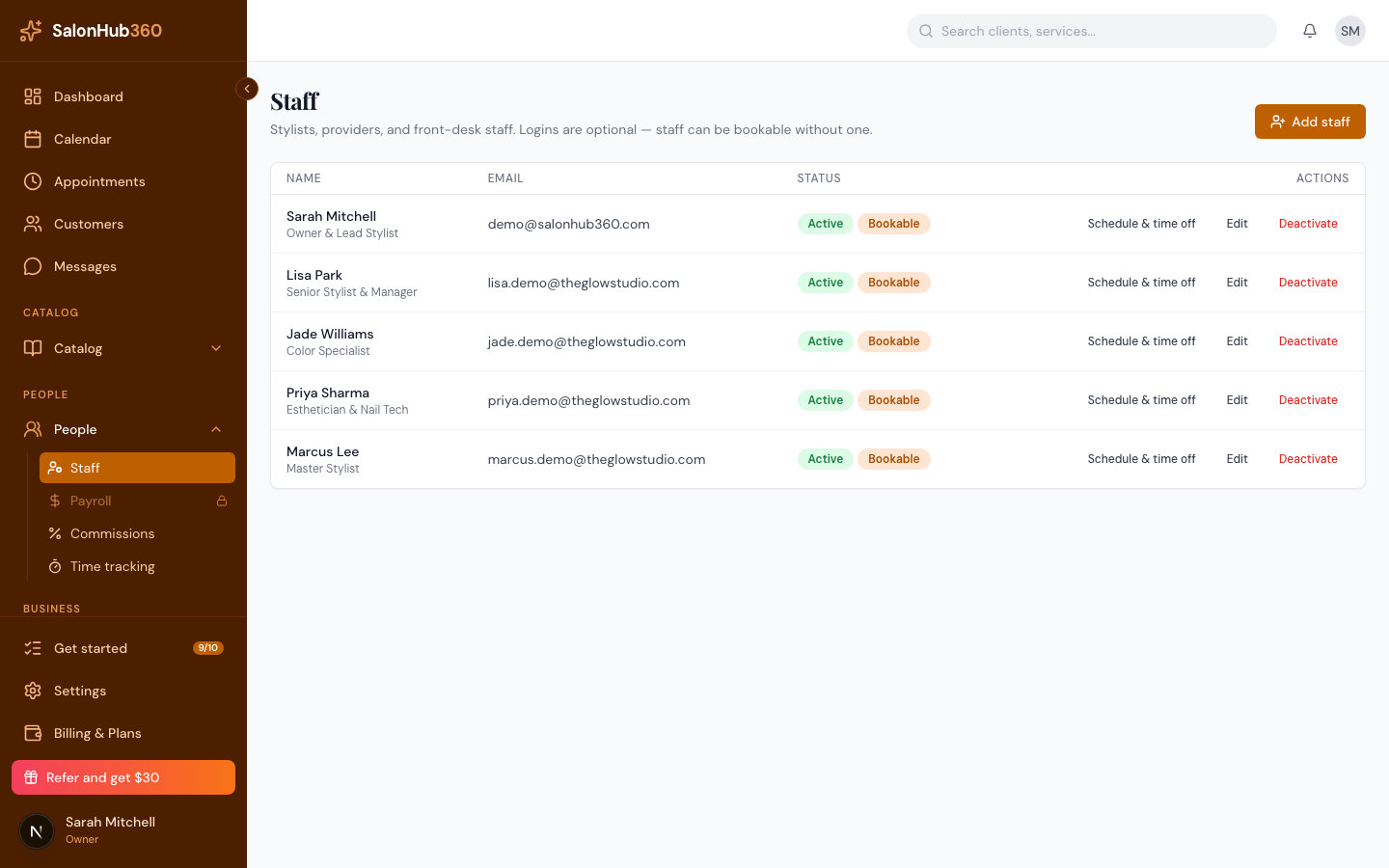
-
Set the Start date and End date. Leave All day ticked for full days off, or untick it to set a start and end time for a partial day.
-
Click Add time off.
<!-- CAPTURE: route=/staff/[id] | login=owner | state=time off list with an approved entry | highlight=Add time off button | viewport=1440x900 -->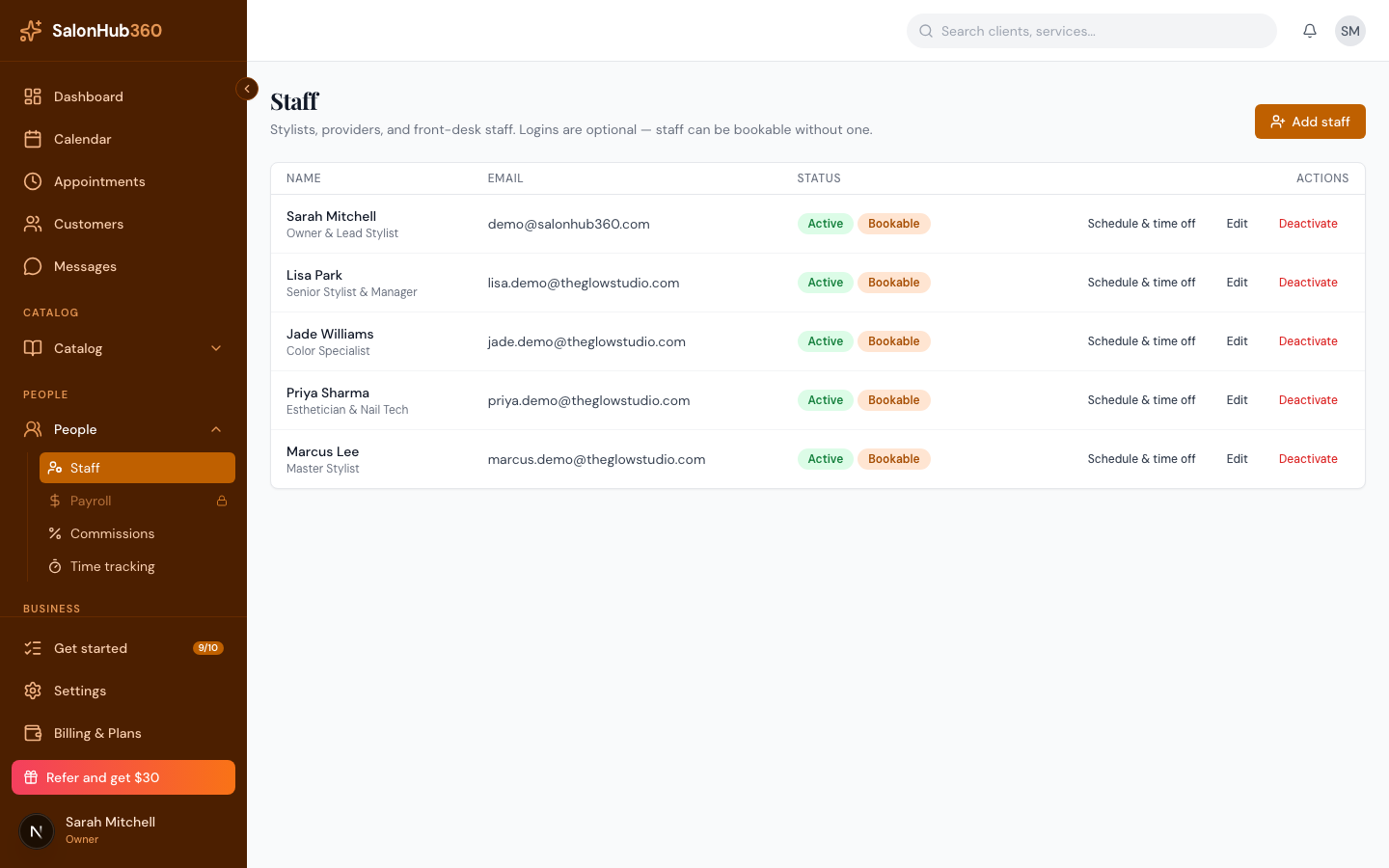
Note: Time off you add as an owner or manager is approved immediately and blocks online booking for those dates and times right away.
Approving staff requests
When a staff member requests time off from their My Schedule page, it arrives as Pending. On a pending entry you can:
- Click Approve to confirm it and block those dates, or
- Click Reject to decline it.
You can also Cancel an entry to remove it. The status badge shows Pending, Approved, Rejected, or Cancelled so everyone knows where a request stands.
Tip: Staff see and request their own time off from "My Schedule".
Related articles