
Assign staff to services & locations
Requirements
- Available on: All plans
- Device access: Web & mobile browser
- Permission: Owner or Manager
For a stylist to show up in online booking, SalonHub360 needs to know where they work and what they can be booked for. You set both on the staff member's detail page.
How to assign locations
-
In the left menu, open Staff, find the person, and click Schedule & time off.
-
In the Locations section, tick each location this person works at.
<!-- CAPTURE: route=/staff/[id] | login=owner | state=Locations panel with one location ticked | highlight=location checkbox list | viewport=1440x900 -->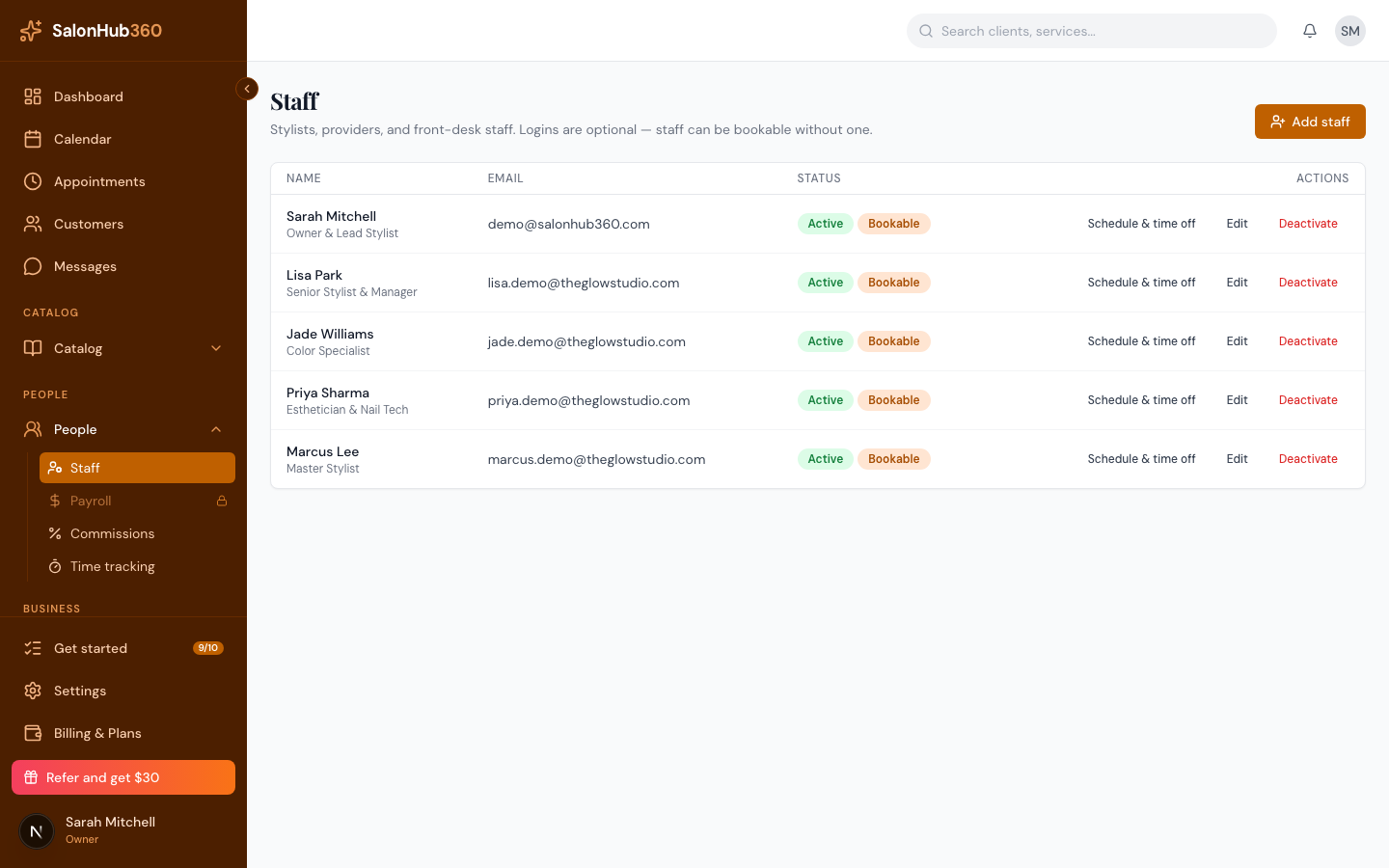
Changes save as you tick. A staff member must be assigned to at least one location to appear in online booking — if none are assigned, you'll see a reminder to add one.
Note: No locations to choose from? Add one first under Settings → Locations. See Add your location & business hours.
How to assign services
-
On the same page, scroll to the Services section.
-
Tick each service this staff member performs.
<!-- CAPTURE: route=/staff/[id] | login=owner | state=Services panel with a few services ticked | highlight=service checkbox list | viewport=1440x900 -->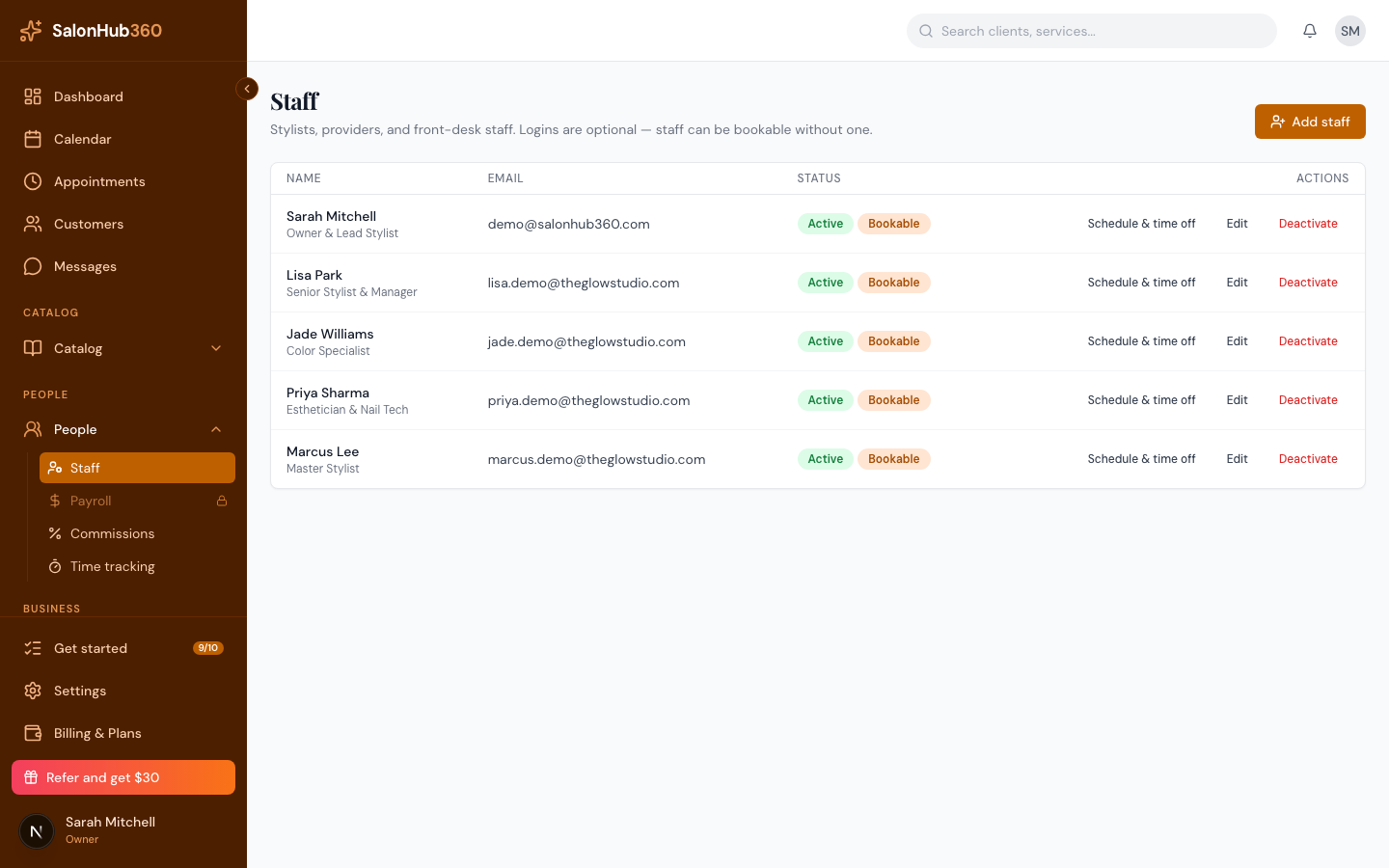
Like locations, service assignments save as you tick them.
Note: Leaving every service unticked means no restriction — this person can be booked for any service that isn't limited to specific staff. Tick services only when you want to limit them to a specific set.
Tip: You can also manage staff-to-service assignments from a service's own page under Services. Both screens update the same assignment, so they always agree.
Related articles