
Subscribe to your calendar feed
Requirements
- Available on: All plans
- Device access: Web & mobile browser
- Permission: Any staff with a login (each person subscribes with their own link)
See your SalonHub360 appointments alongside everything else in your personal calendar. Subscribe with a private, read-only link that works with Google Calendar, Apple Calendar, and Outlook.
Note: You manage your own link. Each staff member copies their own calendar link from My integrations — the owner can't subscribe on your behalf.
Subscribe with a private link
-
In the left menu, open My integrations.
<!-- CAPTURE: route=/me/integrations | login=provider | state=calendar subscription panel visible | highlight=Your private calendar URL field | viewport=1440x900 -->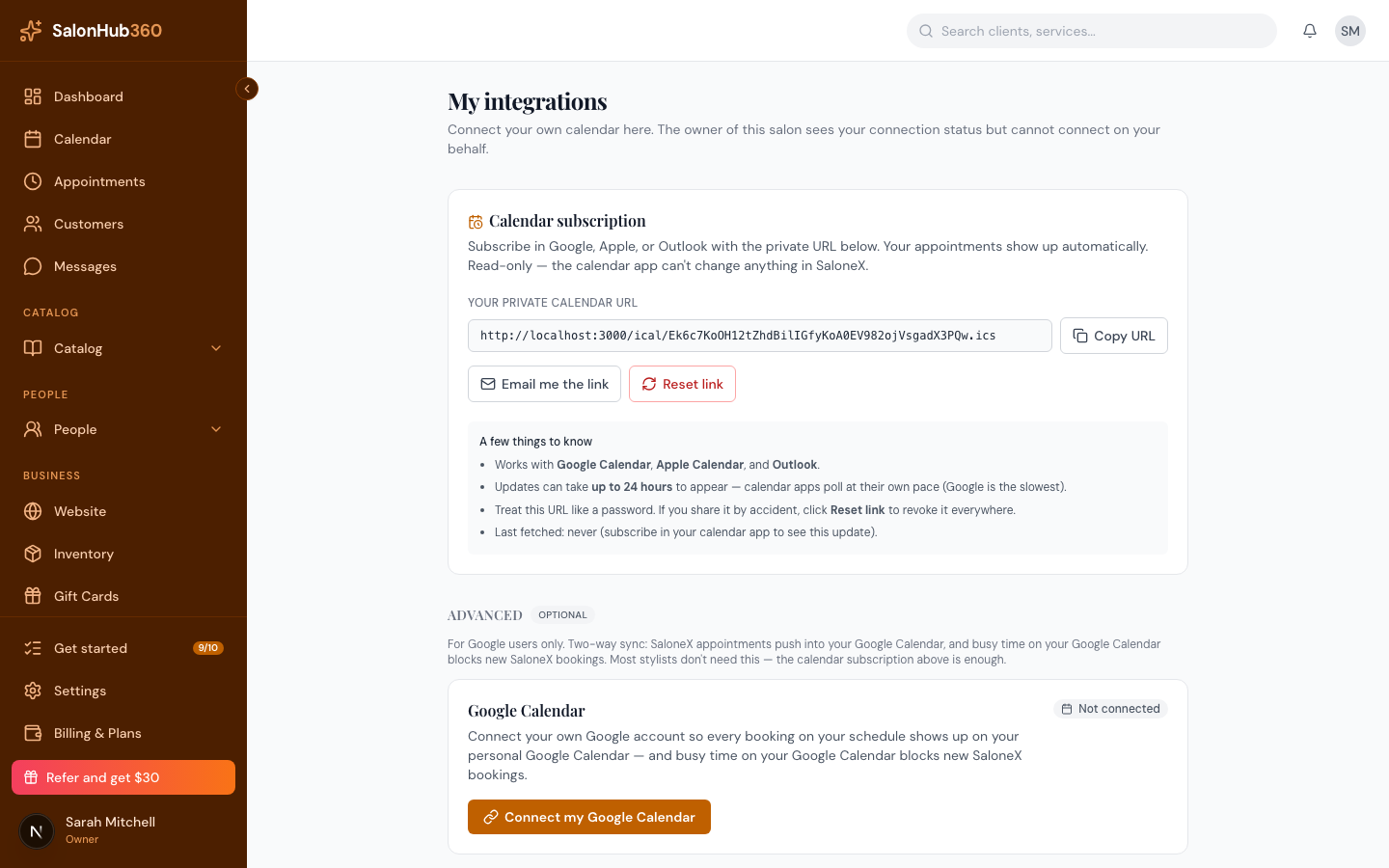
-
Under Calendar subscription, click Copy URL to copy your private calendar link, or click Email me the link to send it to yourself.
-
In your calendar app — Google Calendar, Apple Calendar, or Outlook — add a calendar by URL (sometimes called "Subscribe" or "From URL") and paste the link. Your appointments appear automatically.
Note: Updates can take up to 24 hours to show, because calendar apps refresh on their own schedule. Keep this link private — anyone with it can see your appointments. If it leaks, click Reset link to revoke it.
Note: The feed is one-way: appointments flow from SalonHub360 into your calendar. Events you add in your personal calendar don't block SalonHub360 bookings — use Manage time off to block time.
Note: You need a staff profile to get a calendar link. If you don't have one, ask your owner to add you under Staff first.
Related articles