
"My Schedule" for staff
Requirements
- Available on: All plans
- Device access: Web & mobile browser
- Permission: Any staff with a login
My Schedule is your personal view of your working hours and time off. It's where staff check when they're scheduled and request time off — without seeing the rest of the salon's settings.
What you'll see
-
In the left menu, open My Schedule.
<!-- CAPTURE: route=/my-schedule | login=provider | state=staff with a weekly schedule set | highlight=Weekly hours section | viewport=1440x900 -->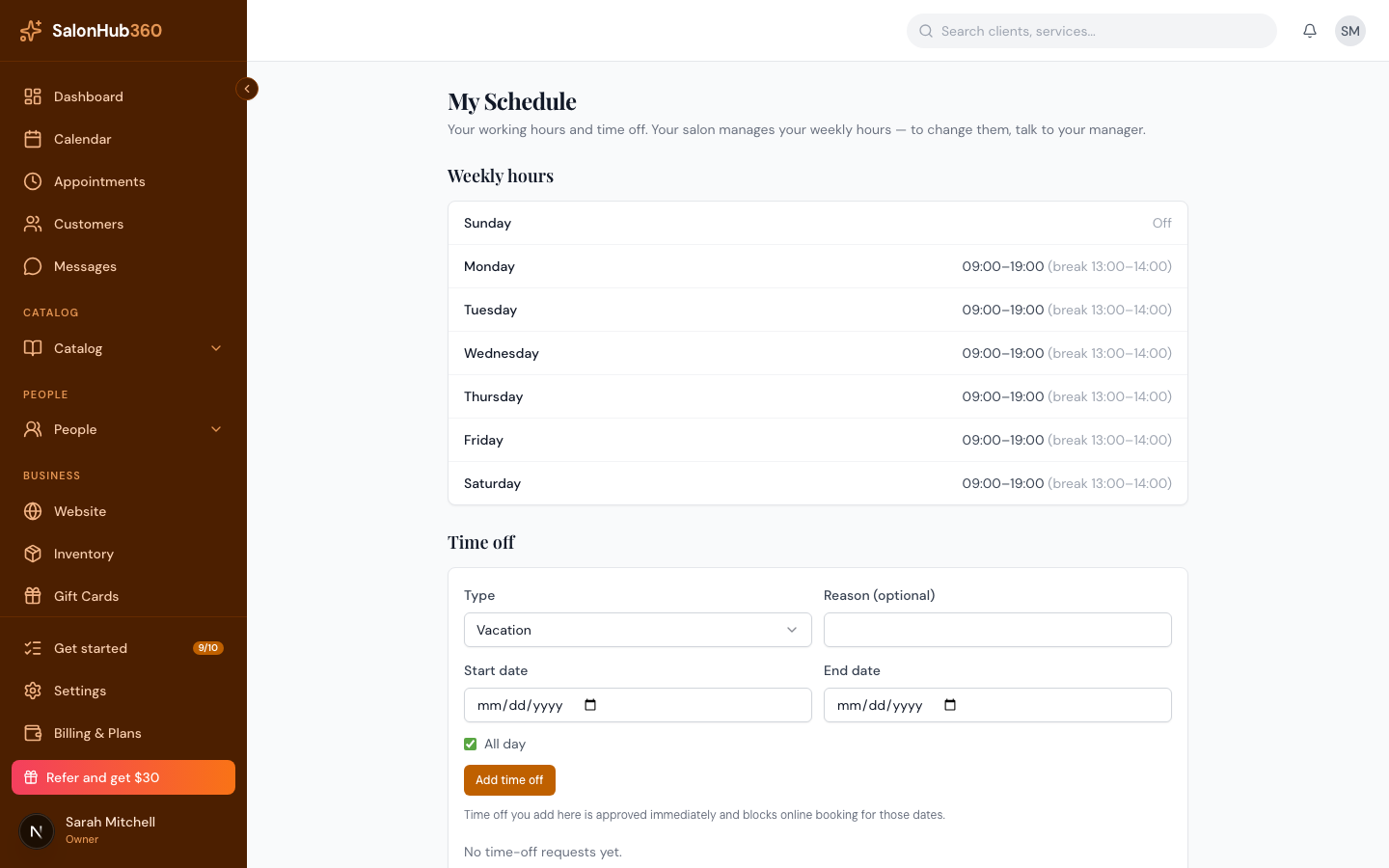
-
Weekly hours lists your working hours for each day, including any break. Days you don't work show Off.
-
Time off shows your upcoming and past time off, and lets you request more.
Requesting time off
In the Time off section, choose a Type, set your Start date and End date, and click Request time off. Leave All day ticked for full days, or untick it to request part of a day.
Your request shows as Pending until your owner or manager approves it. You'll see the status update to Approved or Rejected.
Note: Your weekly hours are read-only here — your salon manages them. To change your regular hours, talk to your owner or manager.
Tip: Want your shifts on your phone's calendar? See Subscribe to your calendar feed.
Related articles