
Track retail inventory
Requirements
- Available on: Growth and above
- Device access: Web & mobile browser
- Permission: Owner or Manager
Keep tabs on the retail products and back-bar supplies you stock — set costs and prices, watch quantities, and record every stock movement so your counts stay accurate.
How to add a product
-
In the left menu, open Inventory, then click Add product.
<!-- CAPTURE: route=/inventory | login=owner | state=inventory list with products | highlight=Add product button | viewport=1440x900 -->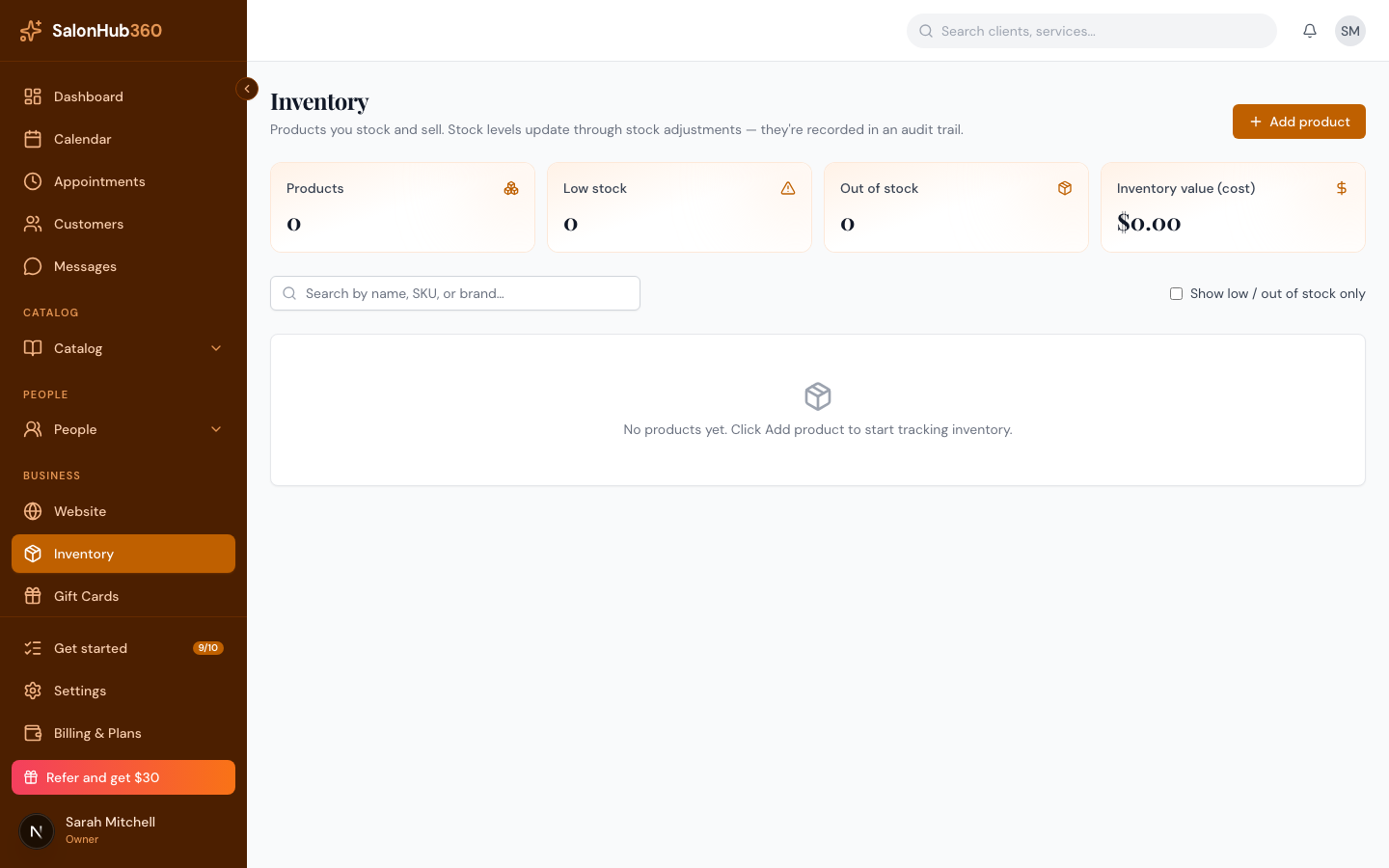
-
Enter the Product name, and optionally a SKU, Brand, and Category. Set the Cost ($) you pay and the Retail price ($) you charge.
<!-- CAPTURE: route=/inventory | login=owner | state=Add product dialog | highlight=Product name, Cost, Retail price fields | viewport=1440x900 -->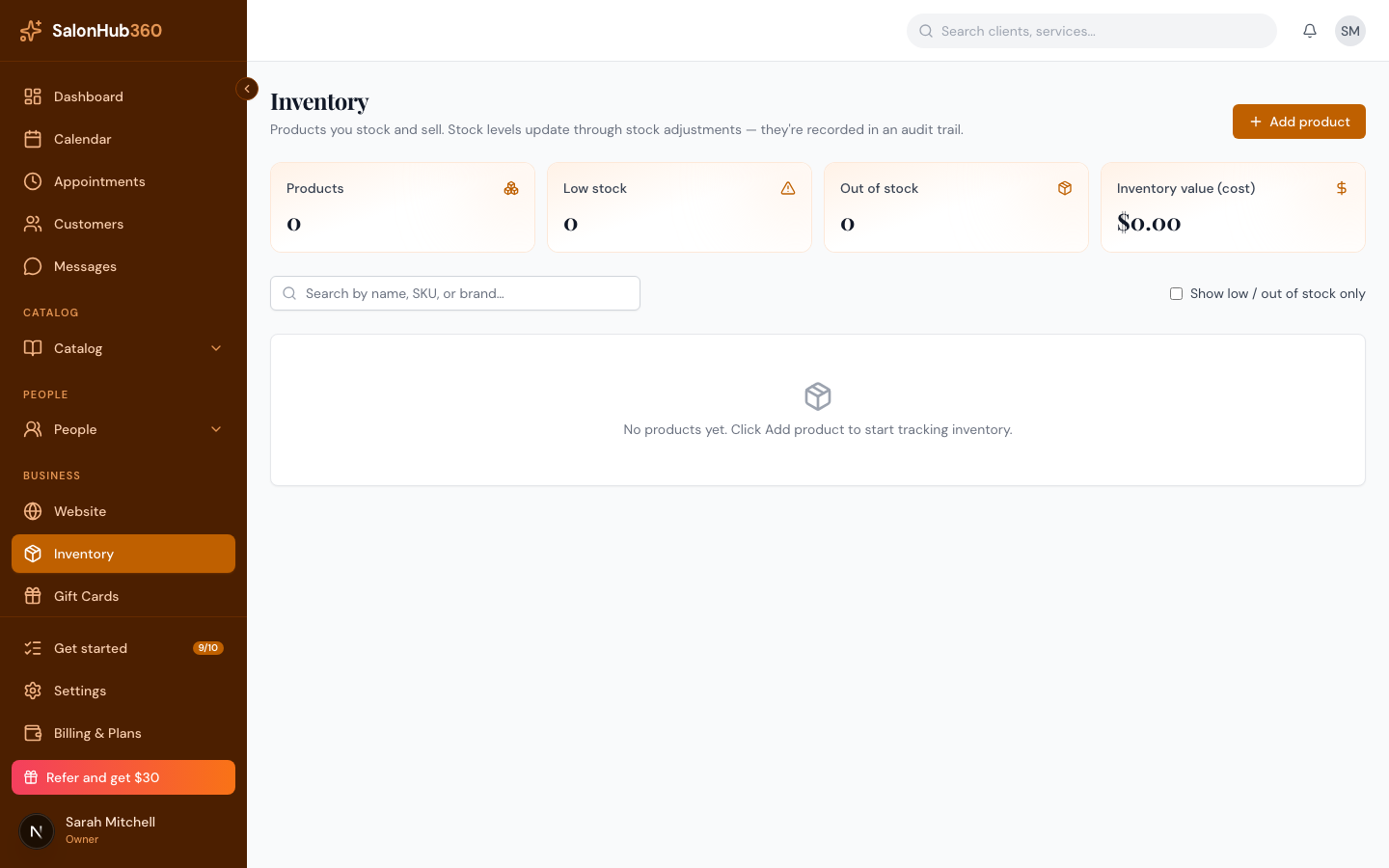
-
Set Initial stock on hand, then a Minimum stock level (which triggers the low-stock alert) and a Reorder point. Mark it as a Retail item, a Back-bar item, or both, and choose a Location.
<!-- CAPTURE: route=/inventory | login=owner | state=Add product dialog scrolled to stock fields | highlight=Minimum stock and Reorder point | viewport=1440x900 -->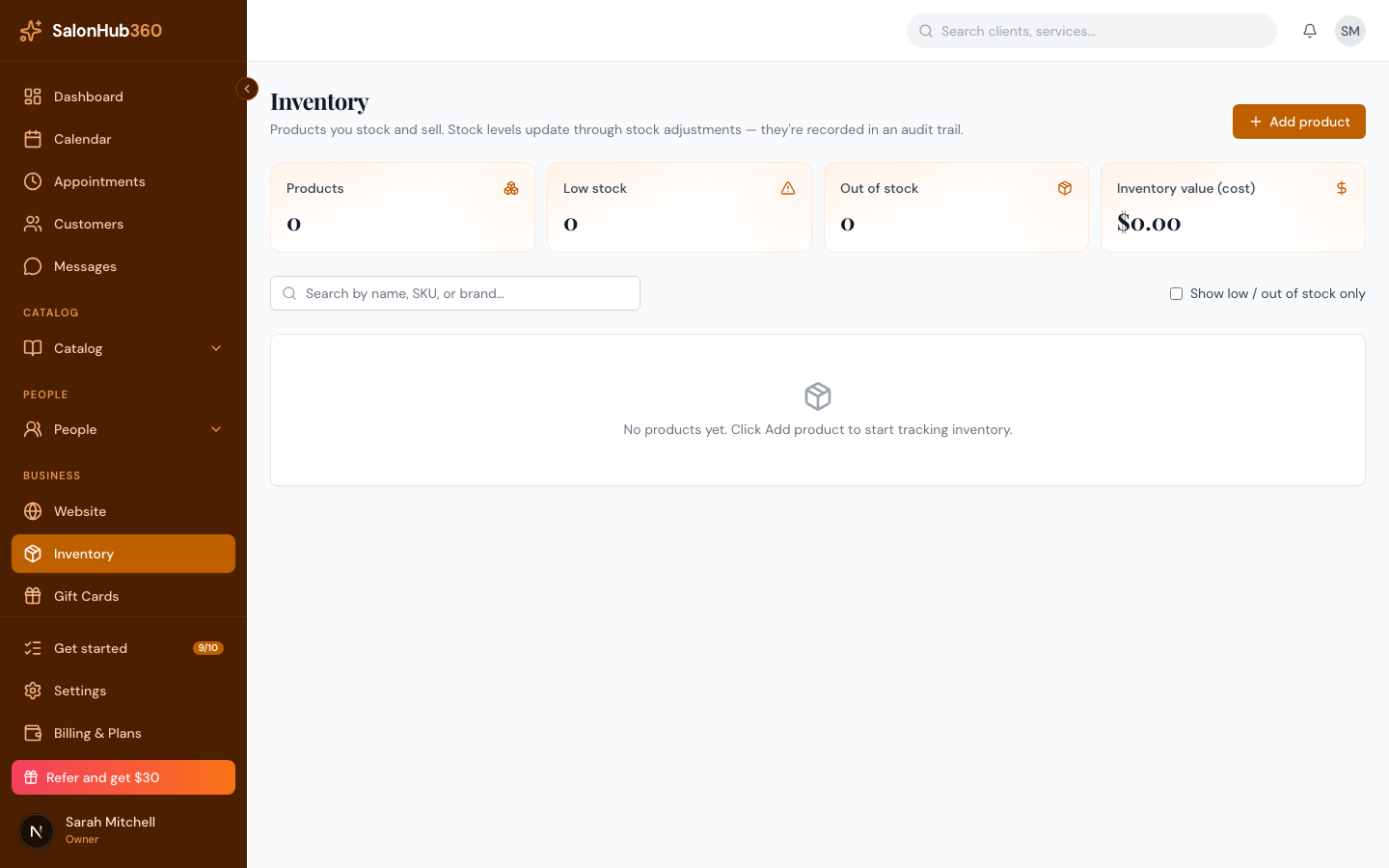
-
Save. Your product appears in the inventory list.
Adjust stock
Whenever stock changes, record it so your counts stay audited and correct.
-
Find the product and click Adjust stock.
<!-- CAPTURE: route=/inventory | login=owner | state=inventory list | highlight=Adjust stock action on a product | viewport=1440x900 -->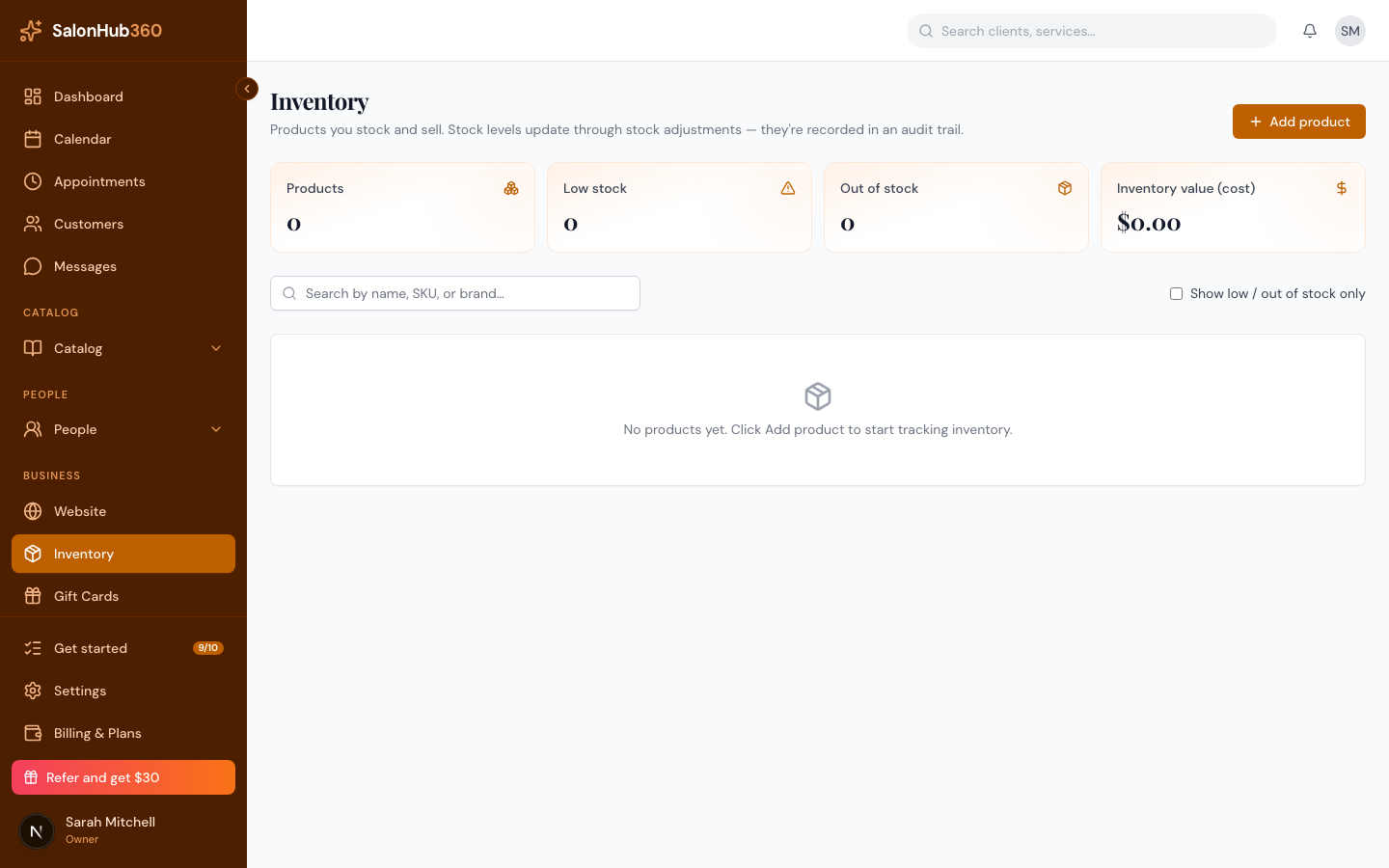
-
Choose a reason — Received (stock arrived), Sold, Used (back-bar consumption), Returned, Damaged / lost, or Manual adjustment — enter a positive Quantity, add an optional note, and click Record adjustment. Inflows add to stock; outflows subtract automatically.
<!-- CAPTURE: route=/inventory | login=owner | state=Adjust stock dialog | highlight=reason dropdown and Quantity field | viewport=1440x900 -->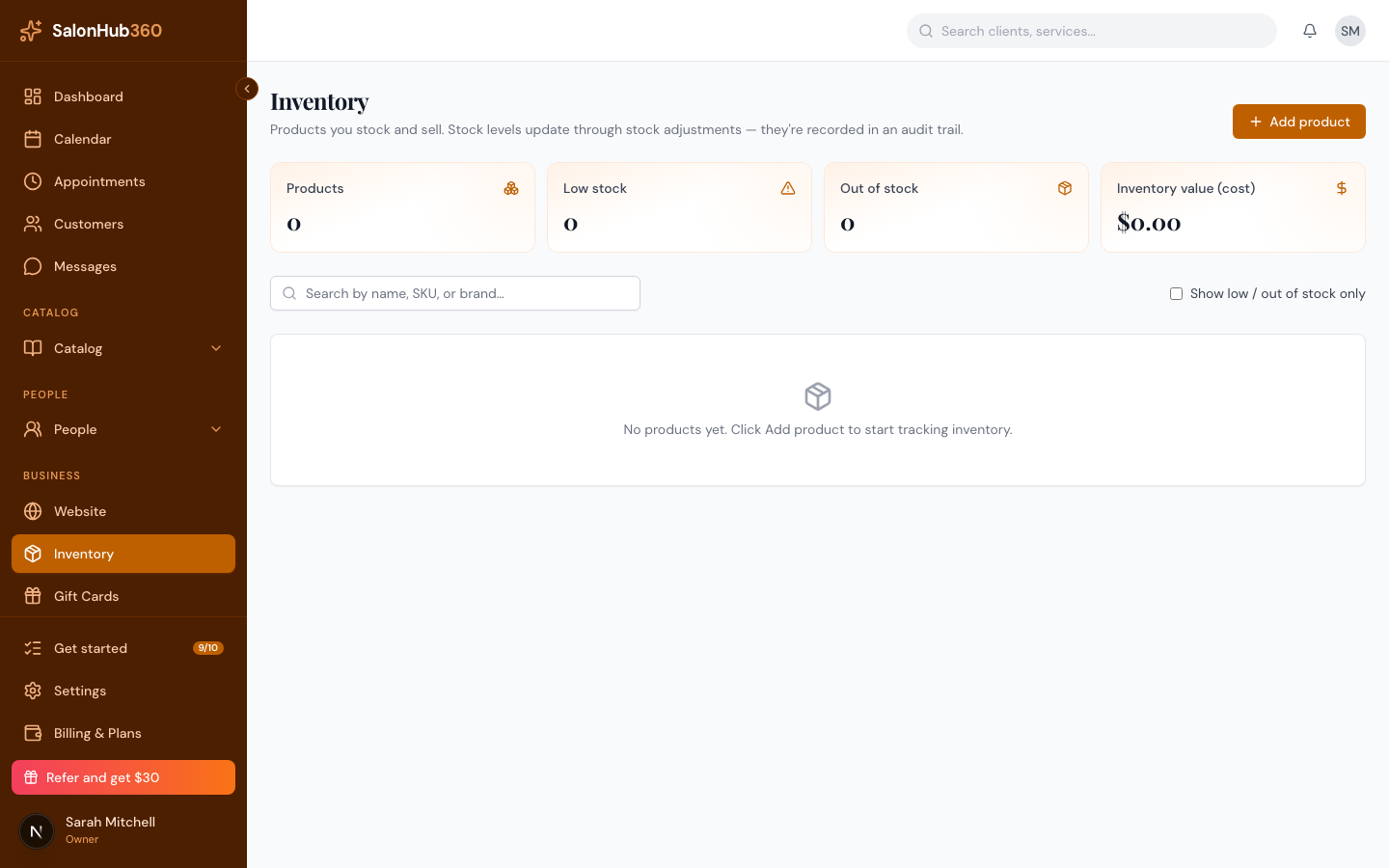
Find low stock
The cards at the top of the page count your Low stock and Out of stock items, and each product shows a Low, Out, or In stock badge. Tick Show low / out of stock only to filter the list down to what needs reordering. Use Search by name, SKU, or brand to jump to a specific product. Click a product name to view its full details, or Edit to change it.
Note: In edit mode, change a product's quantity through Adjust stock rather than typing a new number — that keeps a full, audited history of every movement.
Related articles