
Create a package
Requirements
- Available on: Starter and above
- Device access: Web & mobile browser
- Permission: Owner or Manager
Bundle several services into one pre-paid package — like a 5-pack of blowouts — and offer it at a discount to the à-la-carte price. You can build and manage packages now; selling them to clients turns on with SalonHub360 Payments.
How to create a package
-
In the left menu, open Packages (under Catalog), then click New package.
<!-- CAPTURE: route=/catalog/packages | login=owner | state=packages list | highlight=New package button | viewport=1440x900 -->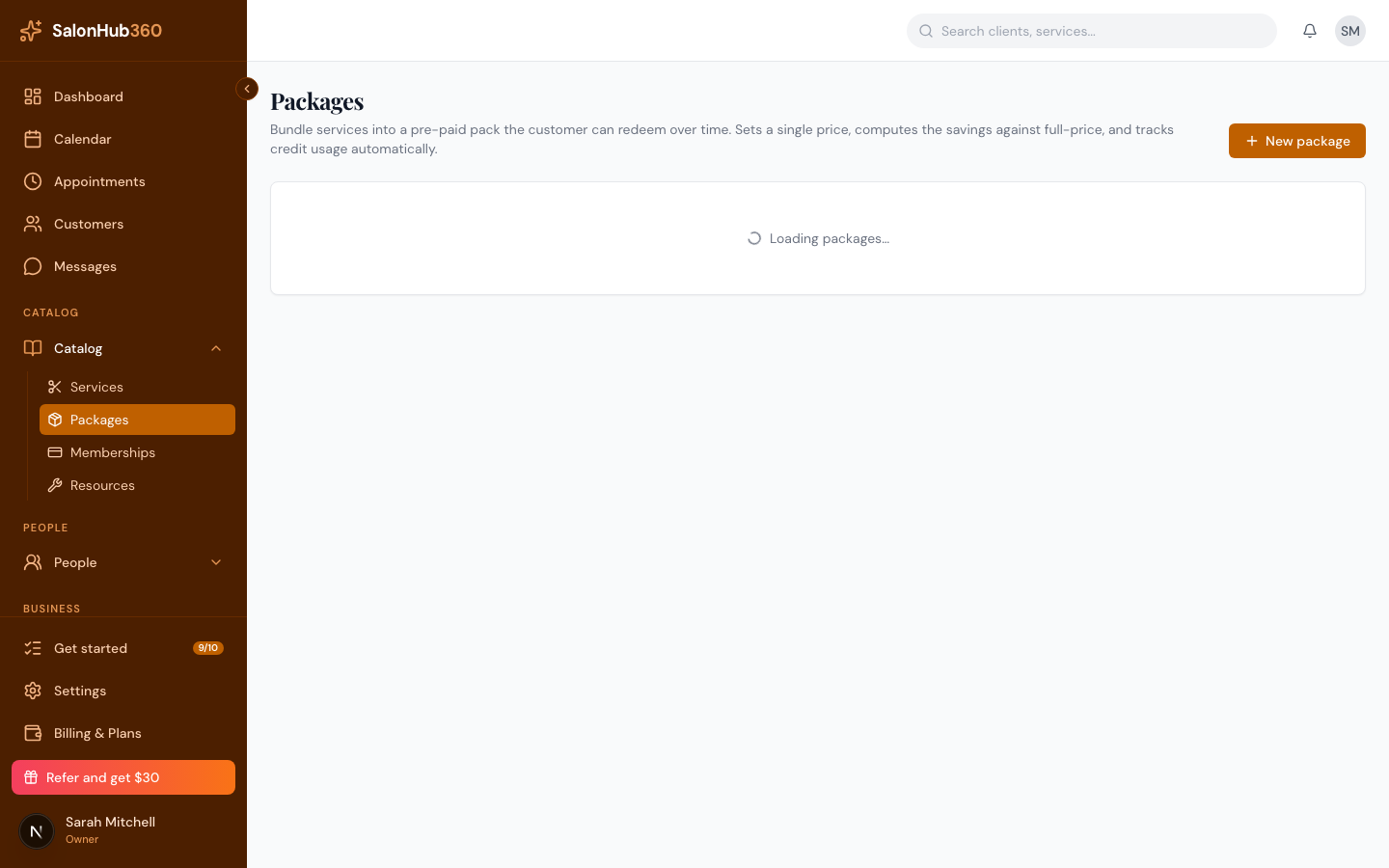
-
In Details, enter a Name and Description, optionally add an image, and choose whether to Feature on your booking page.
<!-- CAPTURE: route=/catalog/packages/new | login=owner | state=new package, Details section | highlight=Name field | viewport=1440x900 -->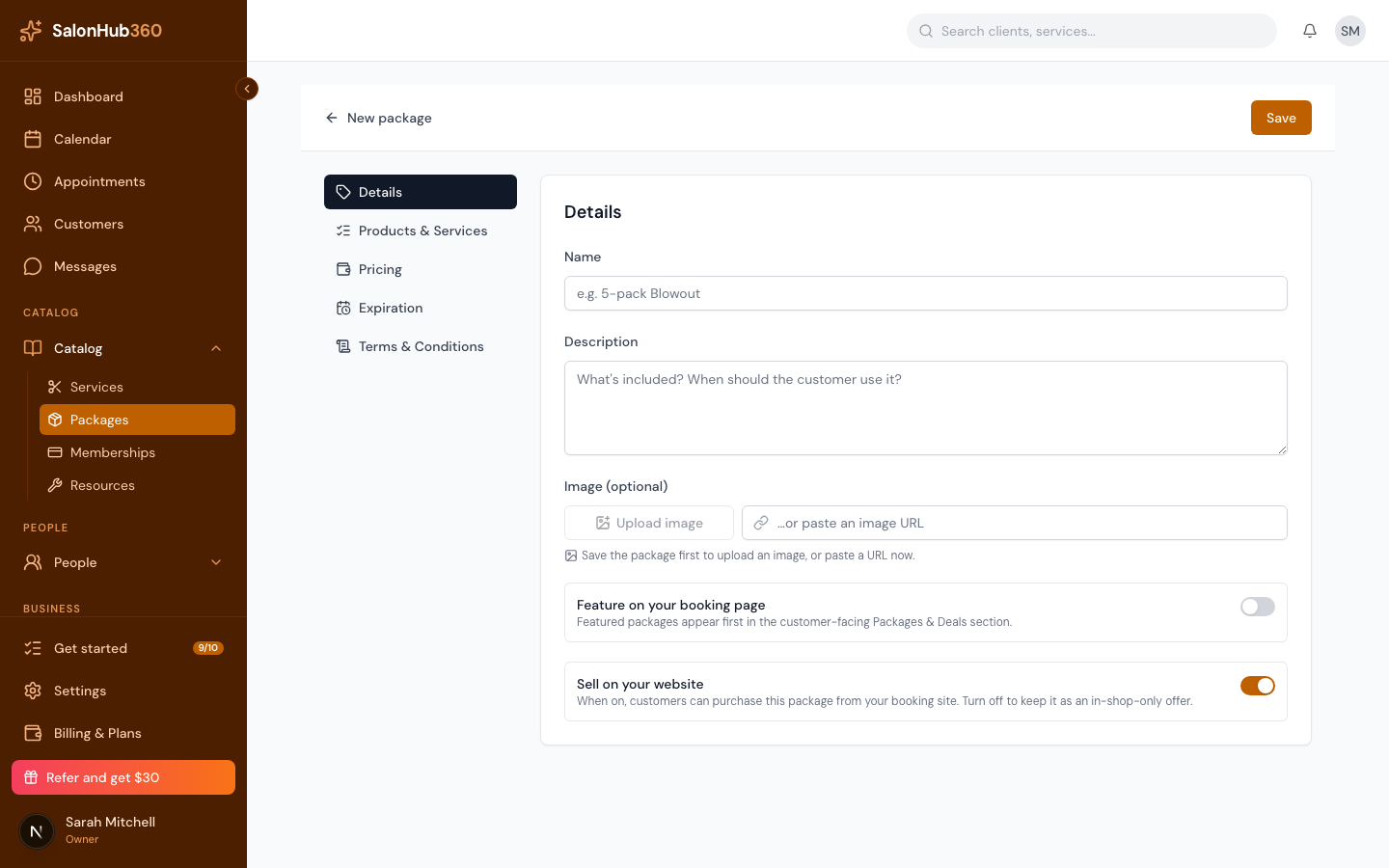
-
Open Products and Services. Pick a service from the dropdown and click Add, then set the Quantity. Repeat to include more services. The running total shows the à-la-carte value.
<!-- CAPTURE: route=/catalog/packages/new | login=owner | state=new package, Products and Services with 2 services | highlight=Add button | viewport=1440x900 -->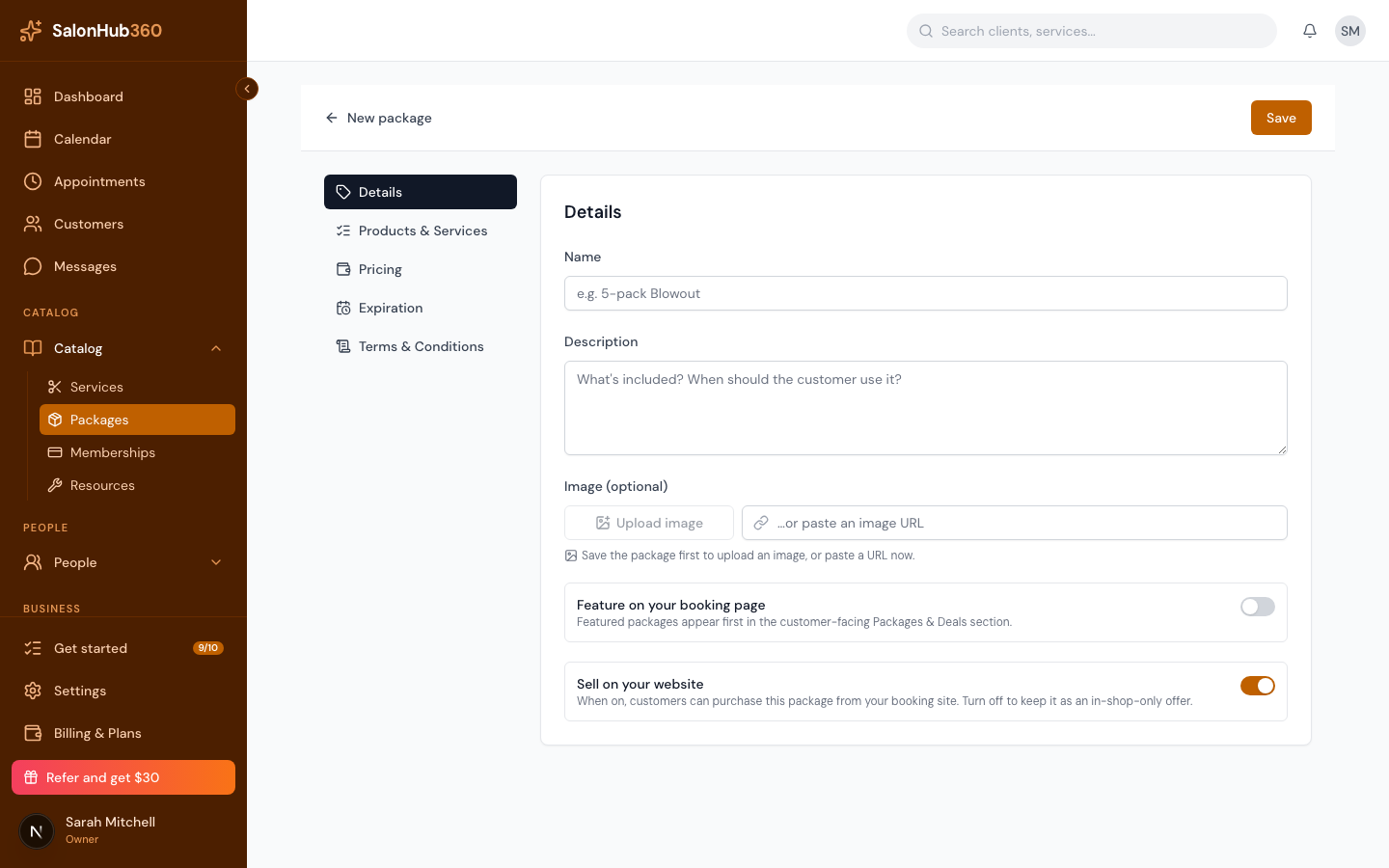
-
Open Pricing and set the Package price. SalonHub360 shows how much the client saves versus buying each service separately.
<!-- CAPTURE: route=/catalog/packages/new | login=owner | state=new package, Pricing section | highlight=Package price field and savings line | viewport=1440x900 -->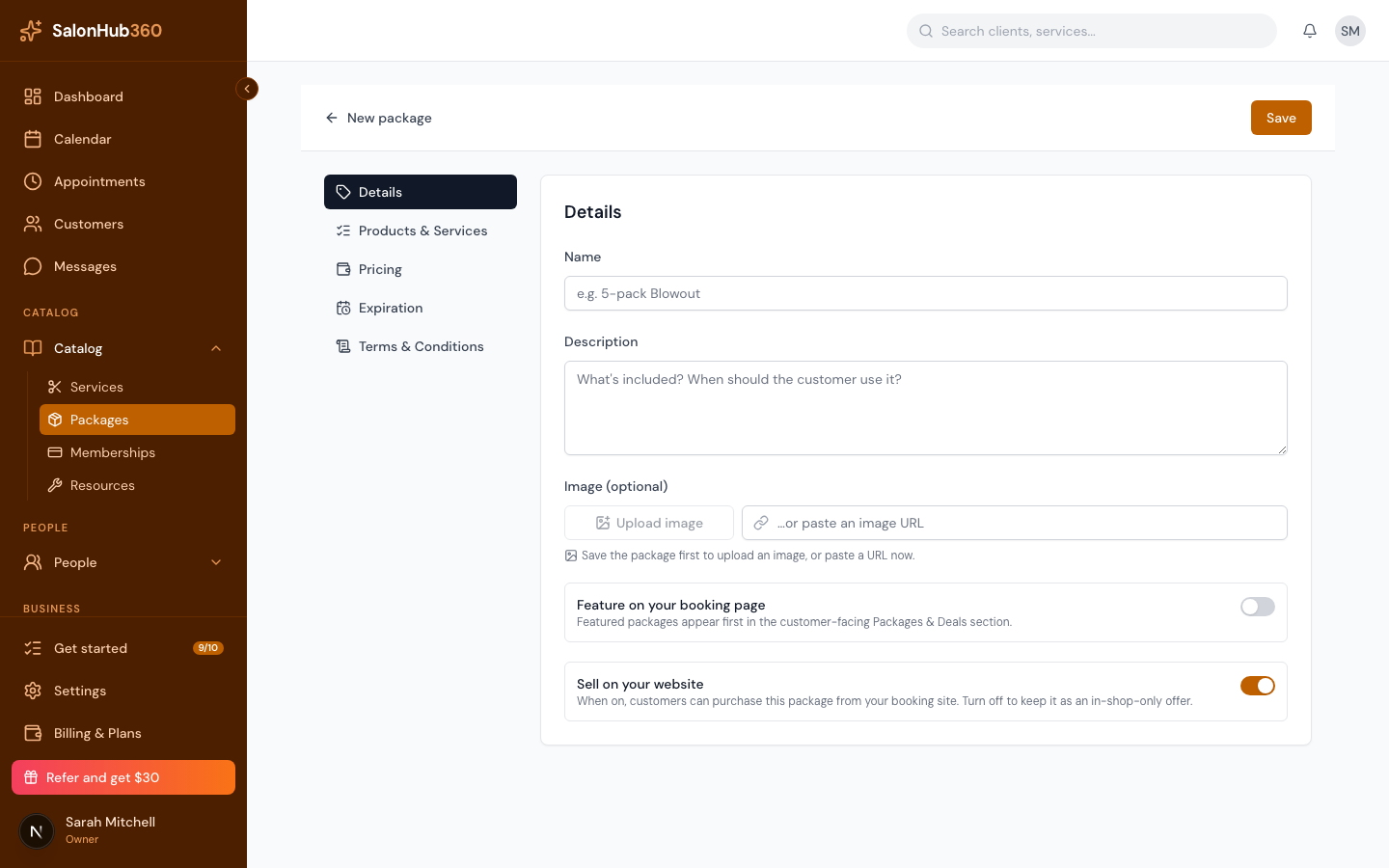
-
(Optional) In Expiration, turn on expiry and set Valid for a number of Days, Months, or Years. Turn on Shareable credits to let the buyer use the package for guests too.
-
(Optional) Add any rules in Terms & Conditions, then click Save.
Manage your packages
Your packages list shows each package's name, item count, credits, price (with savings), validity, and status. Click Edit to update one. To remove a package, open it and click Delete — existing purchases stay valid, but it won't be sold anymore.
Note: You can build and manage packages today, but selling packages requires SalonHub360 Payments. The in-app banner reads: "Selling packages requires the payments milestone (Stripe / card-on-file). The catalog entry is fully managed today; package purchases unlock when payments goes live." Set them up now; you'll be able to sell them once Payments is on.
Tip: Want a recurring plan instead of a one-time bundle? See Create a membership.
Related articles