
Collect a deposit at booking
Requirements
- Available on: All plans
- Device access: Web & mobile browser
- Permission: Owner
A deposit asks clients to pay part of the price up front when they book online — a simple way to reduce no-shows and hold a slot. You set deposit rules under Settings → Policies.
Before you start
Deposits are collected at online booking only when your SalonHub360 Payments account is active. Until then you can configure your deposit rules and show them on your booking page, but no money is taken.
How to set up a deposit
-
From the left menu, open Settings, then select the Policies tab.
<!-- CAPTURE: route=/settings?tab=policies | login=owner | state=Policies tab, Deposits card visible | highlight=Policies tab | viewport=1440x900 -->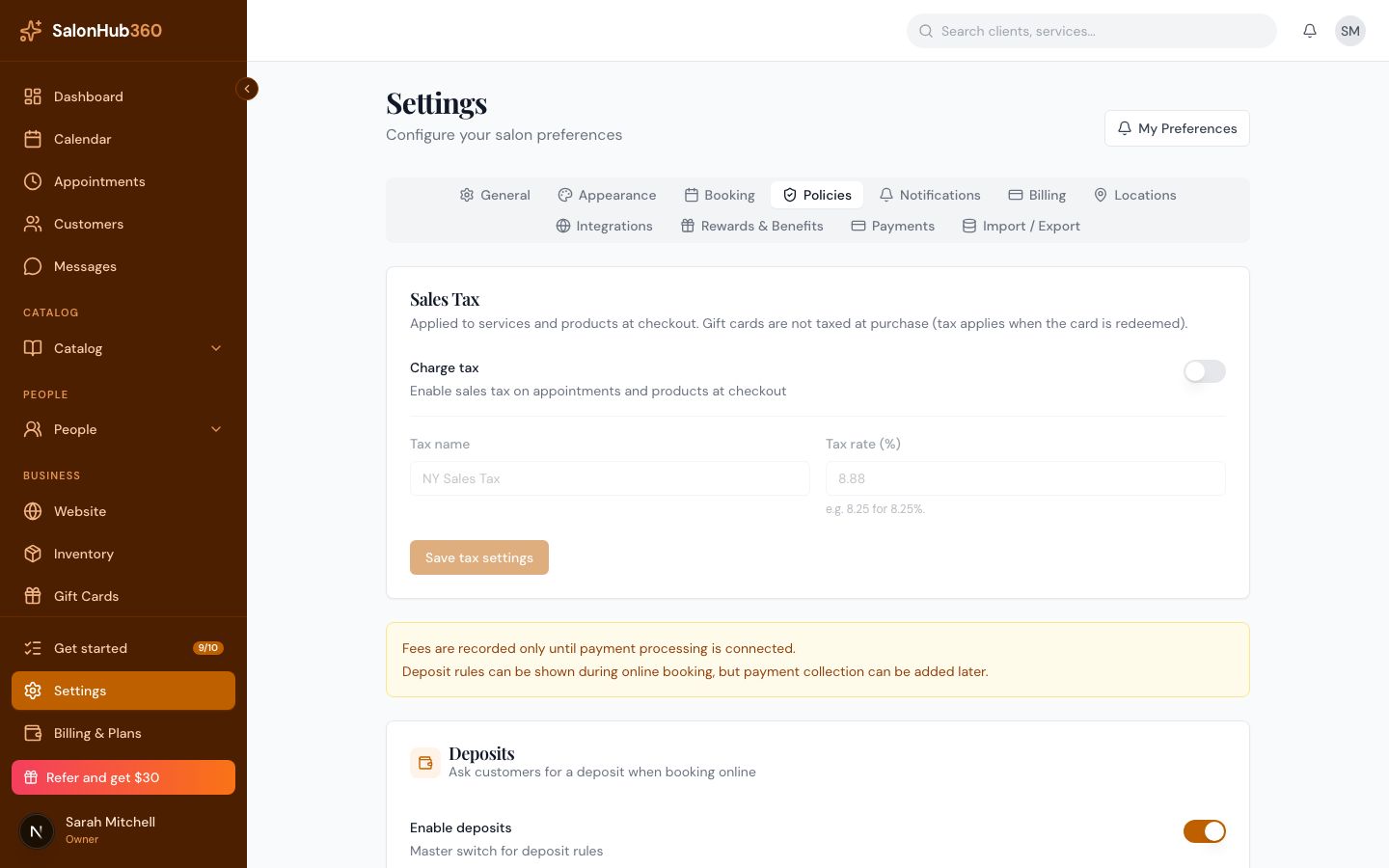
-
In the Deposits card, turn on Enable deposits, then turn on Require deposit for online booking if you want the deposit to be required to reserve.
<!-- CAPTURE: route=/settings?tab=policies | login=owner | state=Deposits enabled | highlight=Enable deposits toggle | viewport=1440x900 -->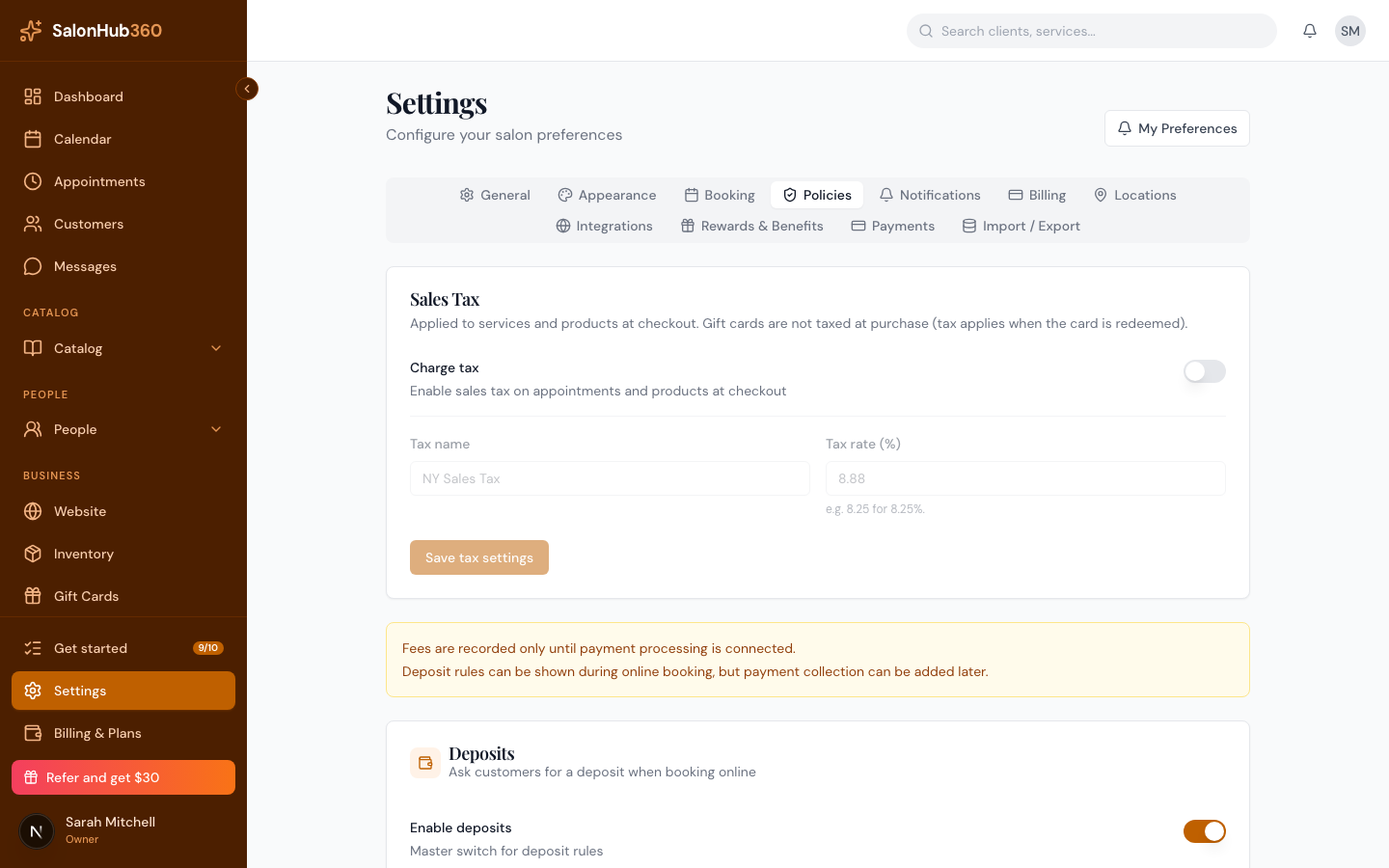
-
Choose a Deposit type — Fixed ($) for a flat amount, or Percentage (%) of the service price — and enter the Amount or Percentage.
<!-- CAPTURE: route=/settings?tab=policies | login=owner | state=Deposit type Percentage selected, value entered | highlight=Deposit type | viewport=1440x900 -->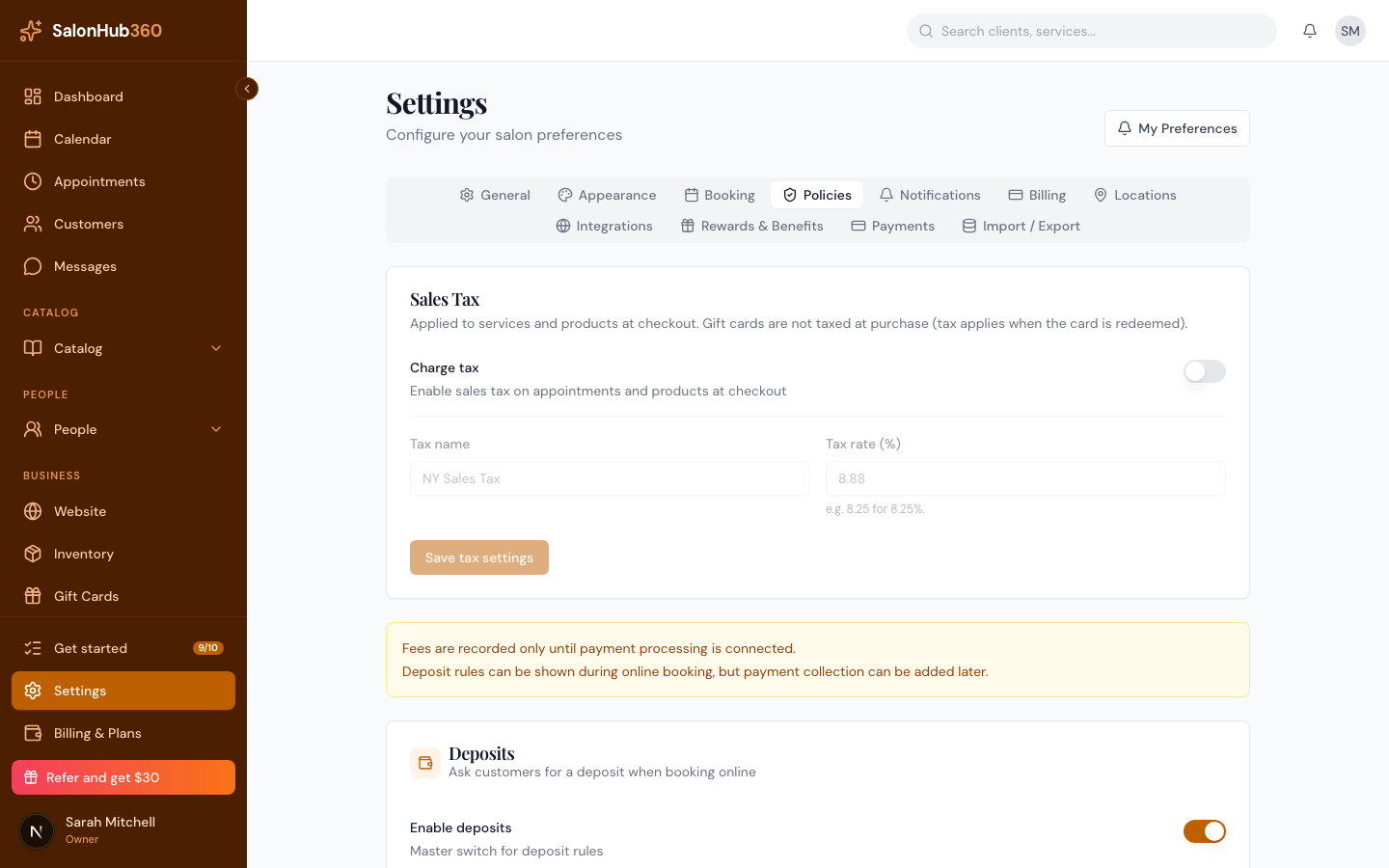
-
Click Save changes.
-
When a client books on your Online Booking page, the deposit is shown and (once Payments is active) collected before the booking is confirmed. The amount paid appears as Deposit collected on the appointment and counts toward the balance.
Note: Deposit rules are set for your whole business under Settings → Policies — the per-service deposit toggle on the service form is reserved for a future update and is currently switched off.
Tip: Deposits pair well with a clear cancellation policy. See Set cancellation & no-show fees.
Related articles