
Add a tip to a payment
Requirements
- Available on: All plans
- Device access: Web & mobile browser
- Permission: Owner or Manager (anyone with payment access)
You can add a gratuity when you record a payment. The tip is captured alongside the payment and tracked separately from the service total, so your records stay accurate.
How to add a tip
-
Open the appointment from your Appointments list or Calendar, then in the Payments section click Record Payment.
<!-- CAPTURE: route=/appointments | login=owner | state=detail dialog open, balance due | highlight=Record Payment button | viewport=1440x900 -->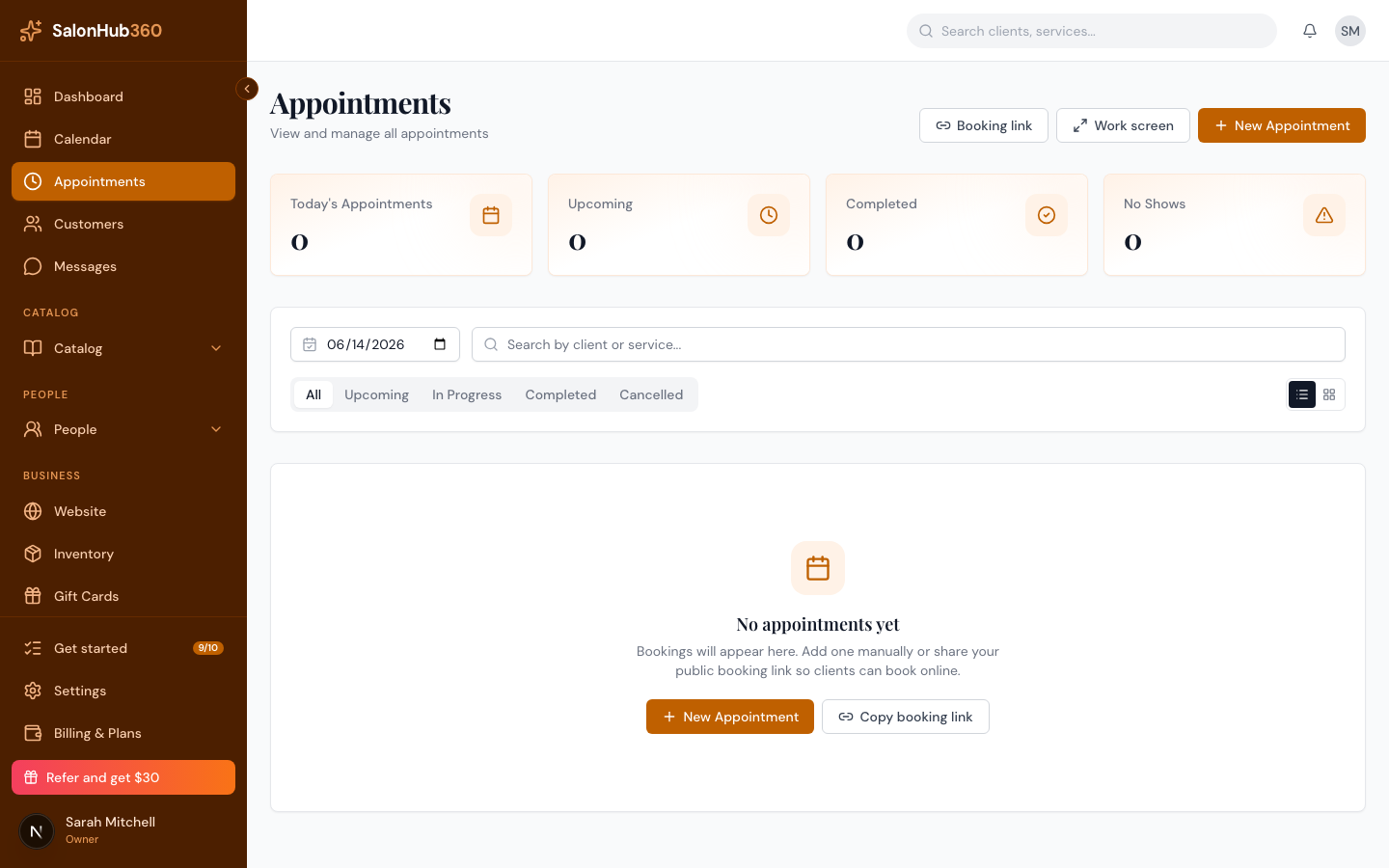
-
Enter the service Amount as usual, then enter the gratuity in the Tip (optional) field.
<!-- CAPTURE: route=/appointments | login=owner | state=Record Payment dialog, amount and tip filled | highlight=Tip field | viewport=1440x900 -->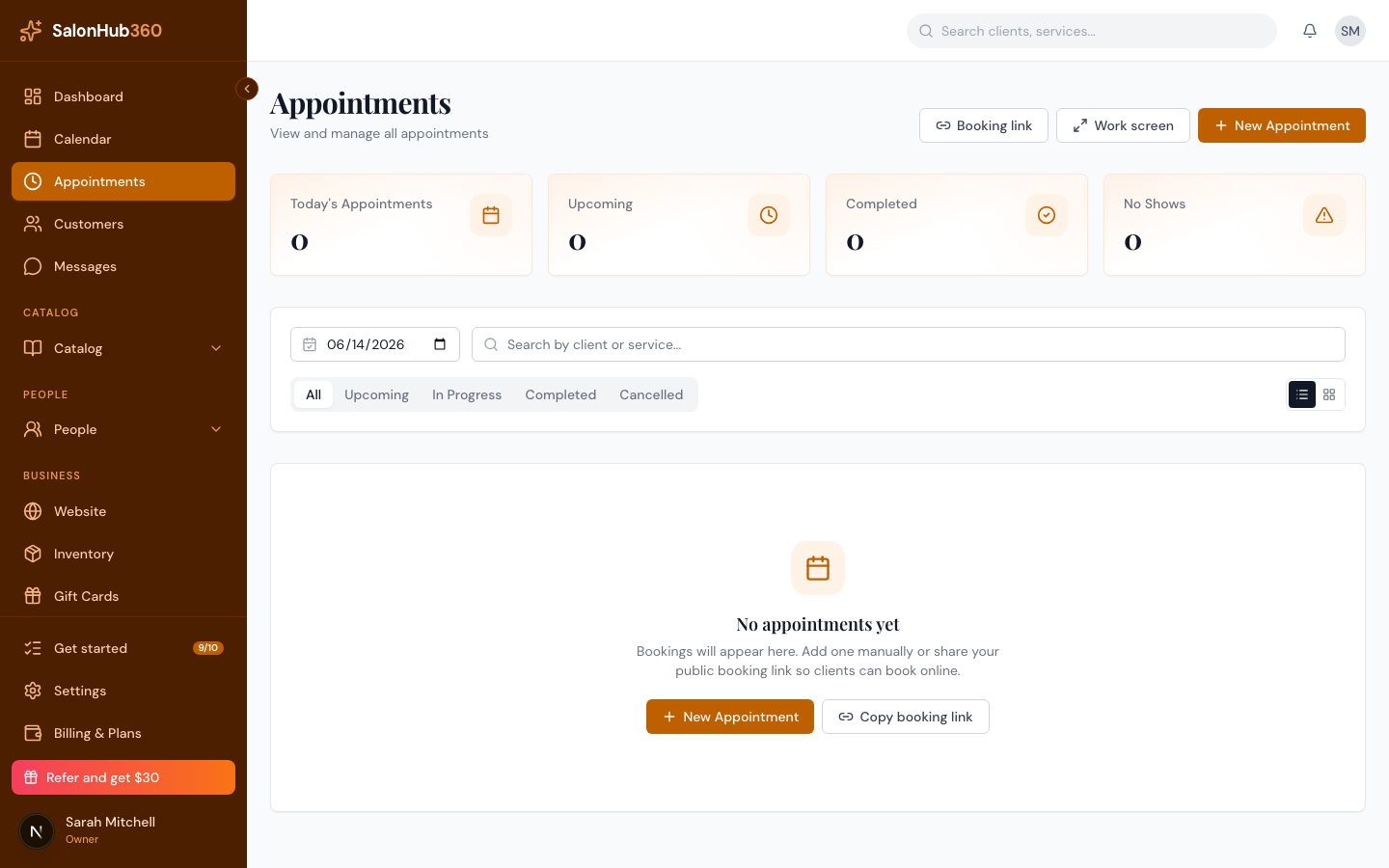
-
Choose your Method and finish the payment (Record for a manual tender, or Continue to card for a card). The tip is included.
-
The payment history shows the tip next to the amount — for example $85.00 (+$15.00 tip) — and the Payments summary adds a Tips line.
<!-- CAPTURE: route=/appointments | login=owner | state=detail dialog, payment recorded with tip | highlight=Tips line | viewport=1440x900 -->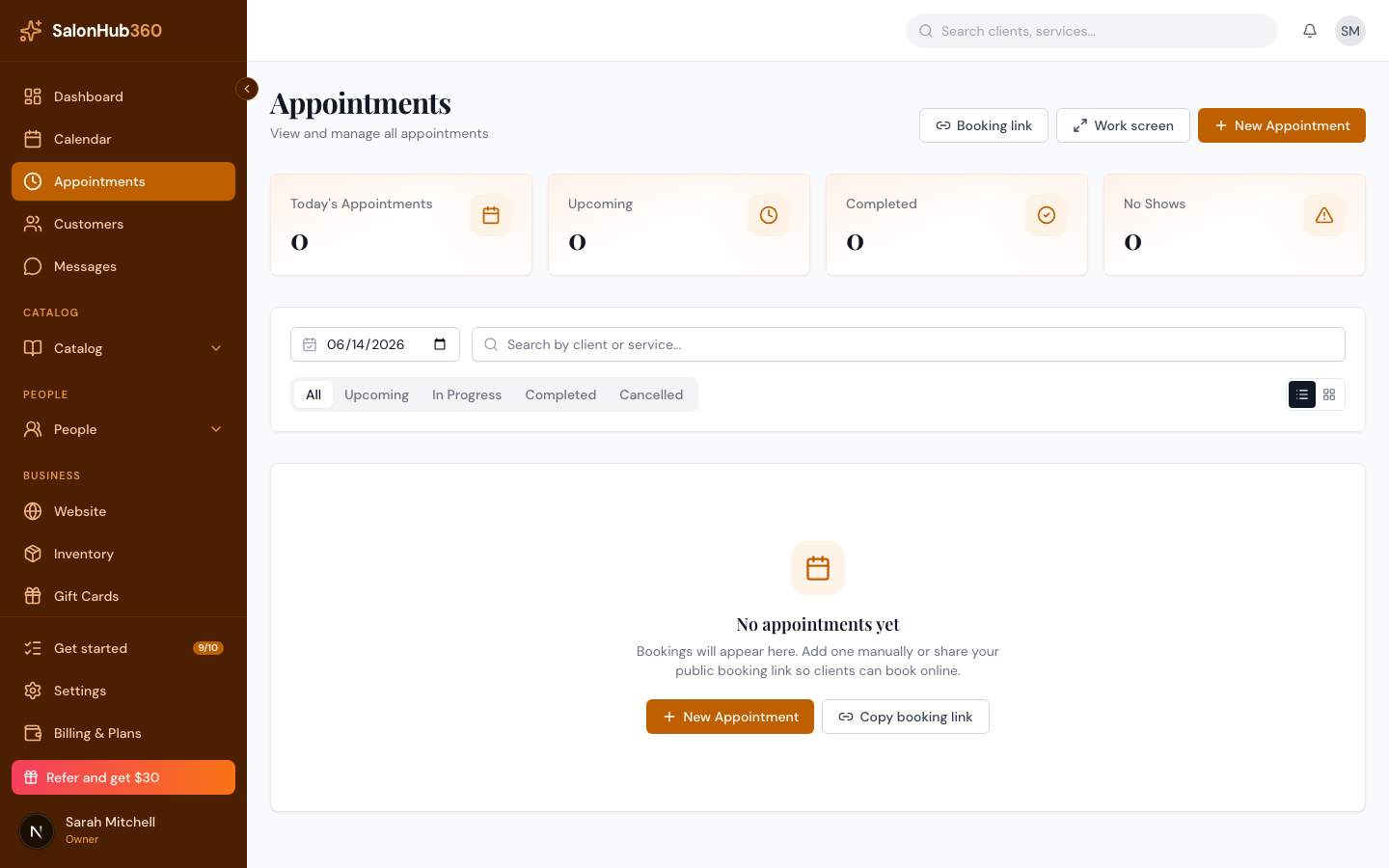
Note: Tips are not taxed and are not part of the balance due — they're added on top of the amount owed for the service. Recording a tip never changes whether an appointment reads as paid in full.
Tip: Want to set up sales tax on the service portion? See Set up taxes.
Related articles