
Clients: How to book an appointment online
Requirements
- Available on: All plans
- Device access: Web & mobile browser
- Permission: Client
Book a service with your salon in a few taps, right from your phone or computer — no account needed to get started.
Open your salon's booking page
Your salon will share a booking link with you (on their website, social media, or in a message). Open that link to start. In these examples we use the demo salon The Glow Studio, but always use your own salon's link.
A progress bar at the top shows where you are: Service → Date & Time → Provider → Your Details → Confirm. (If your salon has more than one location, you'll pick a Location first.)
How to book your appointment
-
If you're asked, choose your Location. On the next screen, Choose a Service — tap the services you want. You can search with Search services… and switch between Cards and List views. When you're done, tap Continue.
<!-- CAPTURE: route=/book/glow-studio | login=none (public) | state=Service step, one service selected, sticky Continue bar visible | viewport=1440x900 -->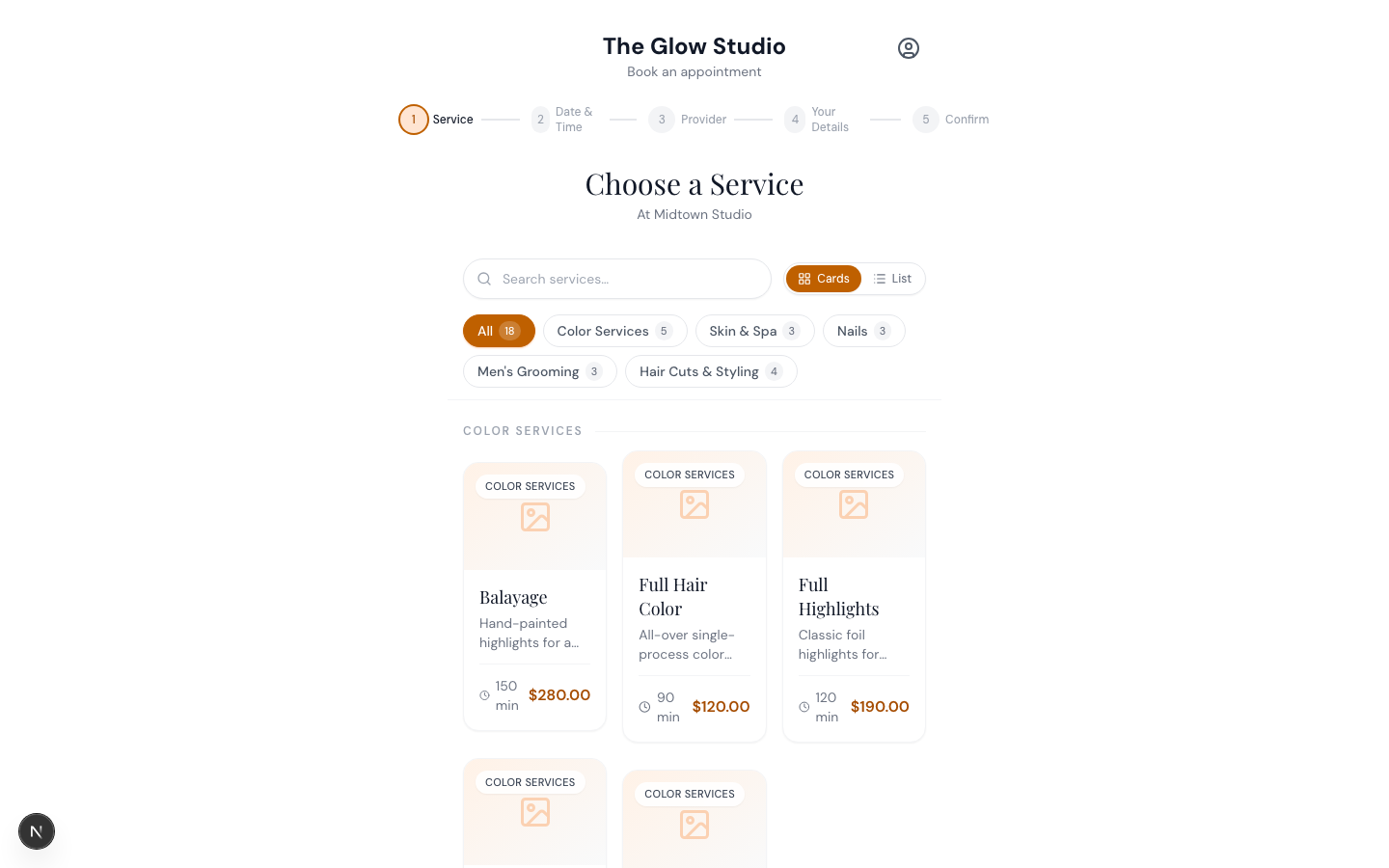
-
On Pick a Date & Time, choose a day from the row of dates, then tap an available time under Available times. Greyed-out times are too soon to book online.
<!-- CAPTURE: route=/book/glow-studio | login=none (public) | state=Date & Time step, a date selected showing available time slots | viewport=1440x900 -->
-
On Choose a Provider, pick a team member — or choose Any Available Provider to let the salon assign the best fit.
<!-- CAPTURE: route=/book/glow-studio | login=none (public) | state=Provider step showing Any Available Provider plus named staff | viewport=1440x900 -->
-
On Your Details, enter your Phone number and tap Continue. If you've booked here before, we'll fill in your details automatically. Otherwise, add your First Name, Last Name, Email, and any Notes (optional), then tap Review Booking.
<!-- CAPTURE: route=/book/glow-studio | login=none (public) | state=Your Details step, full form shown after phone entry | viewport=1440x900 -->
-
On Review & Confirm, check your booking summary, tick I agree to the booking and cancellation policy, then tap Confirm Booking.
<!-- CAPTURE: route=/book/glow-studio | login=none (public) | state=Review & Confirm step with policy checkbox and Confirm Booking button | viewport=1440x900 -->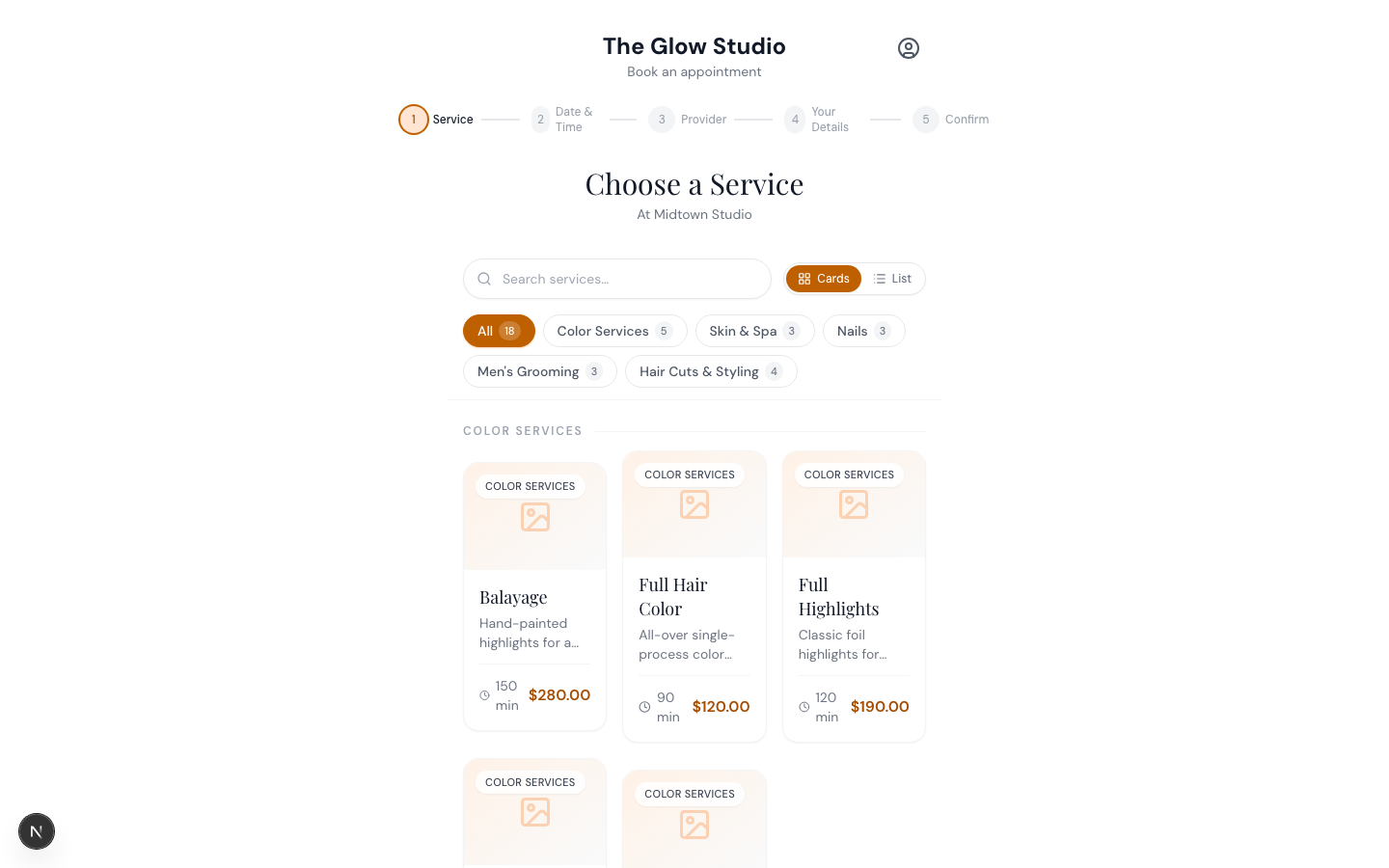
-
You'll see Booking Received with your appointment details. You can tap Book Another Appointment, or create a free account to manage your visits later.
<!-- CAPTURE: route=/book/glow-studio | login=none (public) | state=success screen, Booking Received with Save time next time account card | viewport=1440x900 -->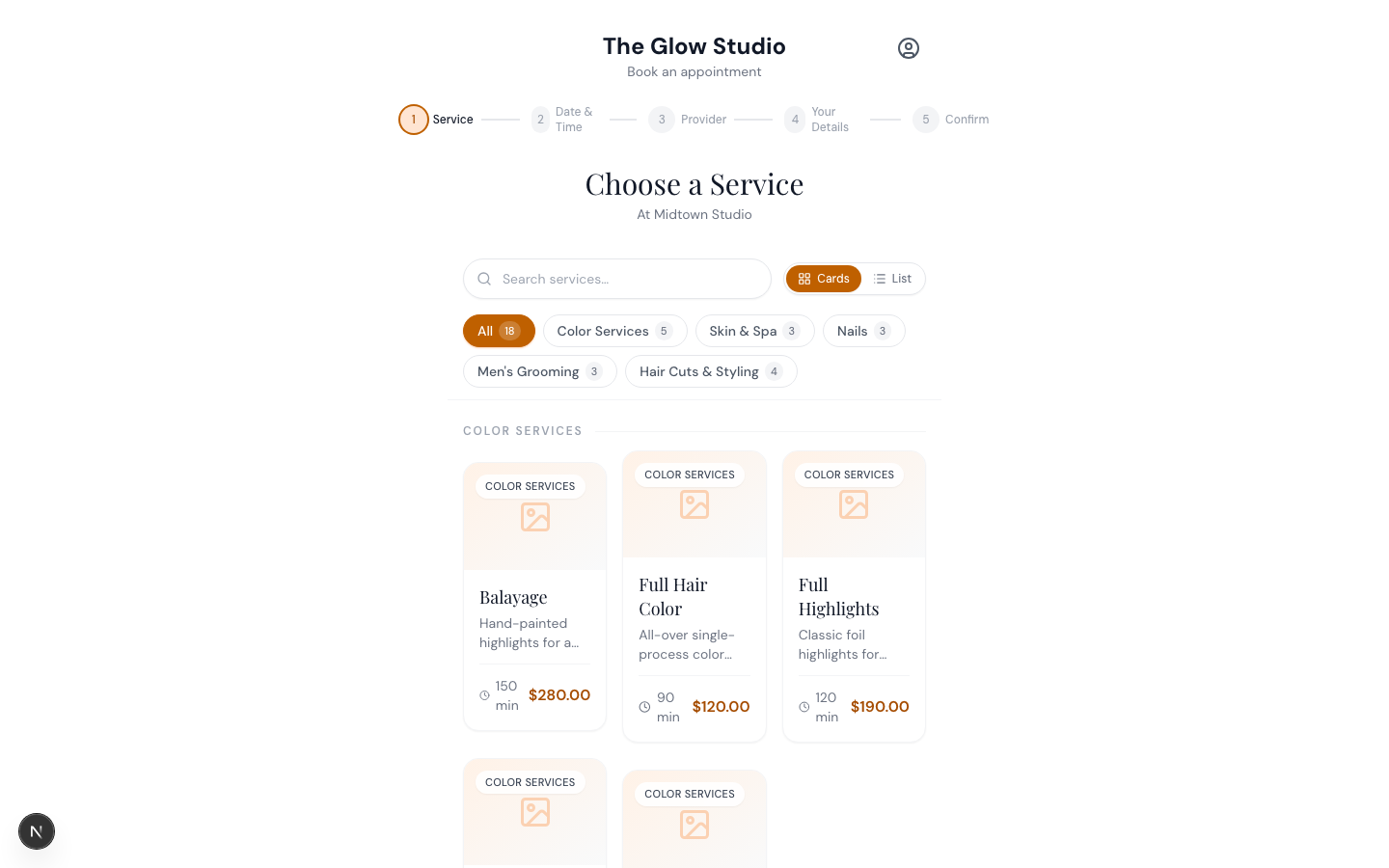
Note: Some salons ask new clients to be approved before an appointment is confirmed, or collect a deposit when you book. If so, you'll see this on the Review & Confirm screen before you finish.
Tip: Create a free account at the end to view, rebook, and track rewards — see Clients: Create your account & sign in.
Related articles