
Set your business name, time zone & logo
Requirements
- Available on: All plans
- Device access: Web & mobile browser
- Permission: Owner
Your business profile is the information clients see — your salon name, contact details, and logo — plus the time zone that keeps your calendar and availability accurate. You'll find it all under Settings → General.
How to set your business profile
-
In the left menu, open Settings, then select the General tab.
<!-- CAPTURE: route=/settings?tab=general | login=owner | state=General tab | highlight=Salon Identity card | viewport=1440x900 -->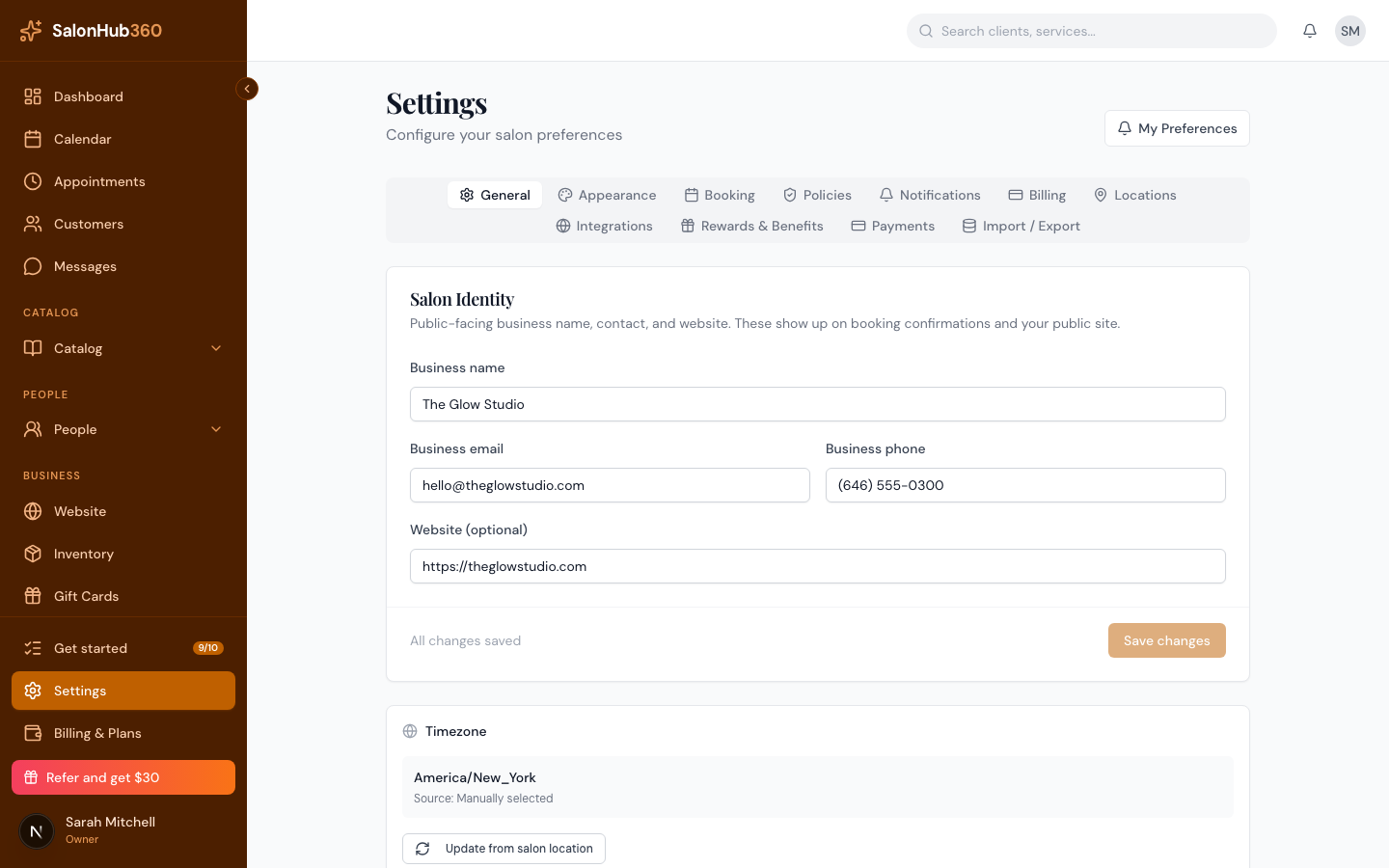
-
In the Salon Identity card, fill in your Business name, Business email, Business phone, and an optional Website. These appear on your booking page and on booking confirmations. Click Save changes.
<!-- CAPTURE: route=/settings?tab=general | login=owner | state=Salon Identity filled in | highlight=Save changes button | viewport=1440x900 -->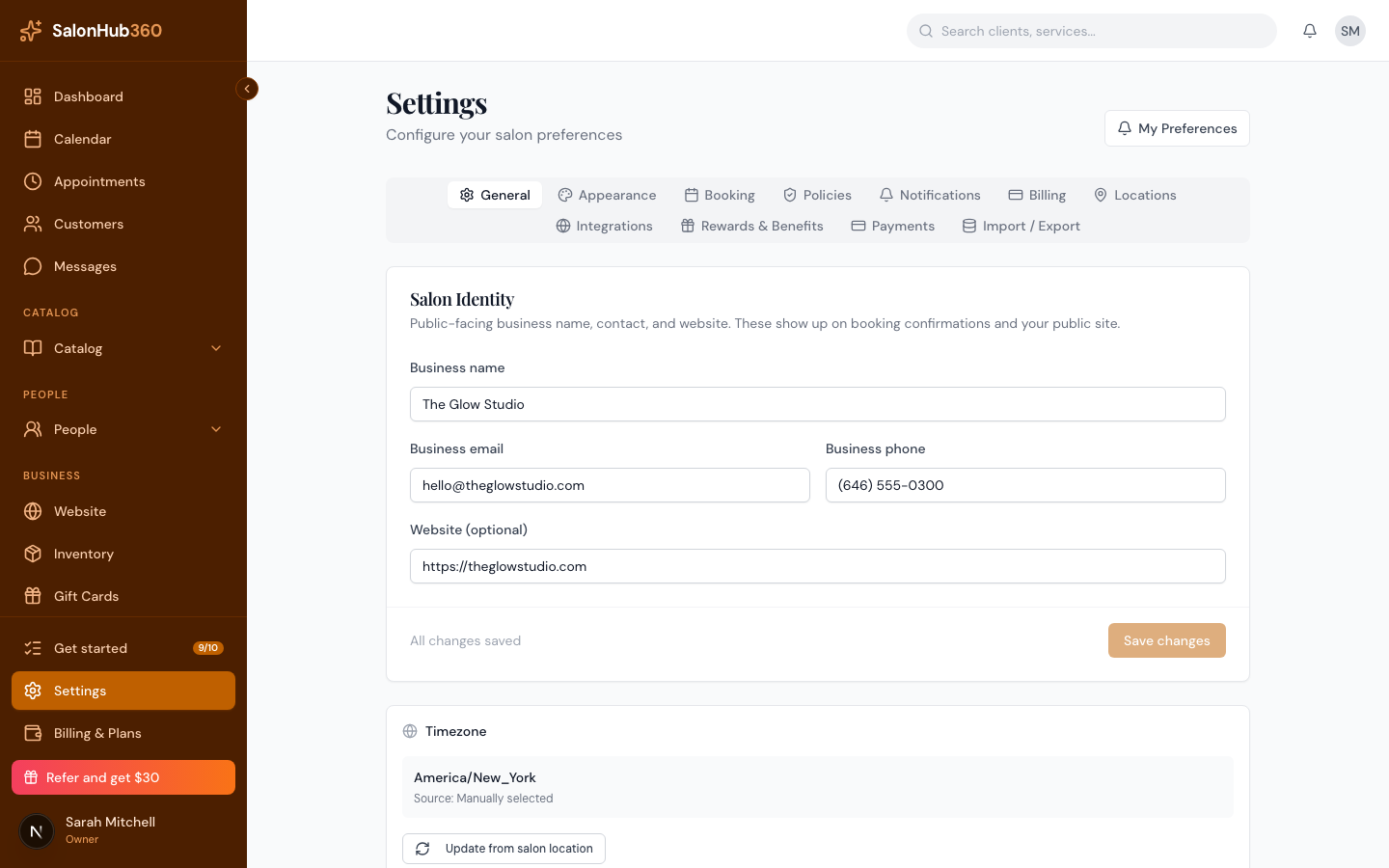
-
In the Timezone card, set your salon's time zone. The quickest way is Update from salon location, which detects the zone from your primary location. You can also pick one from the Manual override dropdown.
<!-- CAPTURE: route=/settings?tab=general | login=owner | state=Timezone card | highlight=Update from salon location button | viewport=1440x900 -->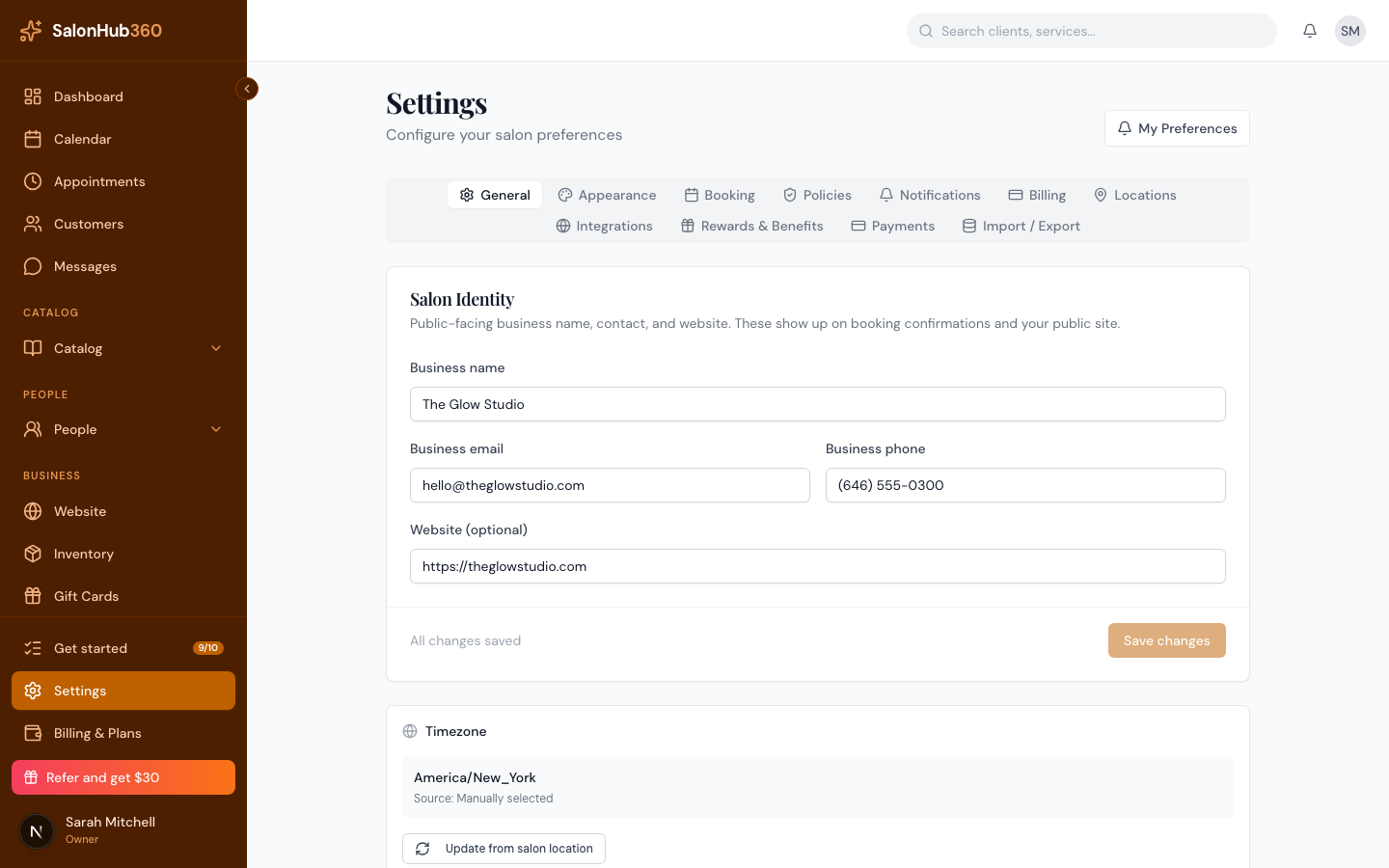
-
In the Salon Logo card, click Click to upload your logo and choose a PNG, JPG, or WebP image (up to 8 MB). To swap it later, use Replace, or Remove to clear it.
<!-- CAPTURE: route=/settings?tab=general | login=owner | state=logo uploaded | highlight=Salon Logo card | viewport=1440x900 -->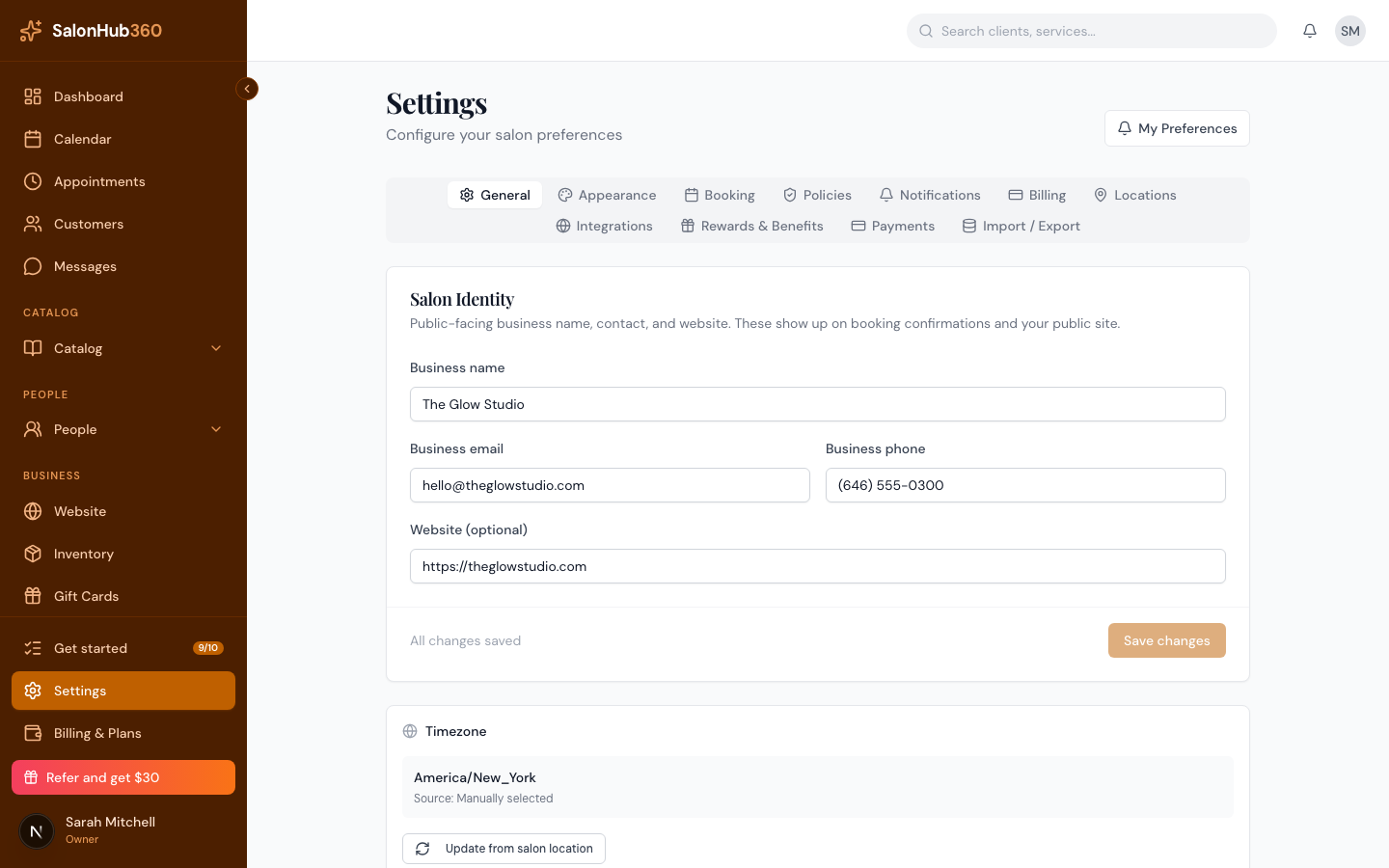
Note: Auto-detecting the time zone needs a primary location with an address. If you haven't added one yet, set the zone manually for now, or add your location first — see Add your location & business hours. Choosing a zone from the dropdown marks it as manually selected.
Tip: Your time zone matters everywhere times appear — availability, reminders, and your dashboard — so it's worth getting right before you go live. To change your brand color and booking layout, see Set your brand color & appearance.
Related articles