
Set your brand color & appearance
Requirements
- Available on: All plans
- Device access: Web & mobile browser
- Permission: Owner
Pick the color that represents your salon and choose how services appear when your staff book an appointment. Both live under Settings → Appearance, and your brand color styles both the app and your public booking page.
How to set your brand color
-
Open Settings, then the Appearance tab. The Brand color card is at the top.
<!-- CAPTURE: route=/settings?tab=appearance | login=owner | state=Appearance tab | highlight=Brand color card | viewport=1440x900 -->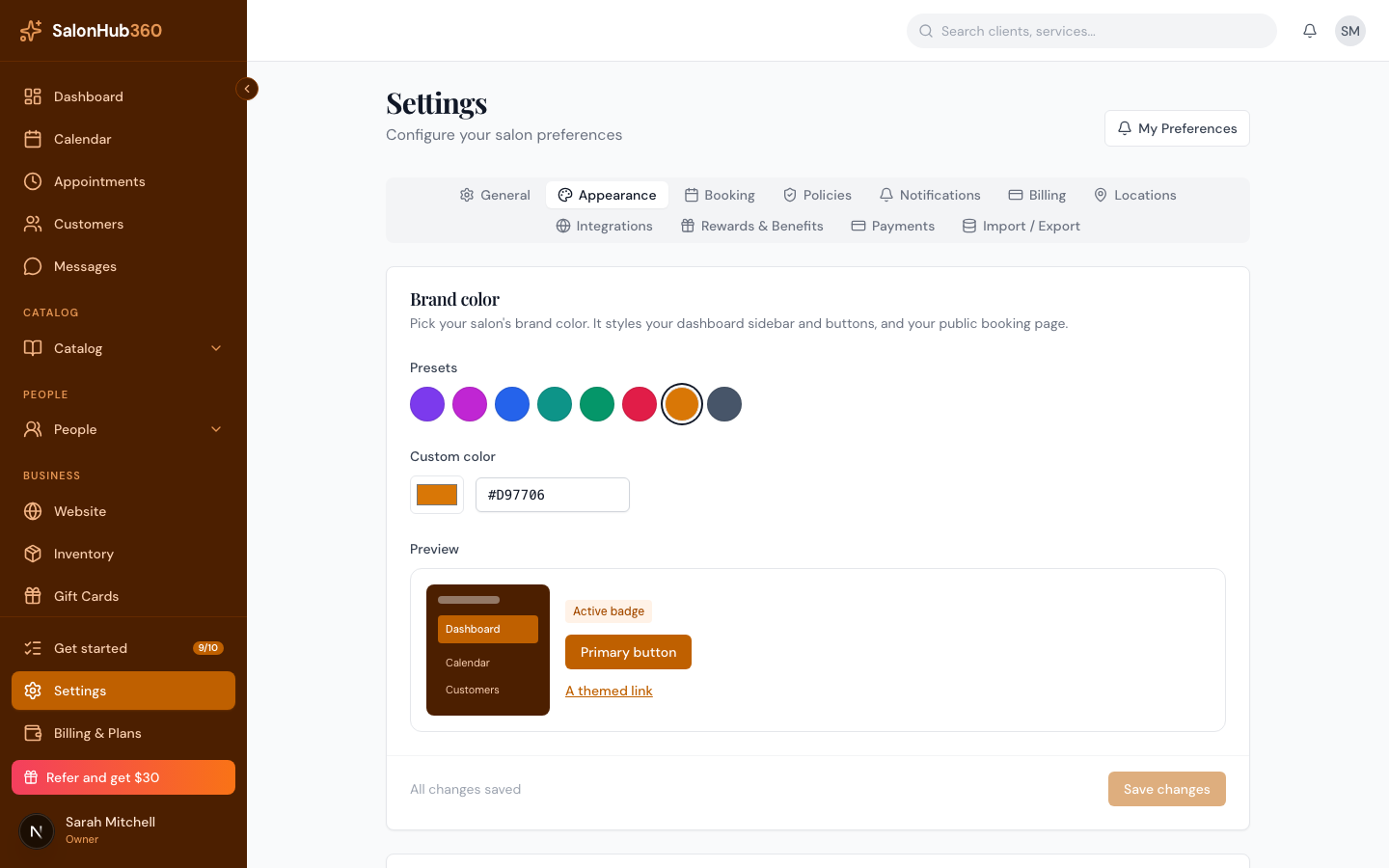
-
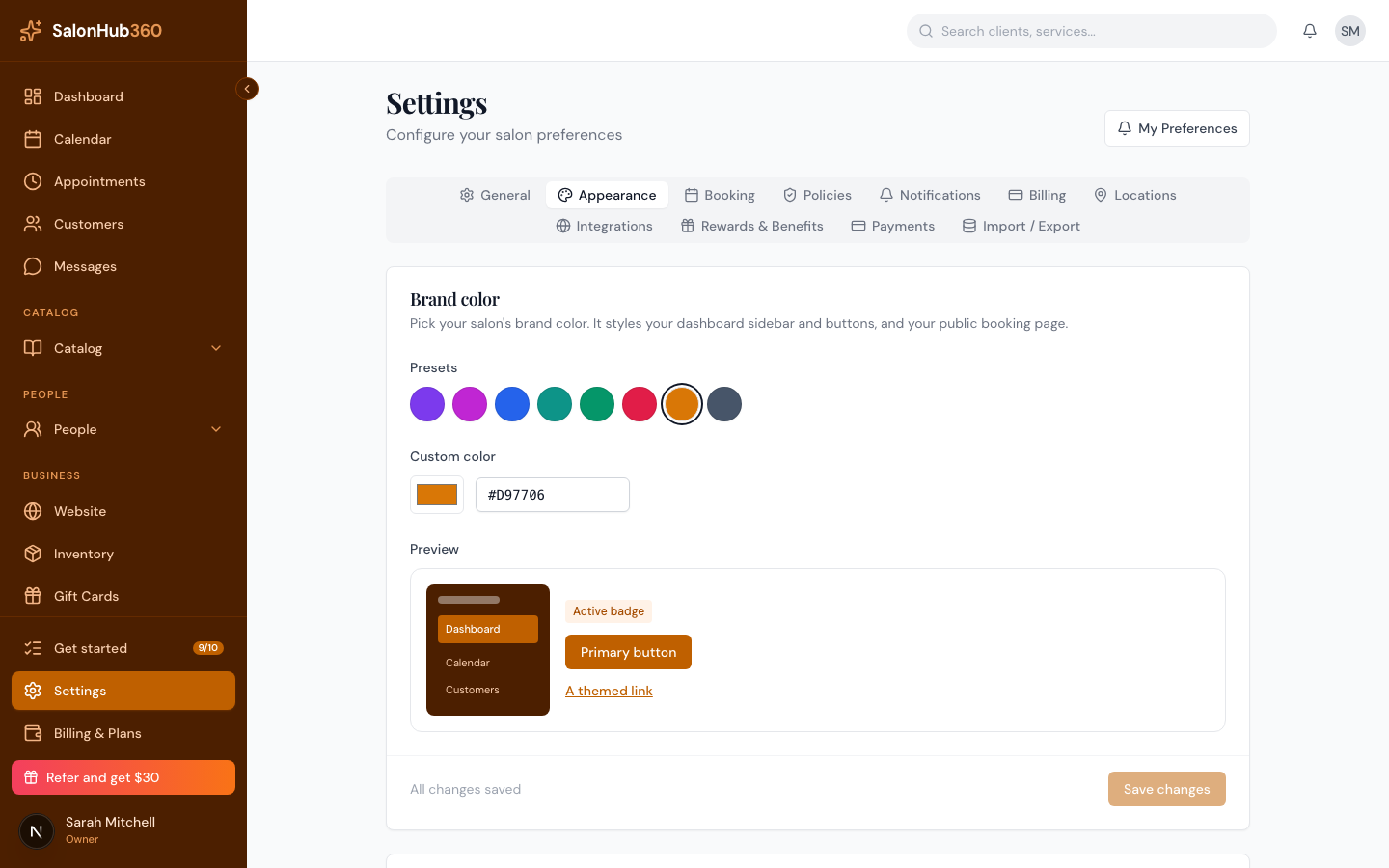
Pick one of the 8 presets (Violet, Fuchsia, Blue, Teal, Emerald, Rose, Amber, or Slate), or set a Custom color with the color picker or by typing a 6-digit hex code (for example,
<!-- CAPTURE: route=/settings?tab=appearance | login=owner | state=a custom color chosen | highlight=preset swatches and custom color field | viewport=1440x900 -->#7C3AED).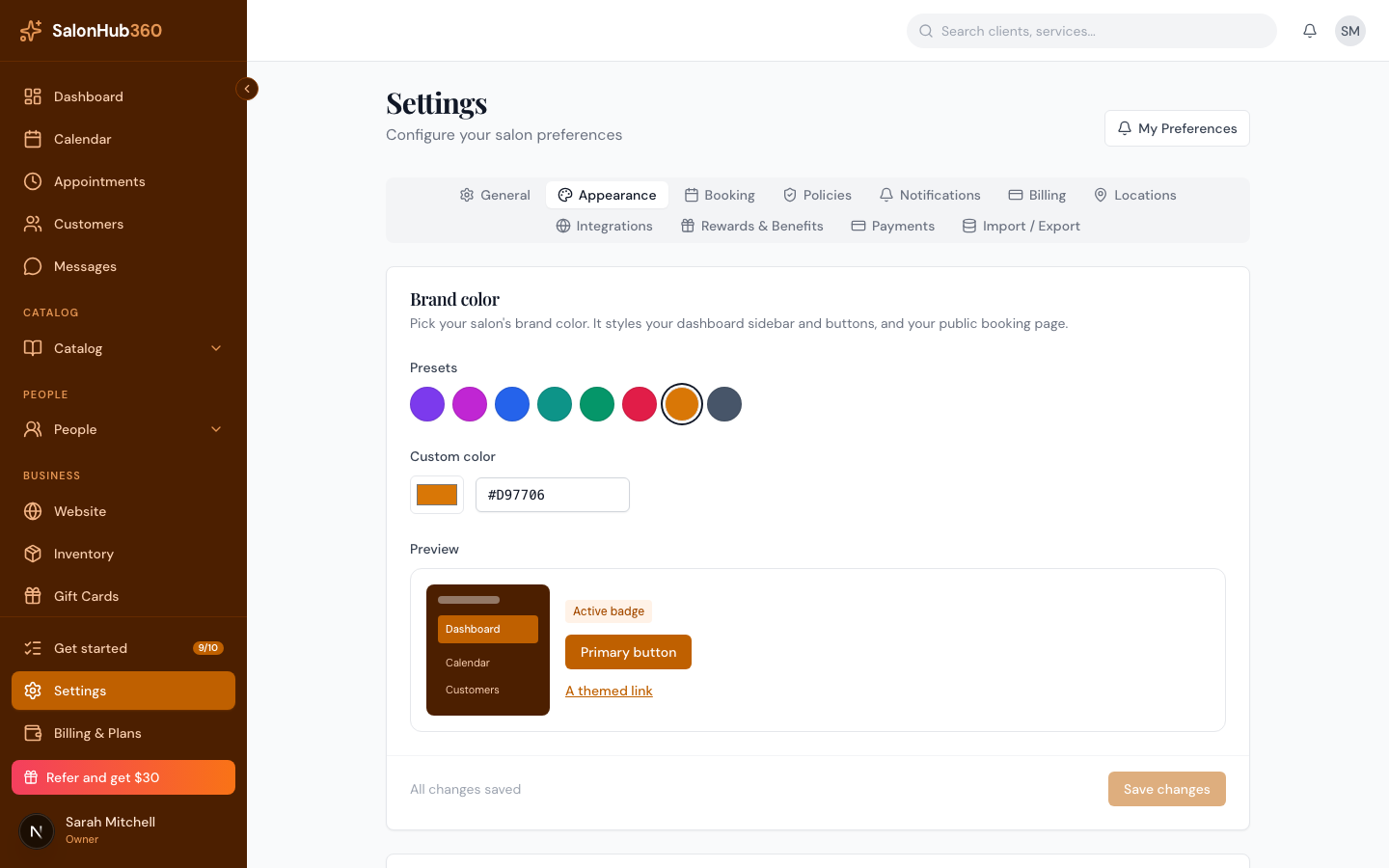
-
Check the Preview to see how your sidebar, buttons, and links will look, then click Save changes. The app recolors instantly.
How to choose your booking service layout
-
Scroll to the Service layout card, below Brand color.
-
Choose how services appear when staff book an appointment or check someone in. There are four options:
- Search-first (Default) — type to filter the full service list.
- Tap tiles (Touch) — large, thumb-friendly tiles grouped by category; great for iPads.
- Two-pane (Big menus) — categories on the left, services on the right; scales to long menus.
- Command palette (Power user) — a fast, search-driven keyboard flow.
-
Click Save changes to apply your choice.
Note: Your brand color applies to your dashboard chrome and your public booking page, so clients see your color too. The service layout is salon-wide and applies across the New appointment drawer and the Work Screen.
Tip: Want to add a logo and contact details to match? See Set your business name, time zone & logo.
Related articles