
Import your clients & services from a CSV
Requirements
- Available on: All plans
- Device access: Web & mobile browser
- Permission: Owner
Moving from another tool? Bring your existing clients, services, and service categories into SalonHub360 with a CSV upload. Every import previews the changes first, so you can confirm exactly what will be created or updated before anything is saved. You can also export your current data as a backup.
How to import a CSV
-
Open Settings, then the Import / Export tab. Choose the data you're working with: Customers, Services, or Categories.
<!-- CAPTURE: route=/settings?tab=import-export | login=owner | state=Customers sub-tab | highlight=sub-tab row | viewport=1440x900 -->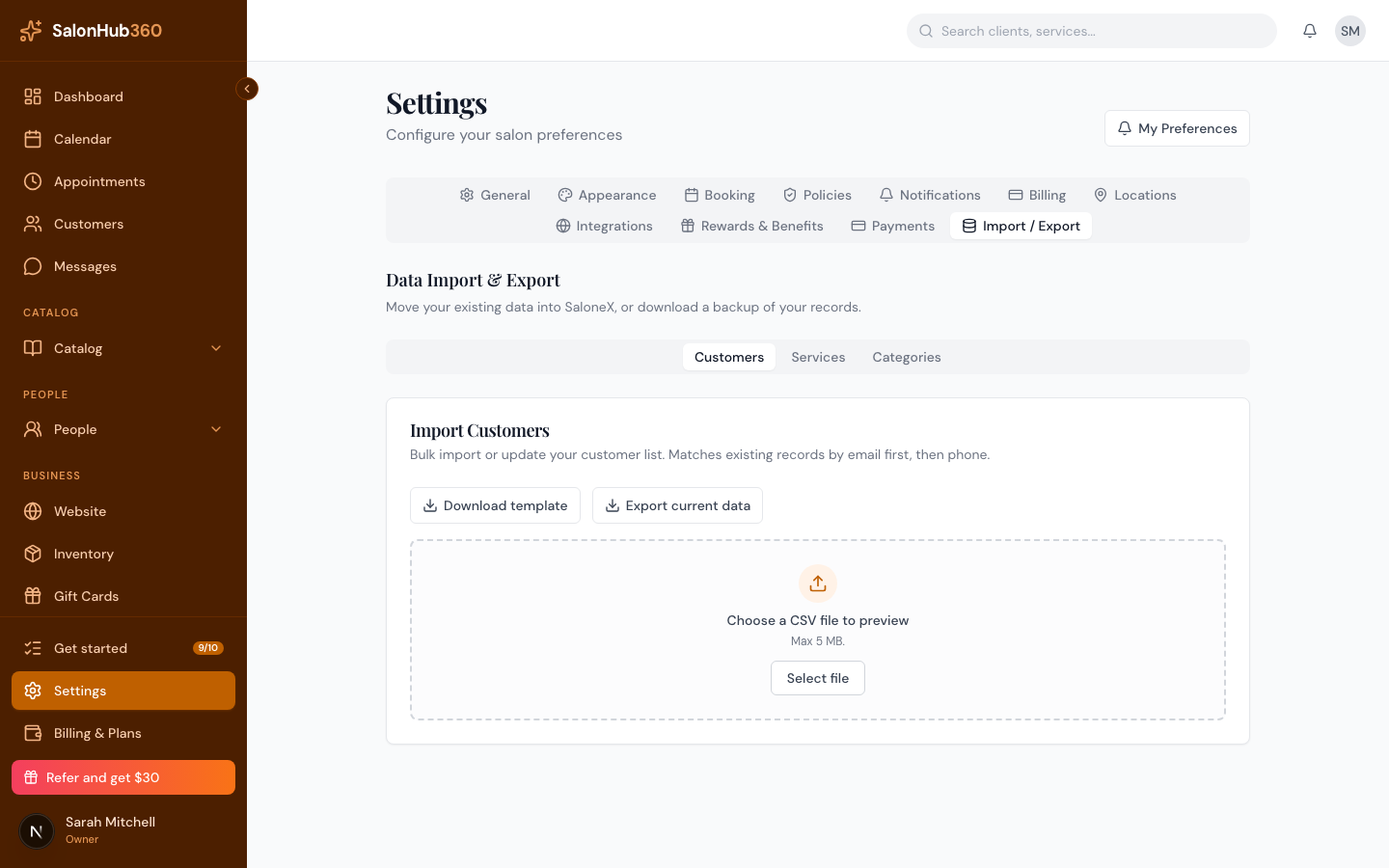
-
Click Download template to get a correctly formatted CSV. Fill it in with your data (keep the column headers), then save it.
<!-- CAPTURE: route=/settings?tab=import-export | login=owner | state=Customers panel | highlight=Download template button | viewport=1440x900 -->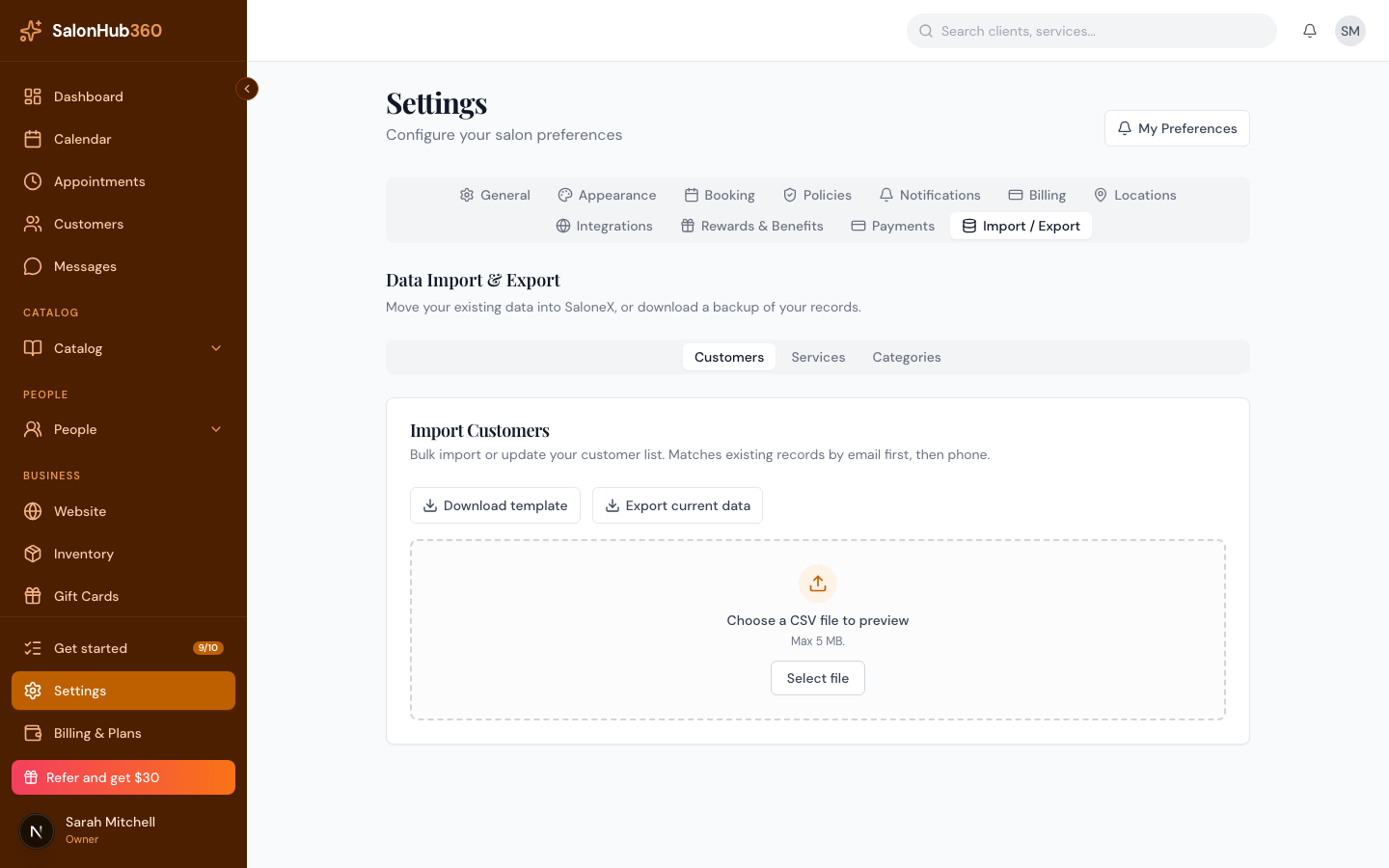
-
Click Select file and choose your CSV (up to 5 MB). SalonHub360 reads it and shows a Preview of every row, labeled create, update, skip, or error, with a count of each.
<!-- CAPTURE: route=/settings?tab=import-export | login=owner | state=preview shown after upload | highlight=preview summary badges | viewport=1440x900 -->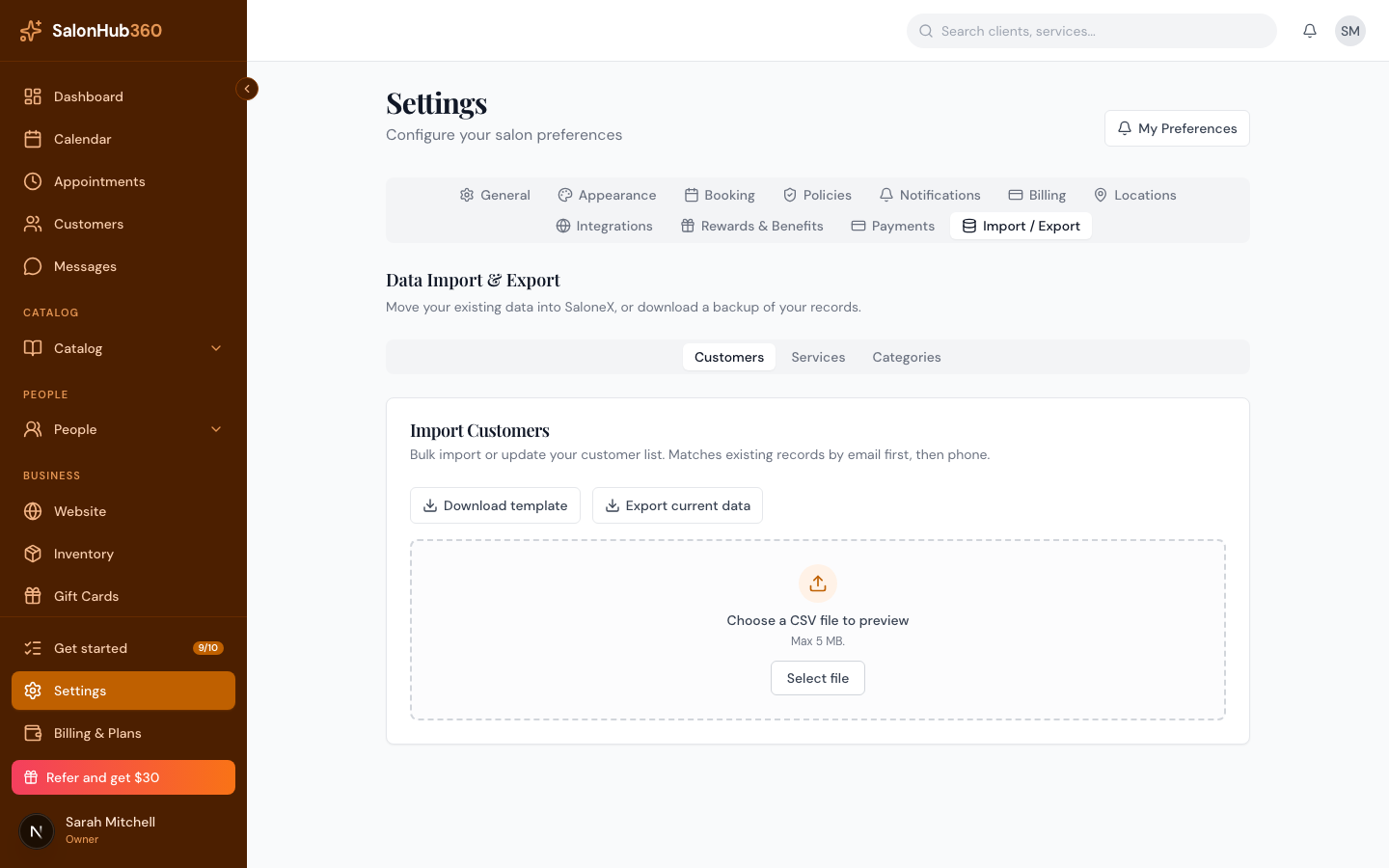
-
Review the preview. When it looks right, click Apply [N] change(s) to import. A confirmation panel shows how many rows were created, updated, skipped, and failed.
<!-- CAPTURE: route=/settings?tab=import-export | login=owner | state=import complete | highlight=Import complete card | viewport=1440x900 -->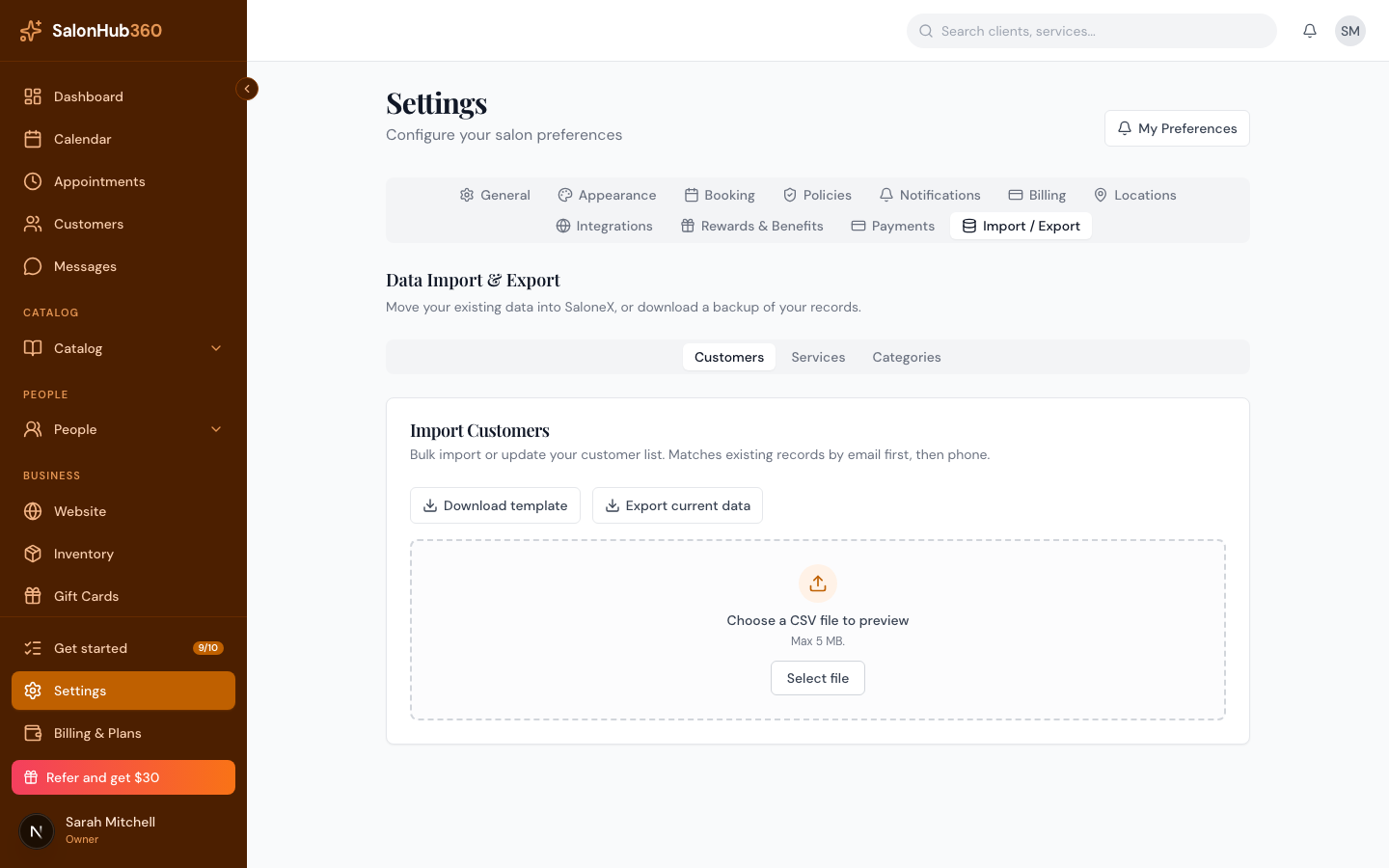
How matching works
SalonHub360 updates existing records instead of duplicating them:
| Import type | Matched by |
|---|---|
| Customers | Email first, then phone |
| Services | Name + category (categories are created automatically if missing) |
| Service Categories | Name |
Exporting your data
In any sub-tab, click Export current data to download a CSV of your existing clients, services, or categories — handy for a backup or for editing in bulk and re-importing.
Note: Import and export are available on every plan, including Free. Only an Owner (or admin) can run an import or export.
Tip: Not sure about a row? The preview never changes your data — nothing is saved until you click Apply. Start with a small test file to confirm your columns line up.
Related articles