
A tour of your dashboard
Requirements
- Available on: All plans
- Device access: Web & mobile browser
- Permission: Any staff
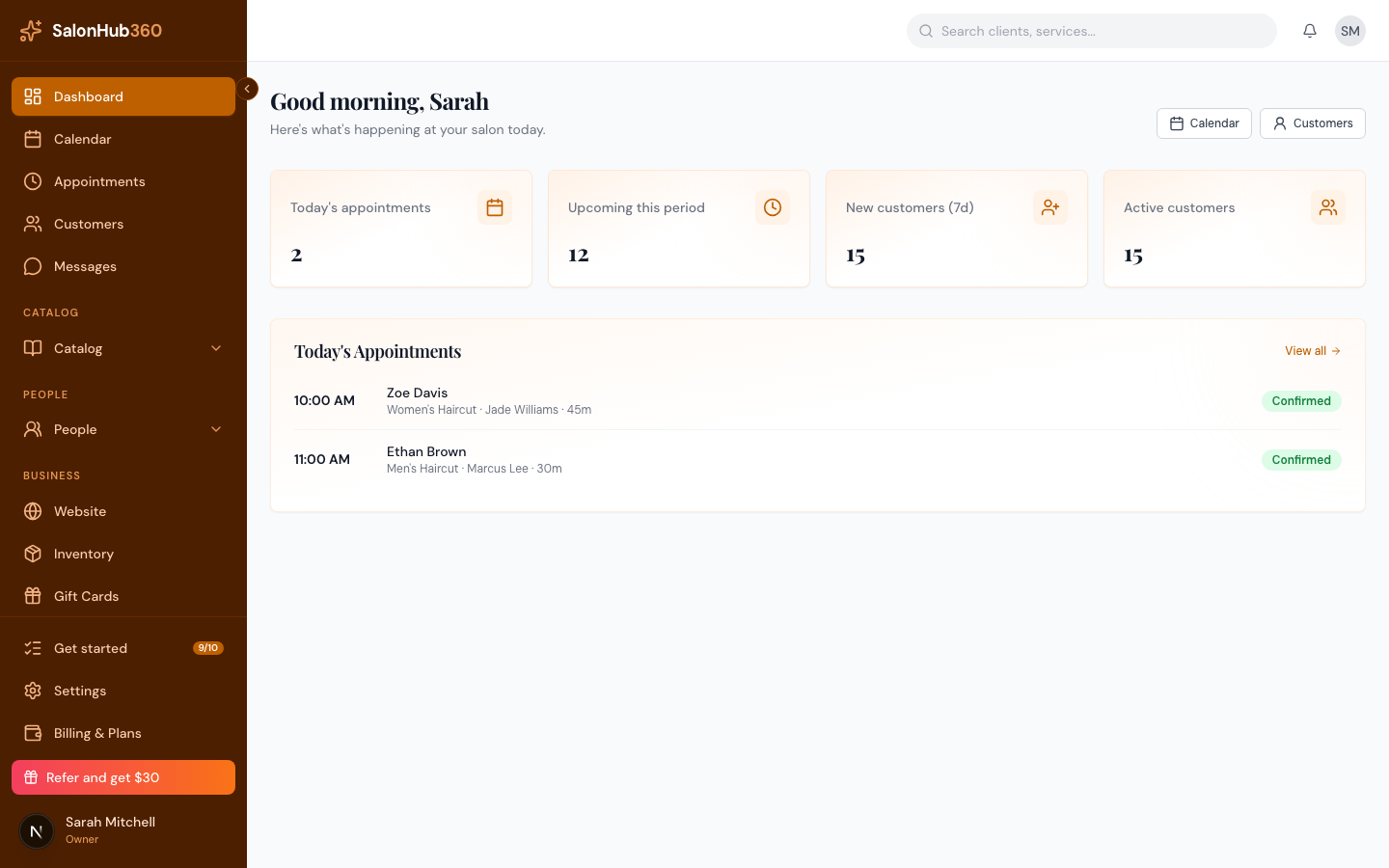
Your dashboard is the home screen you land on after signing in. It gives you a quick read on your day — today's appointments, recent client activity, and anything that needs your attention. Everything you see is your salon's real data, shown in your salon's time zone.
Overview
Open the dashboard to see, from top to bottom:
-
Greeting — a personal "Good morning / afternoon / evening, [your name]" based on the current time, with quick links to your Calendar and Customers.
-
Four KPI cards — a snapshot of activity:
- Today's appointments — appointments scheduled for today (confirmed, checked in, in service, or completed).
- Upcoming this period — confirmed and pending appointments still to come.
- New customers (7d) — clients added in the last 7 days.
- Active customers — the total number of active clients on file.
-
Low-stock alert — a yellow banner that appears only when one or more retail products have dropped to or below their minimum stock level. Tap it to jump to Inventory. (You won't see this if nothing is low or you don't track inventory.)
-
Today's appointments — a list of today's visits with the time, client, service, staff member, duration, and a status badge (Confirmed, Pending, Checked in, In service, Completed, or No show). View all opens your full appointments list. If today is empty, you'll see a prompt to Add appointment instead.
-
Setup checklist — while you're still getting set up, the Get ready to take bookings card shows your remaining steps. It hides itself once your salon is booking-ready.
Good to know
- The numbers refresh each time you open the dashboard — there's nothing to save or update here.
- "Today" follows your salon's time zone, so your day starts and ends when your salon does, not at server midnight. Set this under Set your business name, time zone & logo.
Note: Some cards only appear when there's something to show — the low-stock banner and the setup checklist are hidden when they're not relevant.
Tip: Still seeing the setup checklist? Finish the remaining steps in How to get booking-ready to start accepting online bookings.
Related articles