
Policies: deposits, cancellation, no-show & tax
Requirements
- Available on: All plans
- Device access: Web & mobile browser
- Permission: Owner
The Policies tab is where you set your sales tax and your deposit, cancellation, and no-show rules. You'll find it under Settings → Policies.
Note: Deposits and cancellation/no-show fees are recorded based on these rules, but they can only be charged once SalonHub360 Payments is active. Until then, they act as your stated policy. See How to set up SalonHub360 Payments.
Set up sales tax
-
In the left menu, open Settings, then select the Policies tab.
<!-- CAPTURE: route=/settings?tab=policies | login=owner | state=Sales Tax card | highlight=Charge tax toggle | viewport=1440x900 -->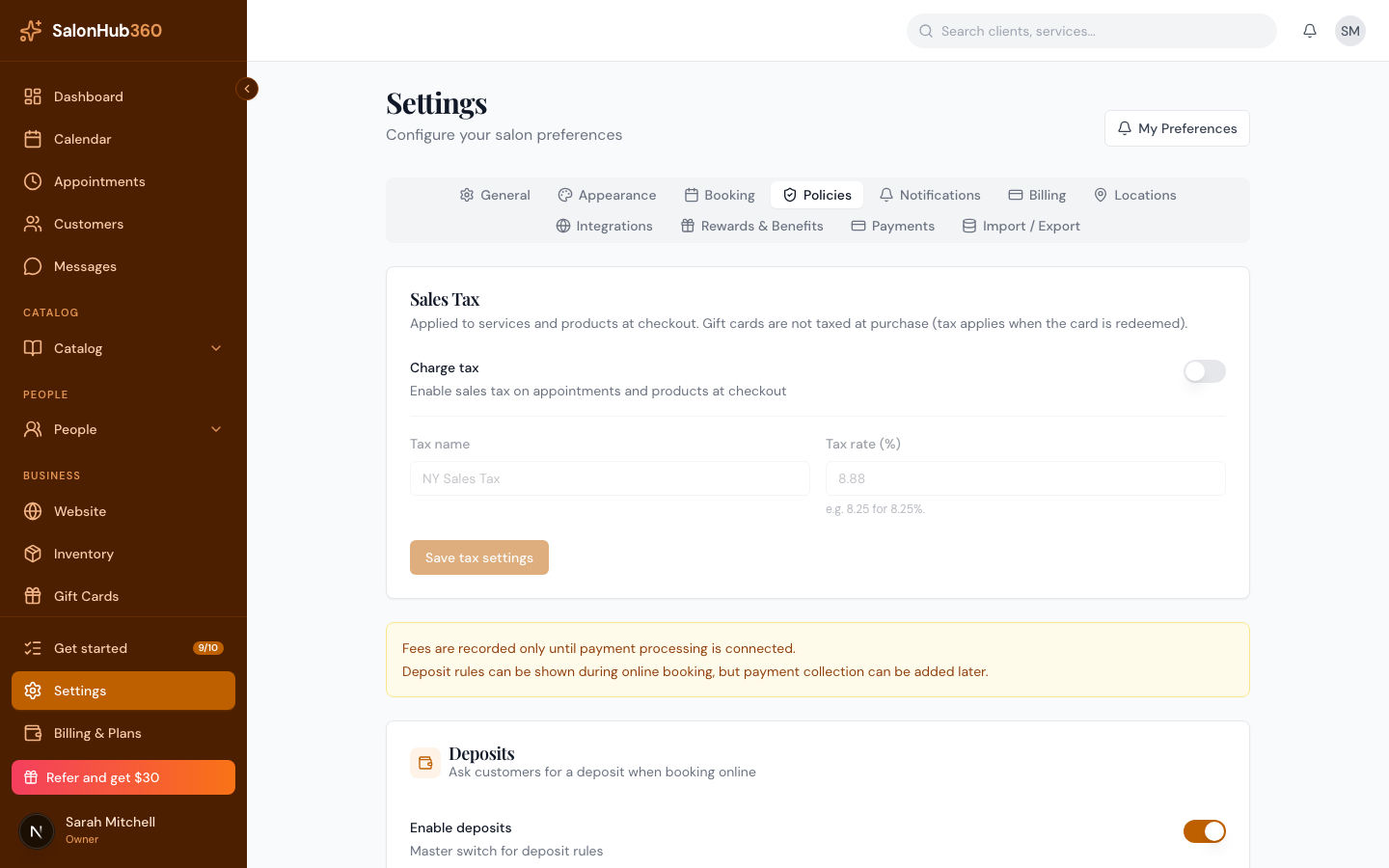
-
In the Sales Tax card, turn on Charge tax, set a Tax name (for example, Sales Tax), and enter your Tax rate (%) — for example,
8.25. -
Click Save tax settings.
Note: Gift cards aren't taxed when purchased — tax applies when the card is redeemed.
Set deposit, cancellation & no-show rules
In the Policies tab, you'll find separate cards for each rule. Each fee can be set as None, a Fixed ($) amount, or a Percentage (%).
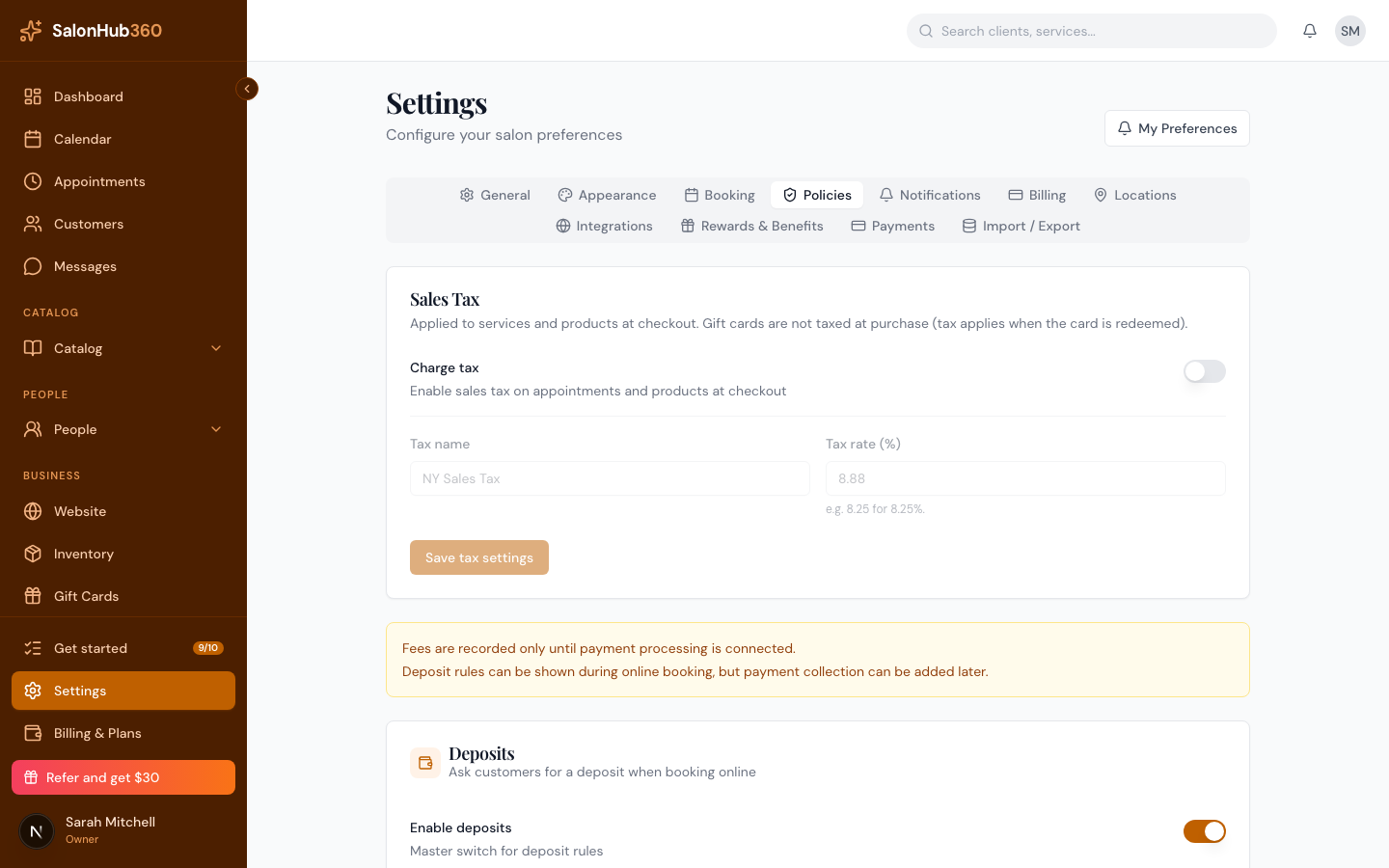
- Deposits — turn on Enable deposits and choose a Deposit type to ask for a deposit at booking. Turn on Require deposit for online booking to make it required to reserve.
- Cancellation policy — turn on Enable cancellation policy and set a Cancellation window (hours). Optionally turn on Charge a late-cancellation fee and pick the fee type.
- No-show fee — turn on Charge a no-show fee and pick the fee type. It's recorded when staff mark an appointment as a no-show.
- Self-service reschedule — Allow online rescheduling lets clients move their own upcoming appointments. Set a Reschedule window (hours) for how far in advance they must do it.
Click Save changes when you're done.
Tip: The cancellation window and approval rules clients see at booking are in Settings → Booking — see Booking rules & display.
Related articles