
Notifications & reminders
Requirements
- Available on: All plans
- Device access: Web & mobile browser
- Permission: Owner or Manager
These settings control the automatic emails and texts your salon sends — booking confirmations, appointment reminders, and staff alerts. You'll find them under Settings → Notifications.
How to set up notifications
-
In the left menu, open Settings, then select the Notifications tab.
<!-- CAPTURE: route=/settings?tab=notifications | login=owner | state=Notifications panel | highlight=Email notifications card | viewport=1440x900 -->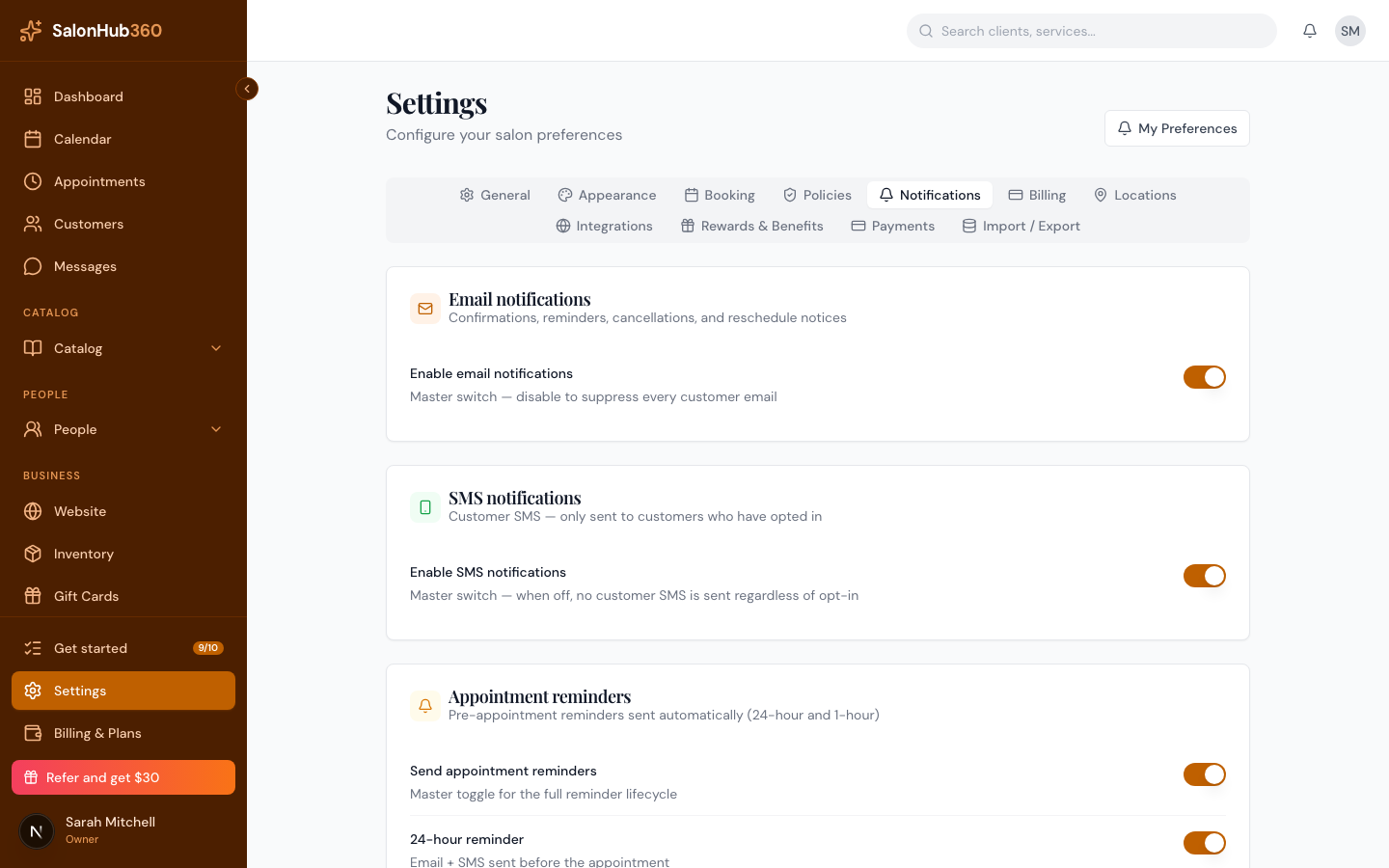
-
Set each card to match how you want to communicate:
- Email notifications — the master switch for customer emails (confirmations, reminders, cancellations, and reschedule notices). Turn it off to stop all customer email.
- SMS notifications — the master switch for customer texts. Texts go only to clients who have opted in.
- Appointment reminders — turn on Send appointment reminders, then choose the 24-hour reminder and 1-hour reminder. You can adjust the timing of each in minutes before the appointment.
- Staff alerts — email your staff when a booking is created, cancelled, or rescheduled.
-
Click Save changes.
Note: SMS only sends to clients who have given consent, and only when SMS notifications is on. Sending texts uses your SMS credits — see SMS credits & the SMS add-on.
Note: The reminder timing fields are in minutes. For example,
1440minutes is 24 hours before, and60minutes is 1 hour before.
Tip: These are salon-wide settings — what your clients and staff receive. To choose what you personally get notified about, see Your profile & personal preferences.
Related articles