
Booking rules & display
Requirements
- Available on: All plans
- Device access: Web & mobile browser
- Permission: Owner or Manager
Booking rules control how and when clients can book with you online, and what they see on your booking page. You'll find them under Settings → Booking.
How to set your booking rules
-
In the left menu, open Settings, then select the Booking tab.
<!-- CAPTURE: route=/settings?tab=booking | login=owner | state=Booking rules panel | highlight=Booking rules card | viewport=1440x900 -->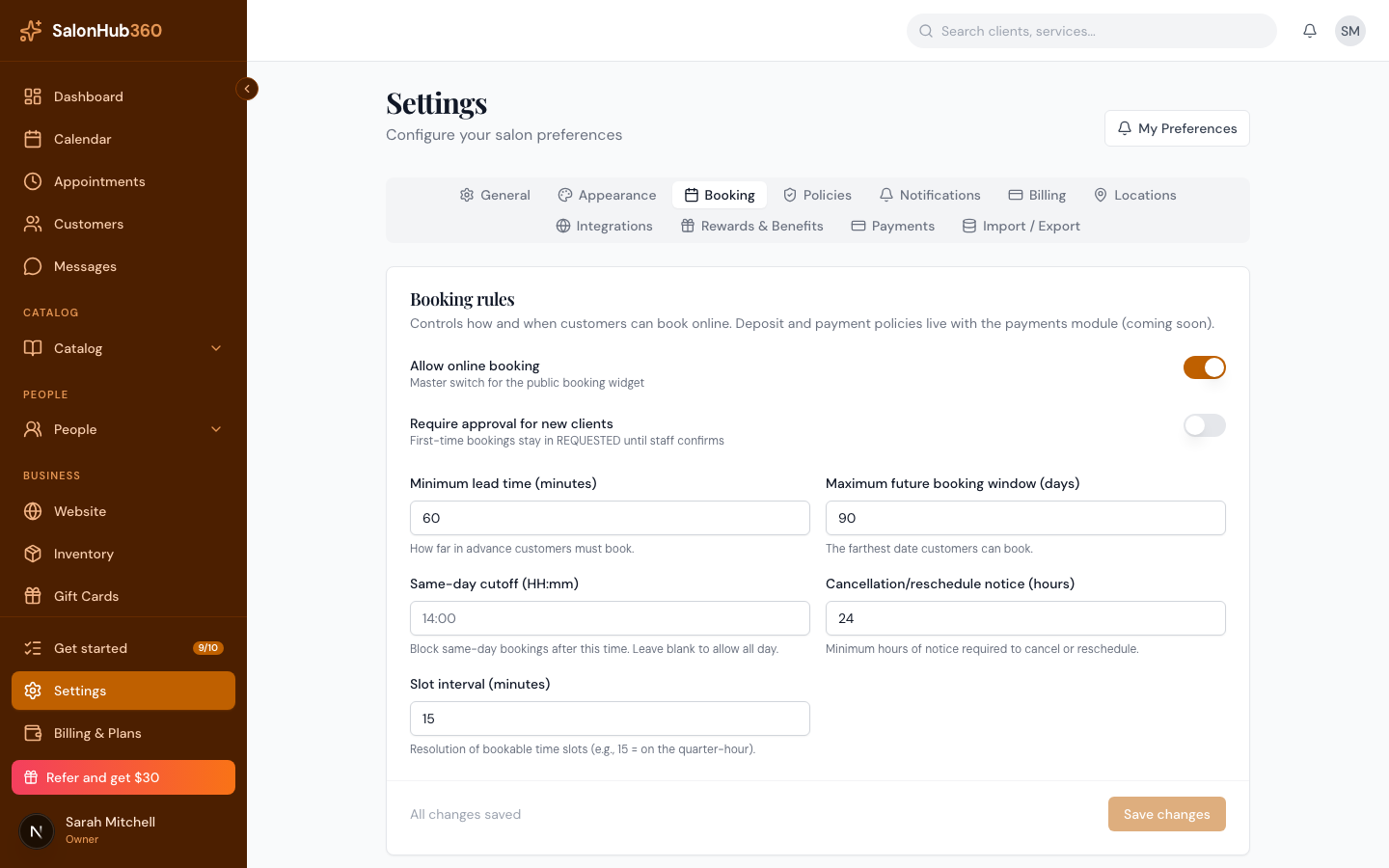
-
In the Booking rules card, set the rules you need:
- Allow online booking — the master switch for your public booking page. Turn it off to stop online bookings entirely.
- Require approval for new clients — first-time bookings stay pending until staff confirm them.
- Minimum lead time (minutes) — how far in advance clients must book.
- Maximum future booking window (days) — the farthest ahead clients can book.
- Same-day cutoff (HH:mm) — block same-day bookings after this time. Leave blank to allow them all day.
- Cancellation/reschedule notice (hours) — the minimum notice clients need to change or cancel.
- Slot interval (minutes) — how finely bookable times are spaced (for example, 15 puts slots on the quarter-hour).
-
Click Save changes.
Note: Deposit, cancellation-fee, and no-show-fee amounts are set separately under Settings → Policies — see Policies: deposits, cancellation, no-show & tax.
Control what shows on your booking page
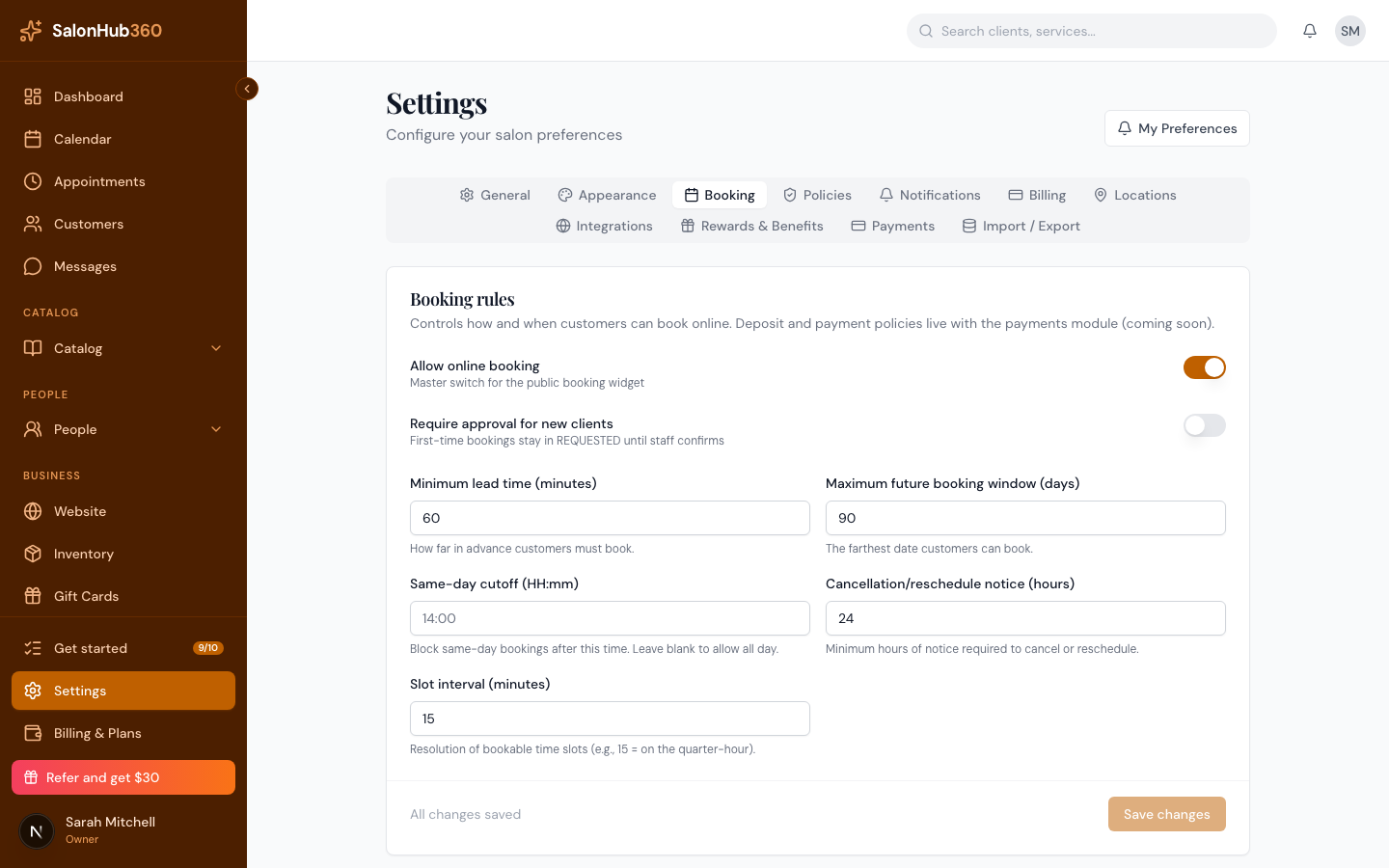
In the Booking page display card, the Show prices during booking toggle controls whether clients see service prices and the total. When it's off, clients still see the service and how long it takes, just not the price. Click Save changes to apply.
Tip: To see exactly what clients experience, open your booking page — see How clients book on your page.
Related articles