
How to publish your site & your free subdomain
Requirements
- Available on: Starter plan and above
- Device access: Web & mobile browser
- Permission: Owner or Manager
Take your site from draft to live. Once published, it's available to anyone at your free SalonHub360 address.
Overview
Your website has two states, shown by a badge at the top of the builder:
- Draft — only you can preview it; the public link isn't live yet.
- Published — it's live at
{your-slug}.sites.salonhub360.com.
While editing, the Live preview pane shows your latest saved work — including drafts — so you can check everything before going public.
How to preview before you publish
-
In the left menu, open Website. The Live preview appears beside your editing tabs.
<!-- CAPTURE: route=/website | login=owner | state=builder open, Live preview pane visible | highlight=Live preview pane | viewport=1440x900 -->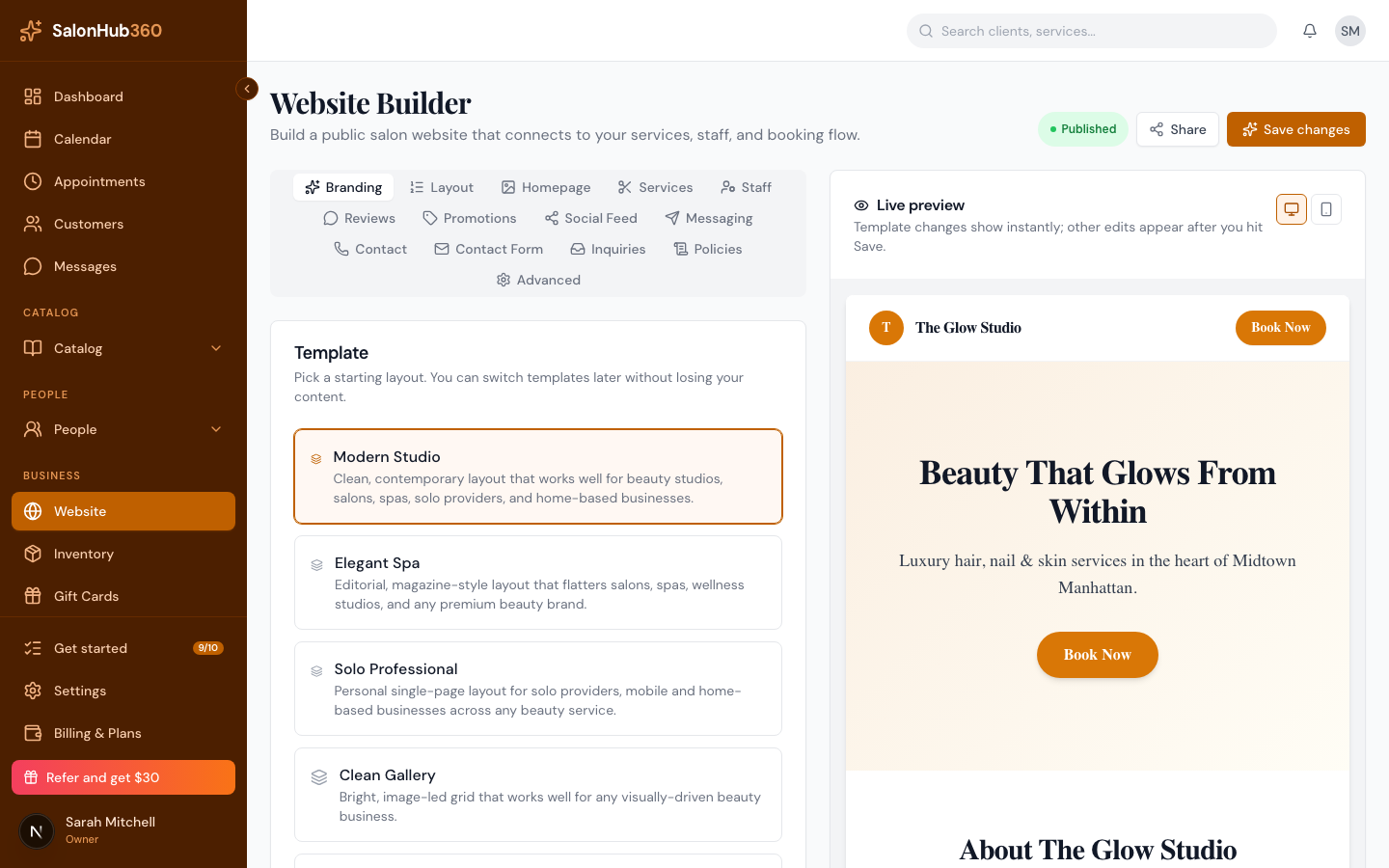
-
Use the desktop and mobile buttons above the preview to check how your site looks on each. Template changes show instantly; other edits appear after you click Save changes.
How to publish your site
-
Open the Advanced tab and find the Publish card.
<!-- CAPTURE: route=/website | login=owner | state=Advanced tab, Publish card visible | highlight=Publish website to the public toggle | viewport=1440x900 -->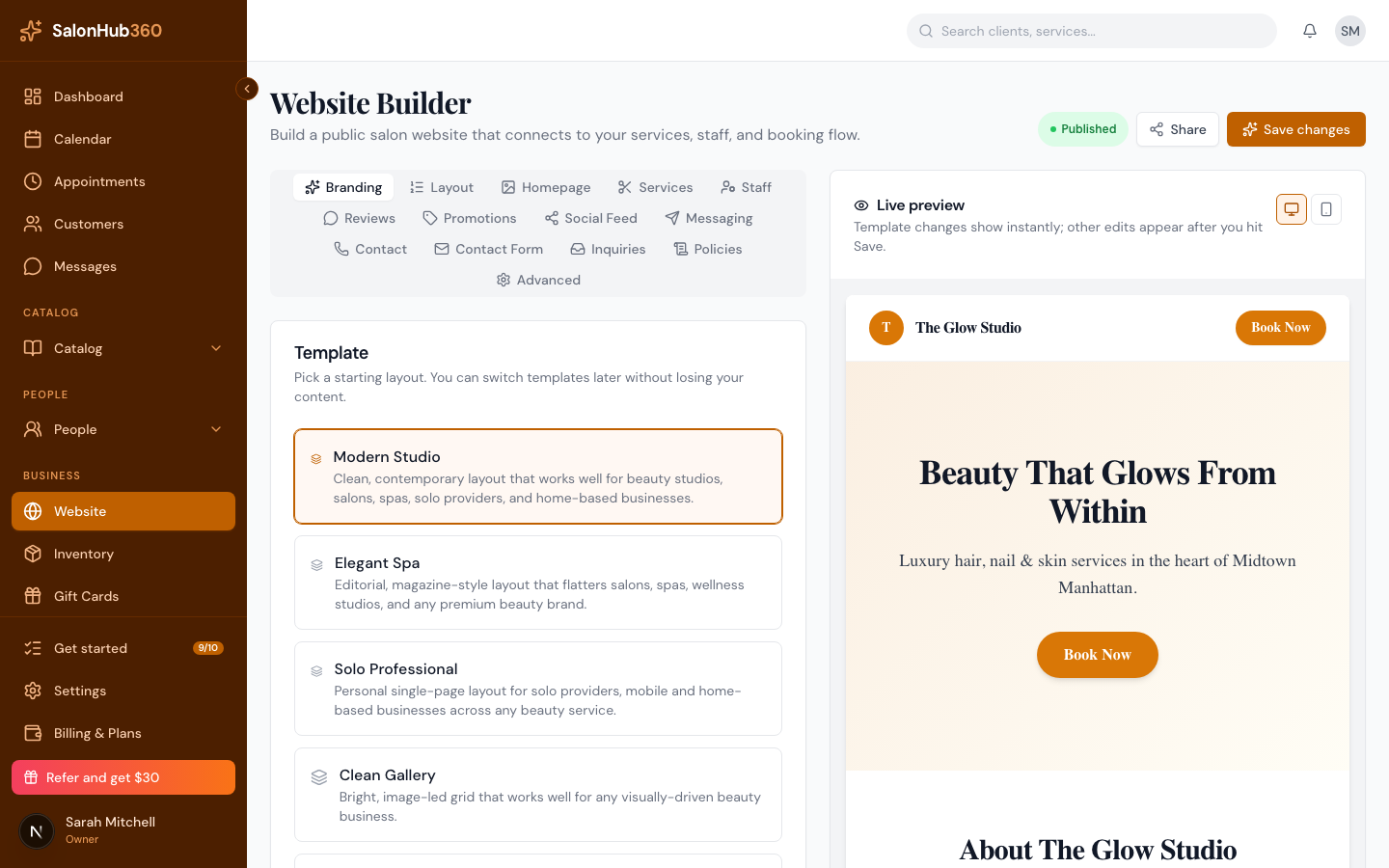
-
Turn on Publish website to the public.
-
Click Save changes. The badge at the top changes from Draft to Published, and your site goes live.
How to share your live link
-
Click Share in the top-right of the builder.
<!-- CAPTURE: route=/website | login=owner | state=Share popover open, published | highlight=Public URL row | viewport=1440x900 -->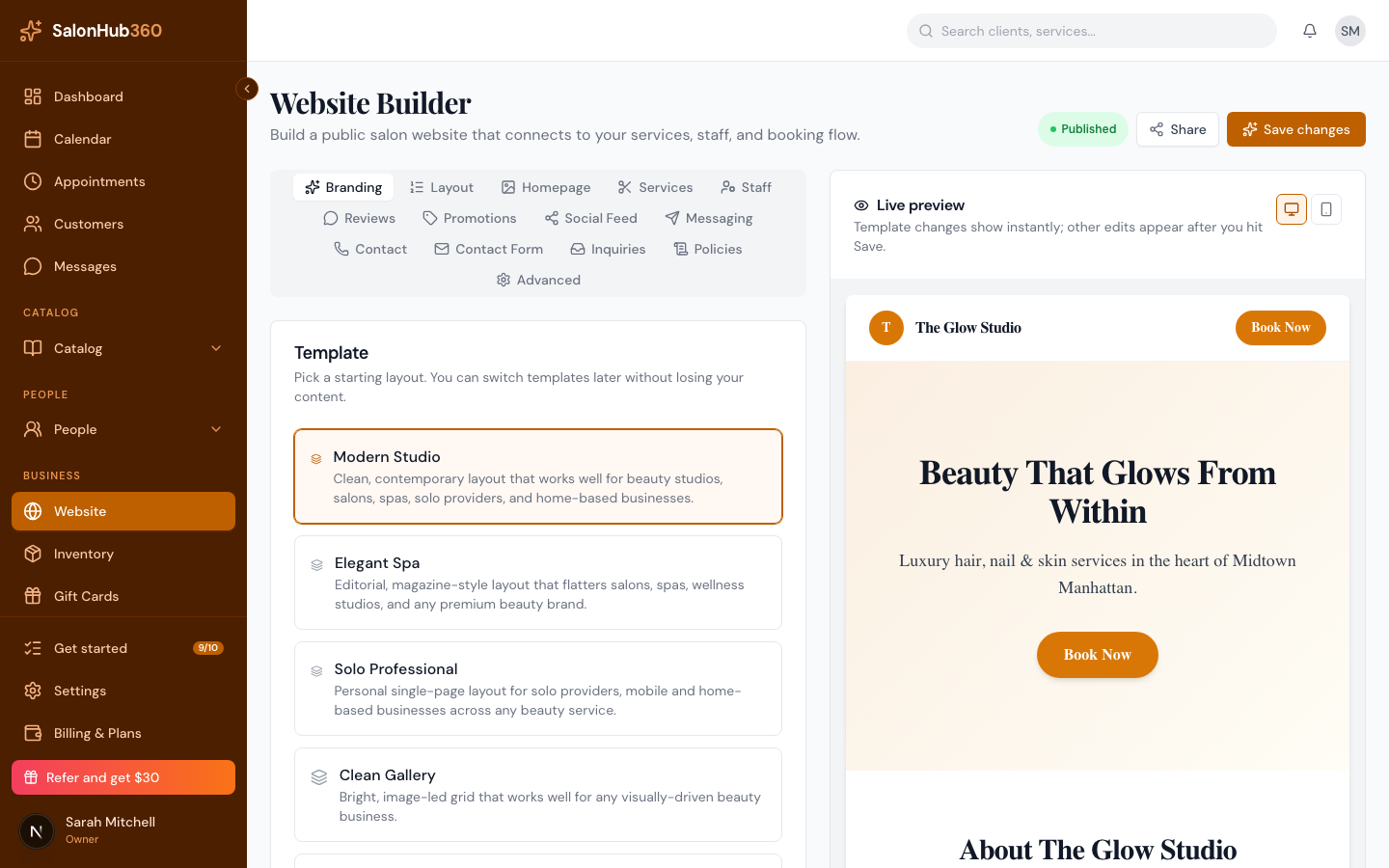
-
In the Share your site panel, copy your Public URL with Copy, or open it with the new-tab icon. Post it anywhere clients can tap.
Note: A Custom domain field appears under Publish, but custom-domain routing is not enabled yet — your free
…sites.salonhub360.comaddress is always available, and custom domains are coming.
Tip: Your booking page is part of your published site. To share just the booking link, see Share your booking link.
Related articles