
How to manage contact-form inquiries
Requirements
- Available on: Starter plan and above
- Device access: Web & mobile browser
- Permission: Owner or Manager
When clients fill out the contact form on your website, their messages collect in one place inside the builder so you can follow up.
Overview
If your site has the Contact Form section turned on, every submission lands in the Inquiries tab — newest first. Each inquiry records the person's name, email, phone (if they gave one), their message, a status, and the time it came in.
Inquiries move through these statuses:
| Status | Meaning |
|---|---|
| New | Just arrived, not yet looked at. |
| In progress | You're working on a reply. |
| Resolved | Handled and closed. |
| Archived | Filed away for reference. |
| Spam | Junk or irrelevant. |
How to view your inquiries
-
In the left menu, open Website, then click the Inquiries tab.
<!-- CAPTURE: route=/website | login=owner | state=Inquiries tab, list of submissions | highlight=inquiries list | viewport=1440x900 -->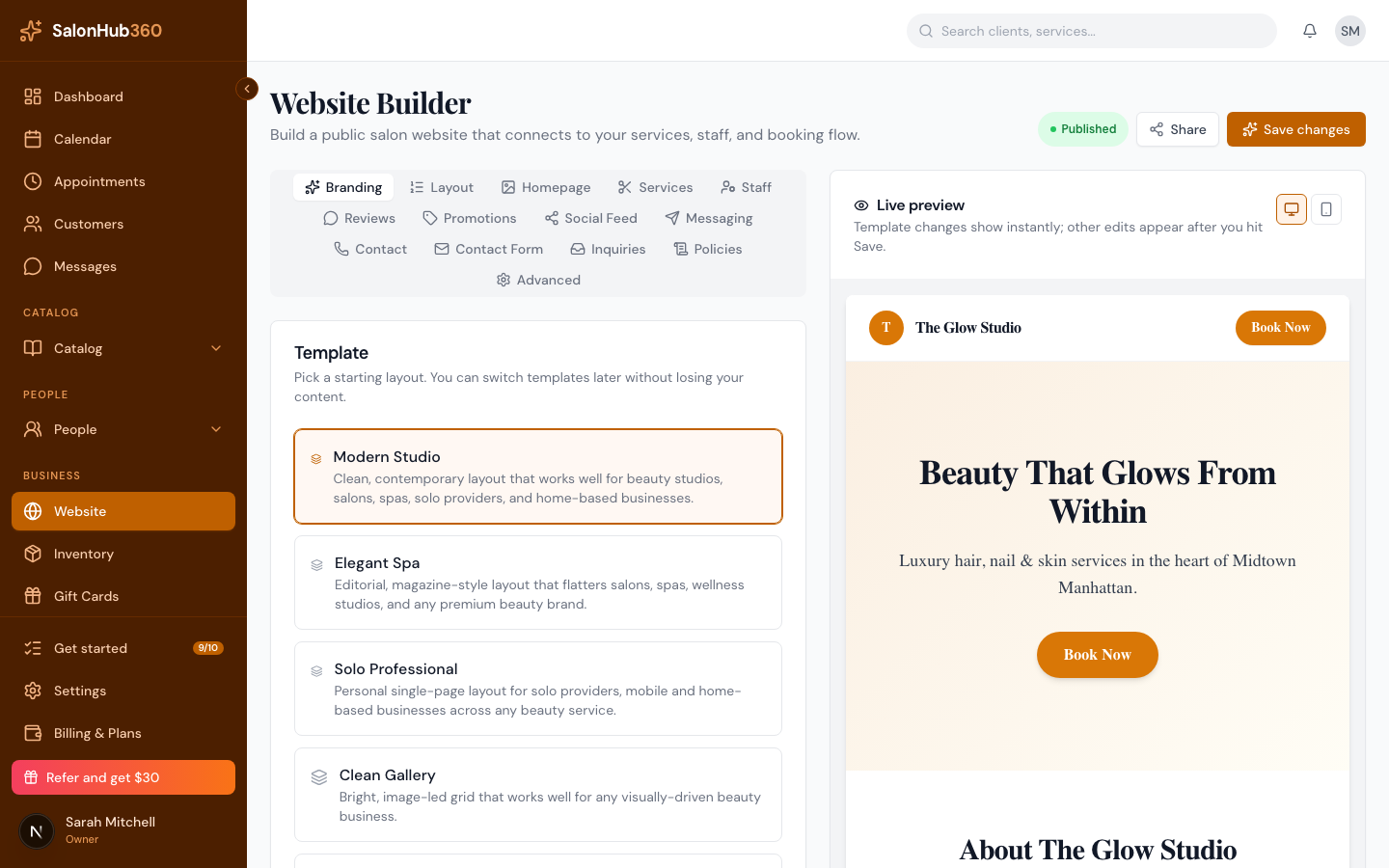
-
Each inquiry shows the sender's details and message. Use the contact details to reply by email, phone, or text.
Note: Email delivery of inquiries is being added — for now, check the Inquiries tab to see new messages. Reply using the email or phone number the client provided.
Tip: Make sure the Contact Form section is turned on so clients can reach you — see Edit your sections. Prefer instant messaging? Add social messaging buttons.
Related articles