
How to build your website (pick a template)
Requirements
- Available on: Starter plan and above
- Device access: Web & mobile browser
- Permission: Owner or Manager
Start your salon's public website by choosing a template — a ready-made design you can customize. You can switch templates anytime without losing your content.
Overview
The Website Builder lives at Website in the left menu. It's organized into tabs down the side (Branding, Layout, Homepage, Services, Staff, and more), with a live preview beside them so you can see changes as you make them. You'll start on the Branding tab, where you pick your template.
There are eight templates to choose from:
| Template | Style |
|---|---|
| Modern Studio | Clean, contemporary — works for most salons and spas. |
| Elegant Spa | Refined and luxurious. |
| Solo Professional | Personal single-page layout for solo, mobile, or home-based providers. |
| Clean Gallery | Minimal, image-forward. |
| Classic Studio | Timeless, barbershop-friendly. |
| Wellness Lounge | Warm and calming. |
| Social Showcase | Built around your social content. |
| Minimal Portfolio | Stripped-back and gallery-style. |
How to pick a template
-
In the left menu, open Website.
<!-- CAPTURE: route=/website | login=owner | state=Branding tab, Template card visible, preview pane on right | highlight=Template card | viewport=1440x900 -->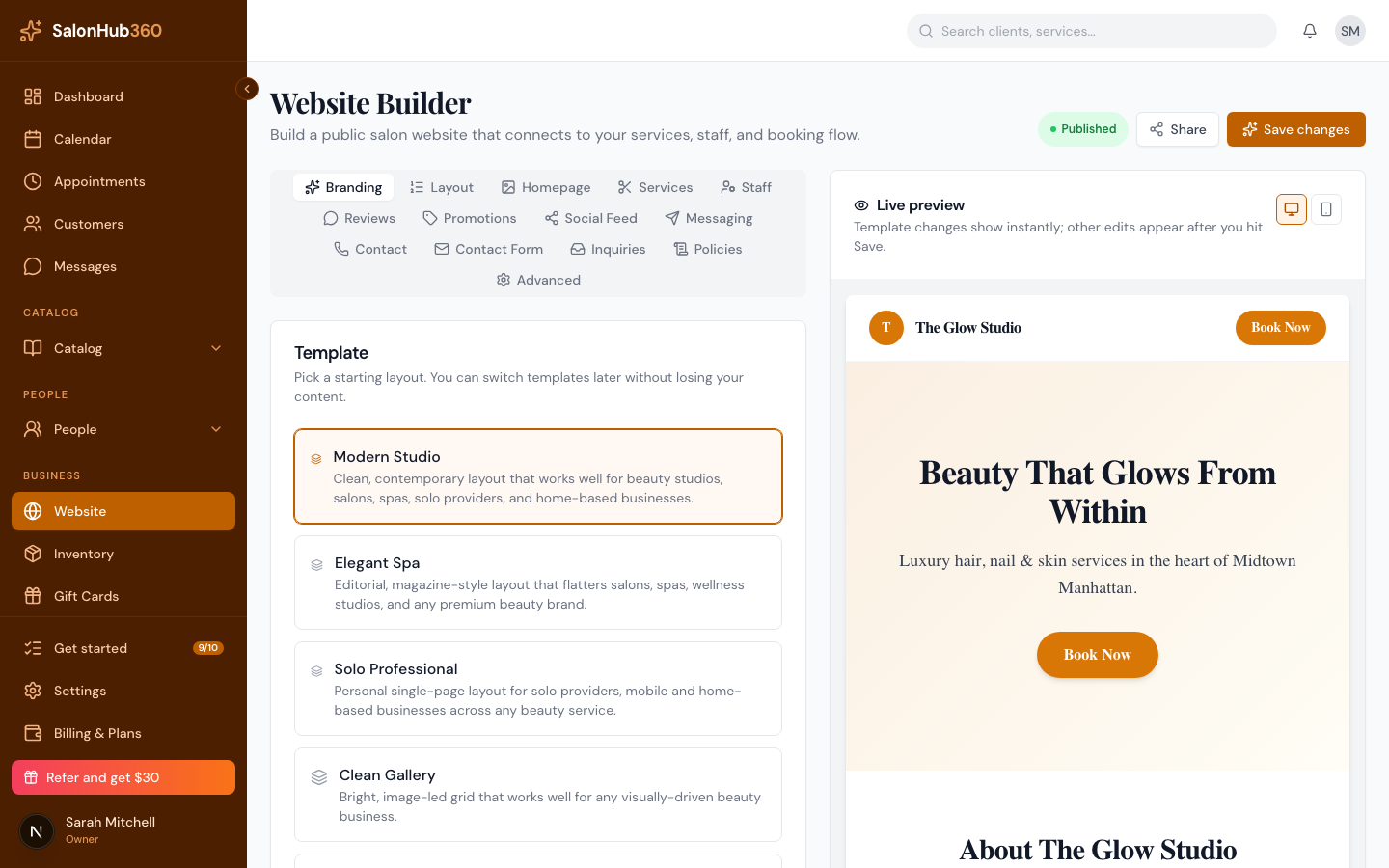
-
On the Branding tab, find the Template card and click the design you want. The Live preview updates instantly so you can compare looks.
<!-- CAPTURE: route=/website | login=owner | state=Branding tab, a template selected | highlight=selected template | viewport=1440x900 -->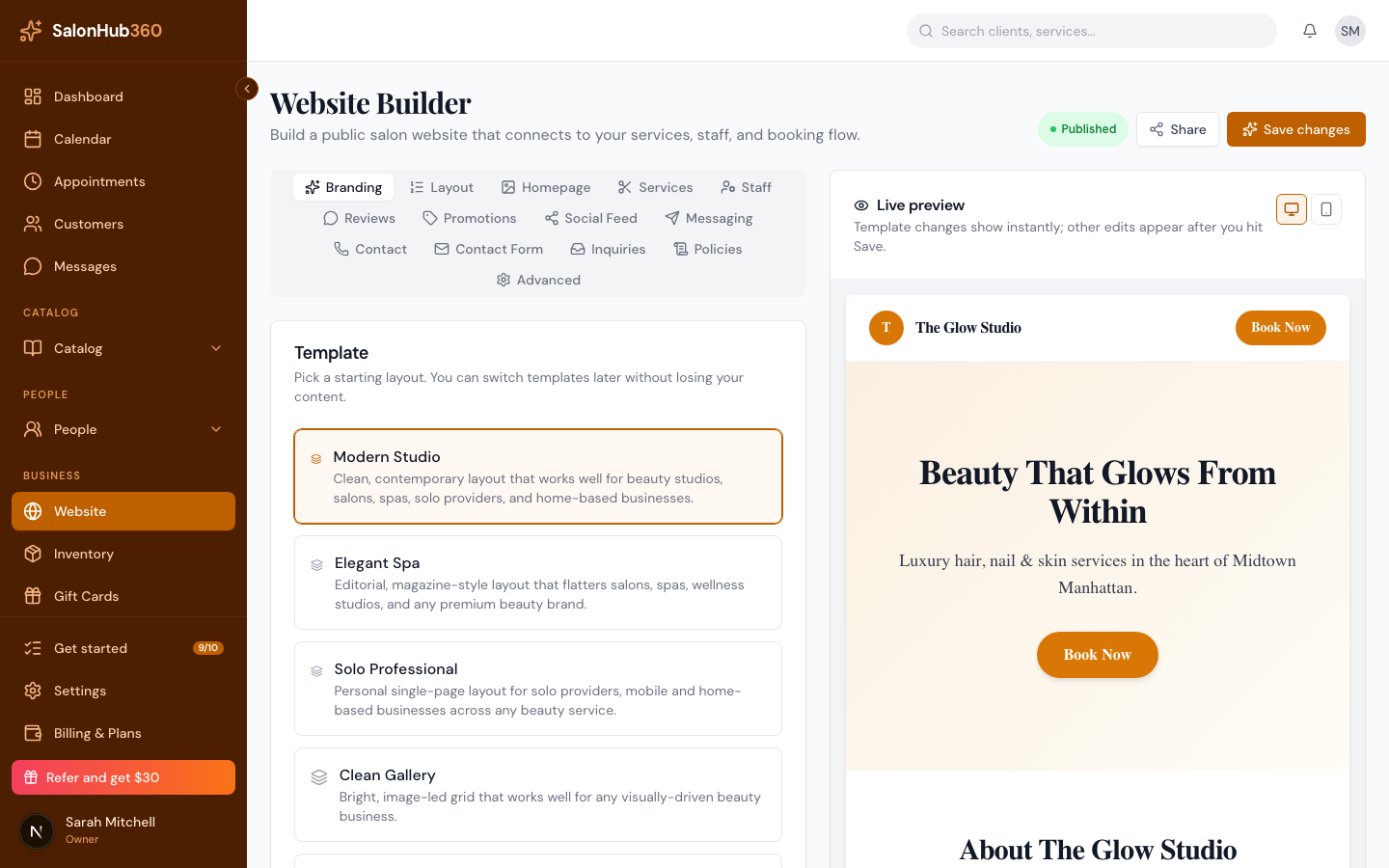
-
Click Save changes in the top-right to keep your choice.
Note: Switching templates later keeps all your content — your sections, text, and settings carry over to the new design.
Tip: Next, tailor what appears on the page. See Edit your sections.
Related articles