
How to edit your sections
Requirements
- Available on: Starter plan and above
- Device access: Web & mobile browser
- Permission: Owner or Manager
Your website is built from stackable sections. Turn the ones you want on, hide the rest, and arrange them in the order that tells your salon's story.
Overview
Each section has its own tab in the builder where you edit its content. Some sections fill themselves in automatically from data you already keep in SalonHub360:
| Section | What it shows | Source |
|---|---|---|
| Hero | Your headline banner. Always first and can't be removed. | You edit it |
| About | Your story and what makes your space special. | You edit it |
| Services | Your bookable services. | Live from your service catalog |
| Staff | Your team. | Live from staff who take online bookings |
| Reviews | Client testimonials. | You add them |
| Promotions | Current offers. | From your promotions |
| Social Feed | Your Instagram or a manual gallery. | Optional — see note below |
| Hours | Your opening times. | Live from your locations |
| Contact | Phone, email, and address. | From your details |
| Contact Form | A form that sends you inquiries. | You enable it |
| Messaging | Buttons to text or DM you. | You configure it |
How to turn sections on or off
-
In the left menu, open Website, then click the tab for the section you want to edit (for example, About or Reviews).
<!-- CAPTURE: route=/website | login=owner | state=About tab open with section toggle visible | highlight=section show/hide toggle | viewport=1440x900 -->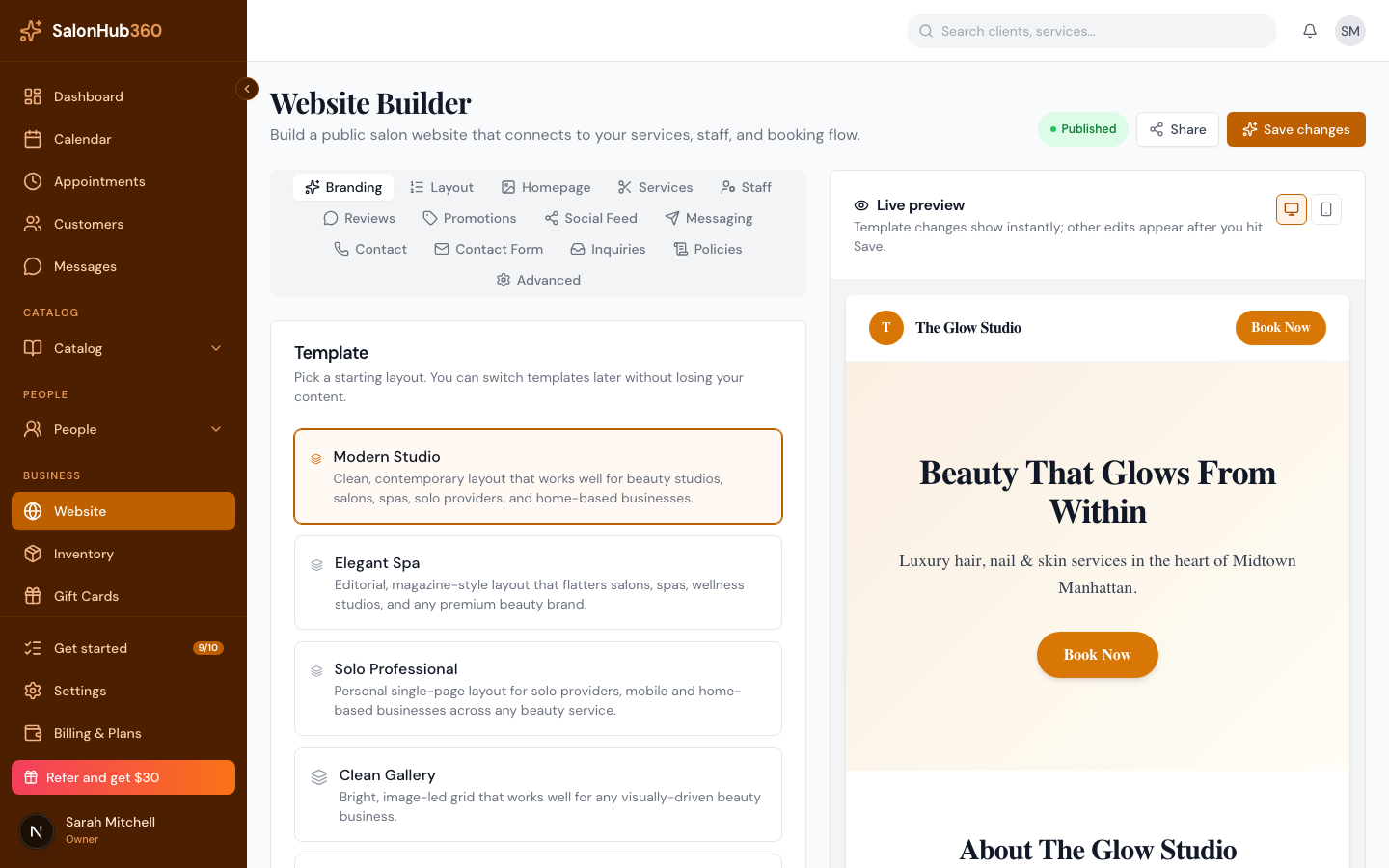
-
Use the section's toggle to show or hide it on your site, then fill in or update its content.
-
Click Save changes to apply.
How to reorder sections
-
Open the Layout tab and find the Section order card.
<!-- CAPTURE: route=/website | login=owner | state=Layout tab, Section order card visible | highlight=Section order list | viewport=1440x900 -->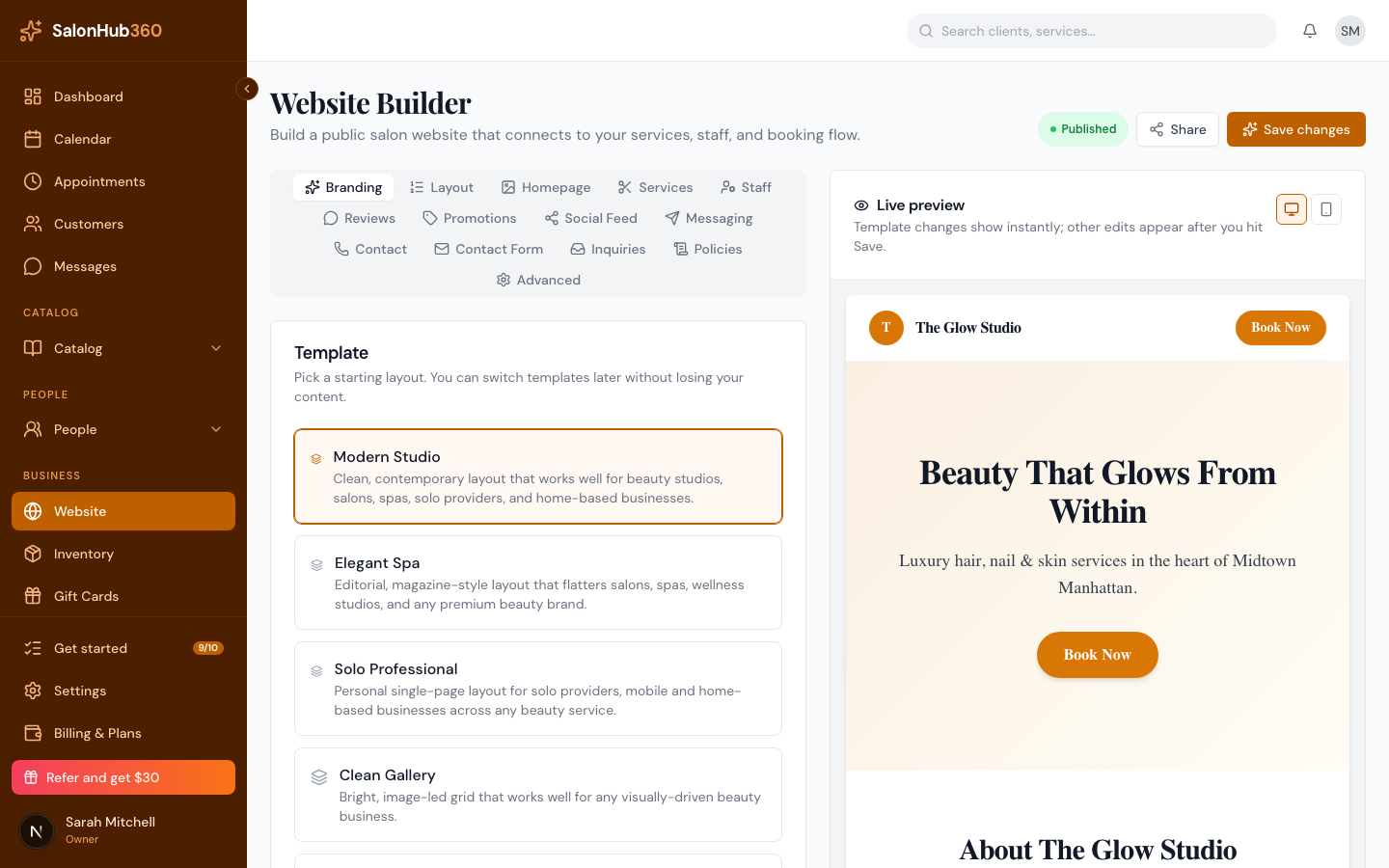
-
Use the up and down arrows next to each section to move it. Hero always stays first.
-
Click Save changes. (To start over, use Reset to default.)
Note: The Social Feed section can show your Instagram automatically, but that requires a one-time connection set up by SalonHub360 — until then, use the manual gallery to add images yourself. Instagram auto-feed and custom domains are coming.
Tip: Sections only appear on your live site when they're turned on and have content — an empty section stays hidden.
Related articles