
Manage your billing & payment method
Requirements
- Available on: All plans
- Device access: Web & mobile browser
- Permission: Owner
Update the card you pay your subscription with, download invoices, and review your billing details — all in the secure billing portal, powered by Stripe.
Note: This is the payment method for your SalonHub360 subscription, not the bank account where your client card payments are deposited. To change that, see Update your bank account & payout details.
How to manage your billing
-
In the left menu, open Billing & Plans.
<!-- CAPTURE: route=/billing | login=owner | state=active subscription | highlight=Manage Billing button | viewport=1440x900 -->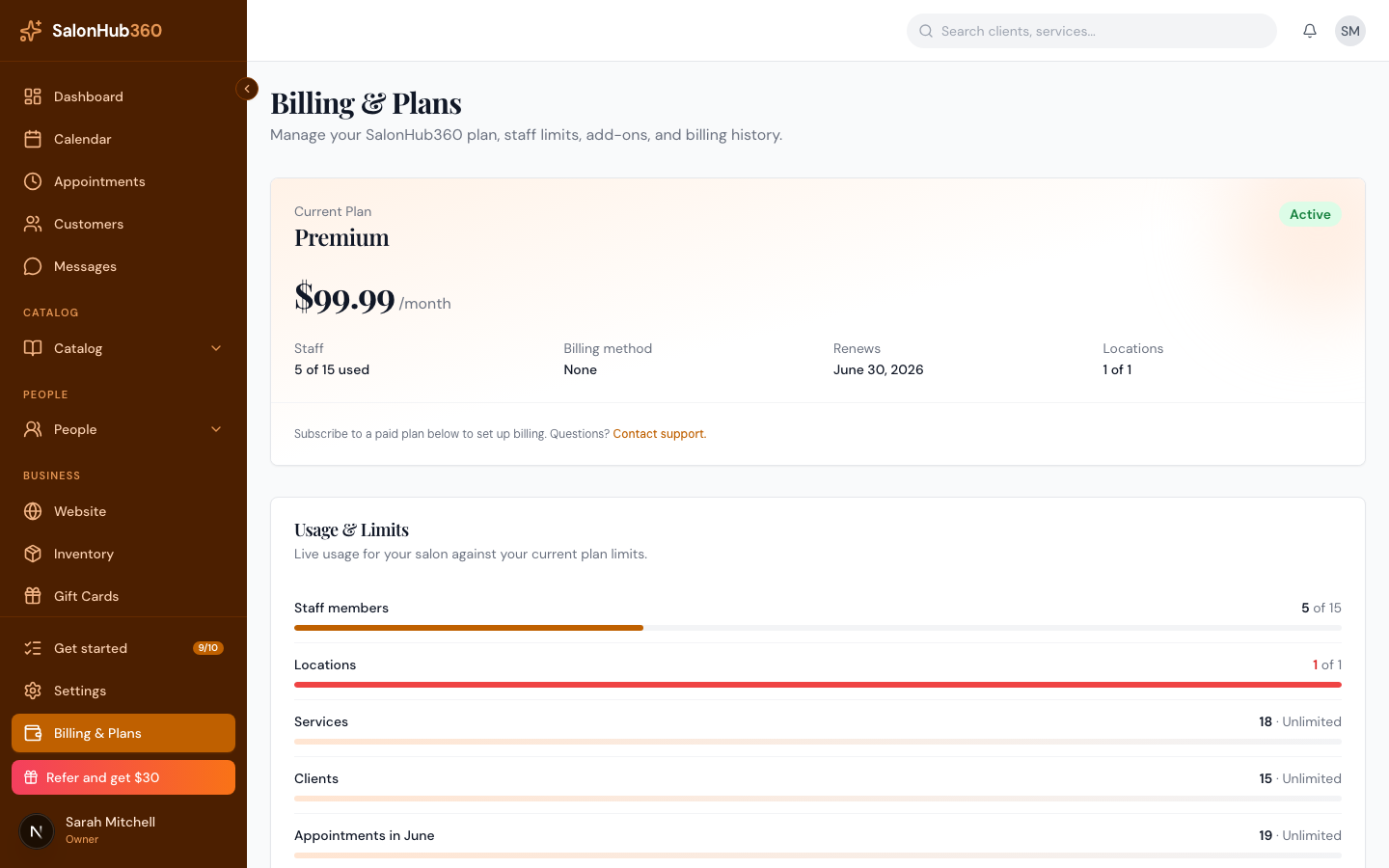
-
In the Current Plan card, click Manage Billing.
<!-- CAPTURE: route=/billing | login=owner | state=active subscription | highlight=Manage Billing button | viewport=1440x900 -->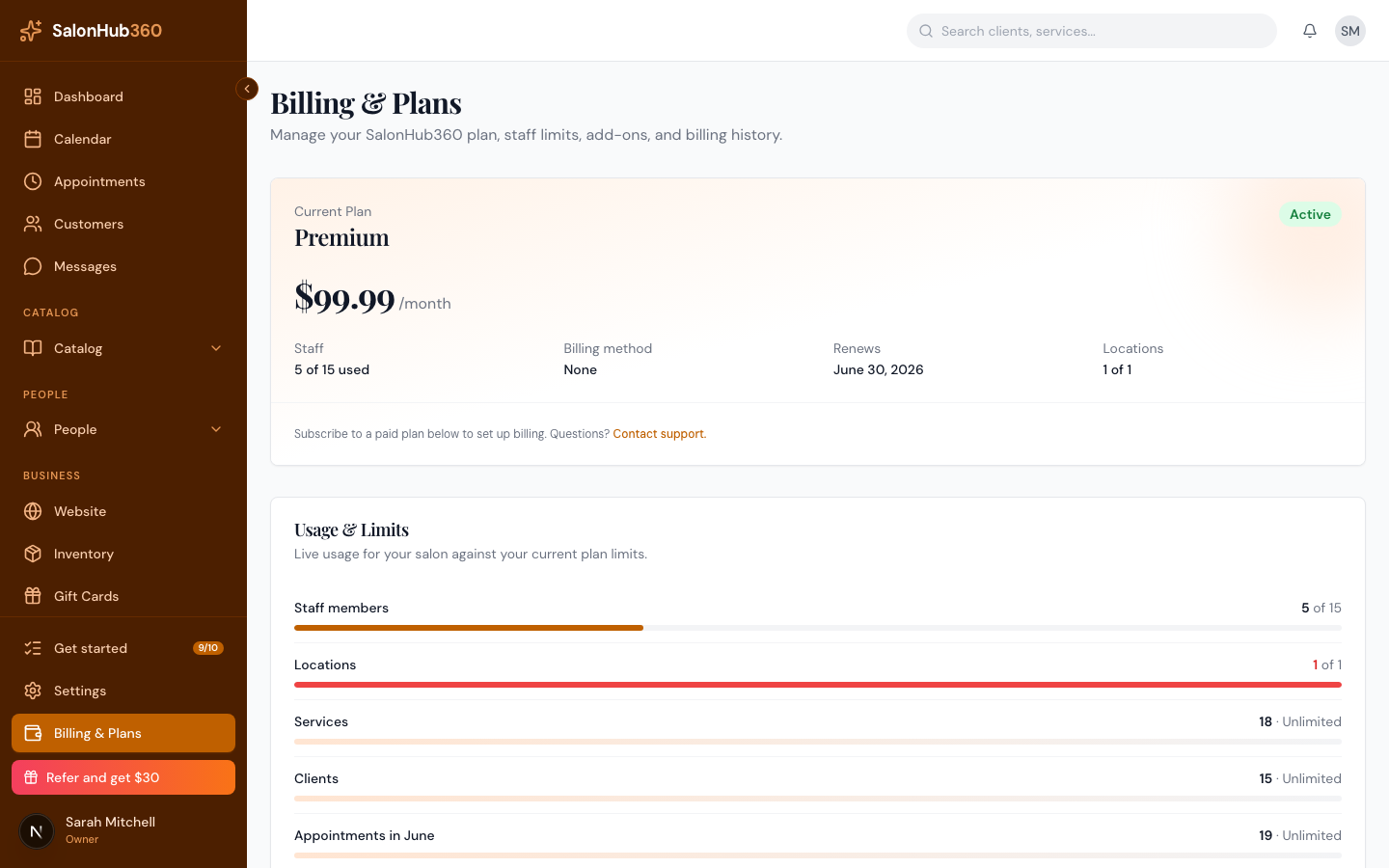
-
You'll be taken to the Stripe billing portal. From here you can:
- Update your card or payment method,
- Download invoices and receipts, and
- review your subscription details. 📷 Screenshot coming soon.
-
When you're done, use the portal's Return link to come back to SalonHub360.
Note: Manage Billing only appears once you've started a paid plan. If you're on the Free plan, subscribe to a paid plan first — see Change or upgrade your plan.
Note: If a subscription payment fails, you'll see a prompt to update your card via Manage Billing. Stripe automatically retries after you fix it, so your plan keeps running.
Related articles