
Cancel or reactivate your subscription
Requirements
- Available on: All plans
- Device access: Web & mobile browser
- Permission: Owner
You can cancel your paid plan whenever you like — you keep full access until the end of the period you've already paid for — and reactivate any time before it ends.
How to cancel your subscription
-
In the left menu, open Billing & Plans.
<!-- CAPTURE: route=/billing | login=owner | state=active paid subscription | highlight=Cancel subscription link | viewport=1440x900 -->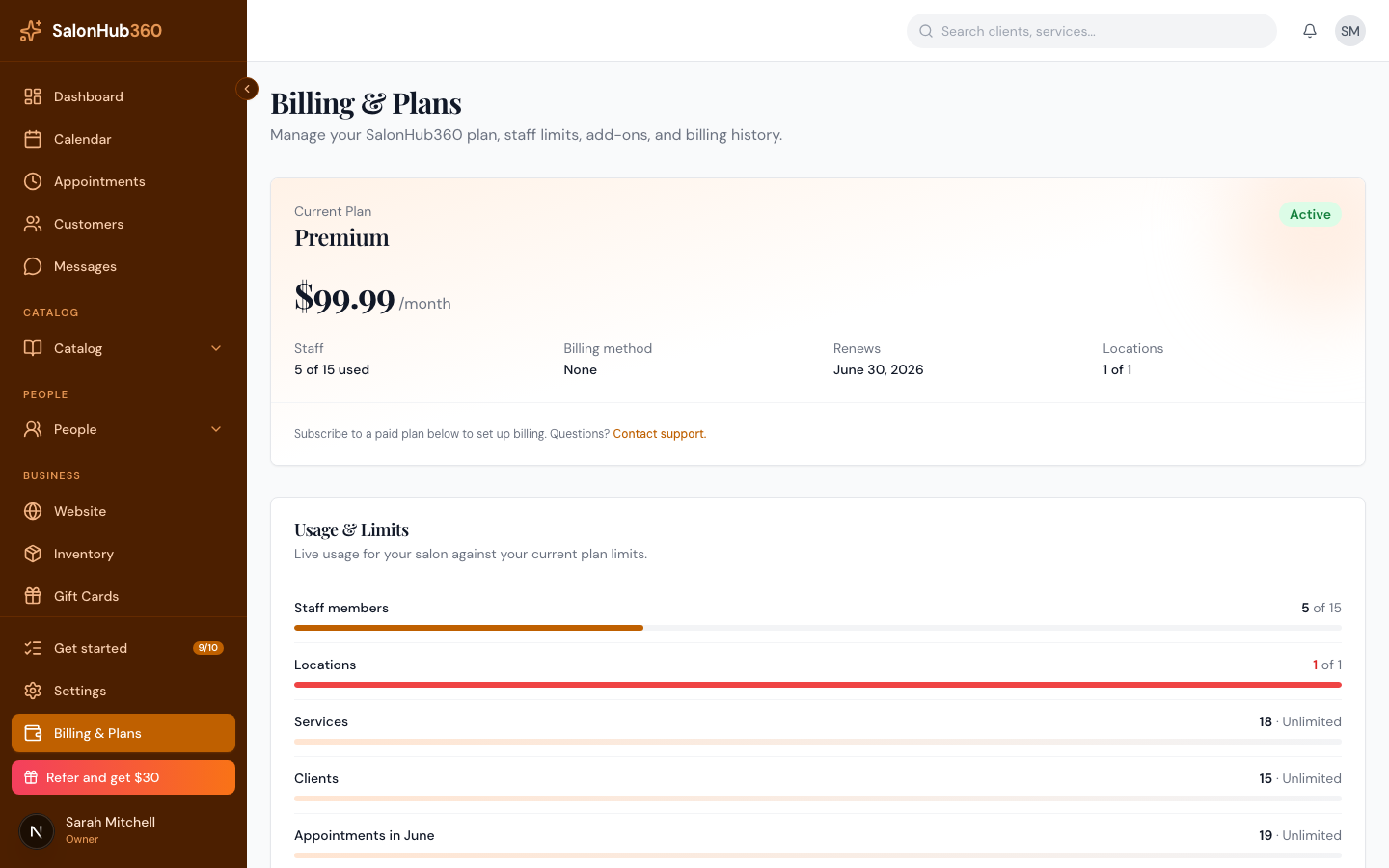
-
In the Current Plan card, click Cancel subscription.
-
In the confirmation dialog, review the details, then click Cancel at period end.
<!-- CAPTURE: route=/billing | login=owner | state=cancel confirm dialog open | highlight=Cancel at period end button | viewport=1440x900 -->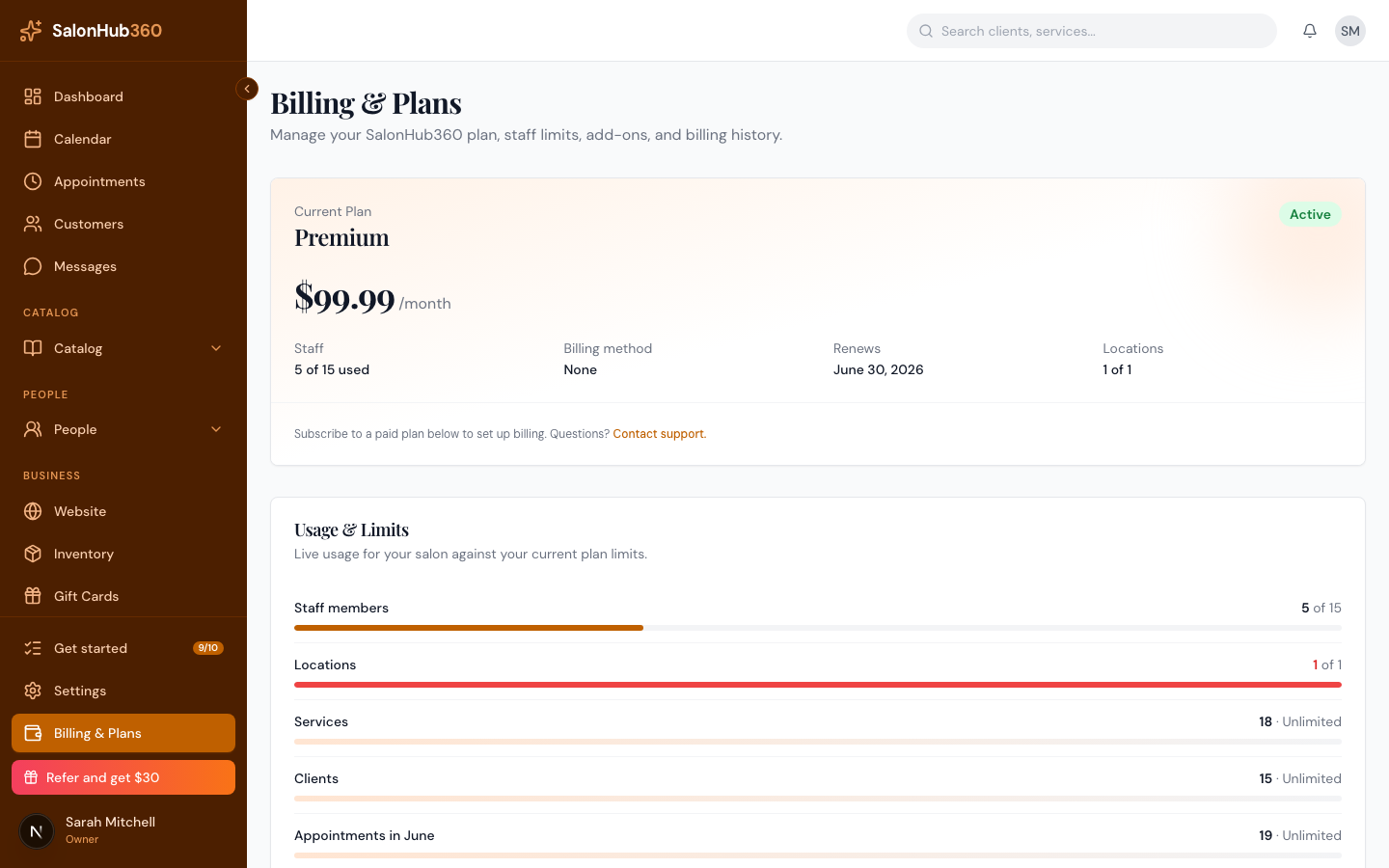
-
Your plan stays active until the date shown. After that, your salon moves to the Free plan automatically.
Note: When you cancel, existing staff stay active even if they go over the Free plan's 1-staff limit, but you won't be able to add more staff. Your bookings, calendar, and clients keep working on the Free plan.
How to reactivate
If you've canceled but the period hasn't ended yet, you can turn your plan back on:
-
On the Billing & Plans page, find the cancellation banner near the top ("Your plan will cancel on …").
<!-- CAPTURE: route=/billing | login=owner | state=cancelAtPeriodEnd banner visible | highlight=Reactivate button | viewport=1440x900 -->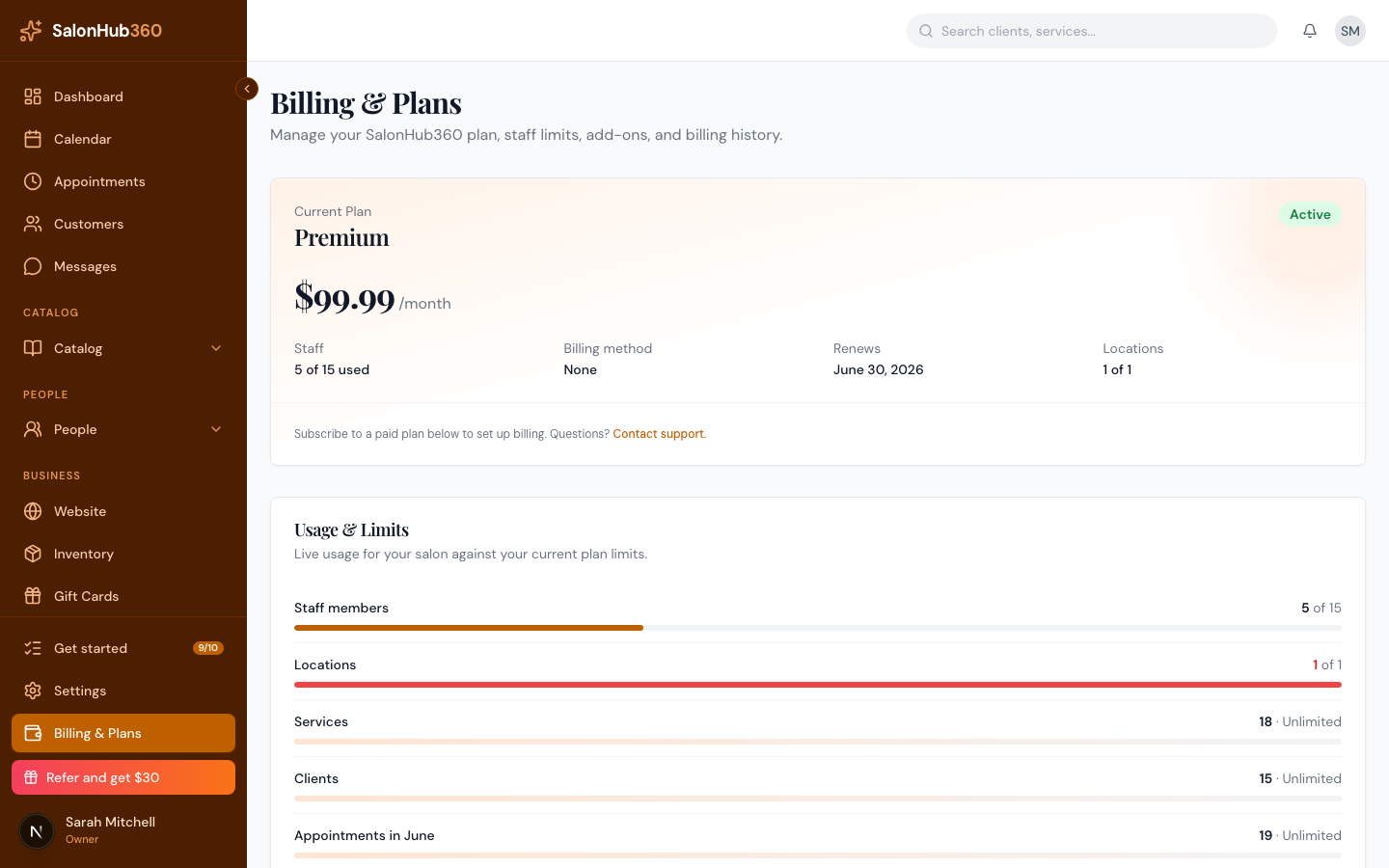
-
Click Reactivate. The cancellation is undone and your plan continues as normal — no new checkout needed.
Note: If your period has already ended and you're back on the Free plan, reactivating isn't available — instead, choose a plan again to resubscribe.
Related articles