
How to use client profiles, notes & alerts
Requirements
- Available on: All plans
- Device access: Web & mobile browser
- Permission: Owner or Manager (any staff with the client-management permission)
Click any client to open their detail panel — a side drawer with their contact details, appointment history, notes, memberships, packages, and saved cards. It's the fastest way to glance at a client before they sit down, then move on to the next.
How to open a client's profile
-
On the Customers page, click anywhere on a client's row.
<!-- CAPTURE: route=/customers | login=owner | state=list loaded | highlight=a customer row | viewport=1440x900 -->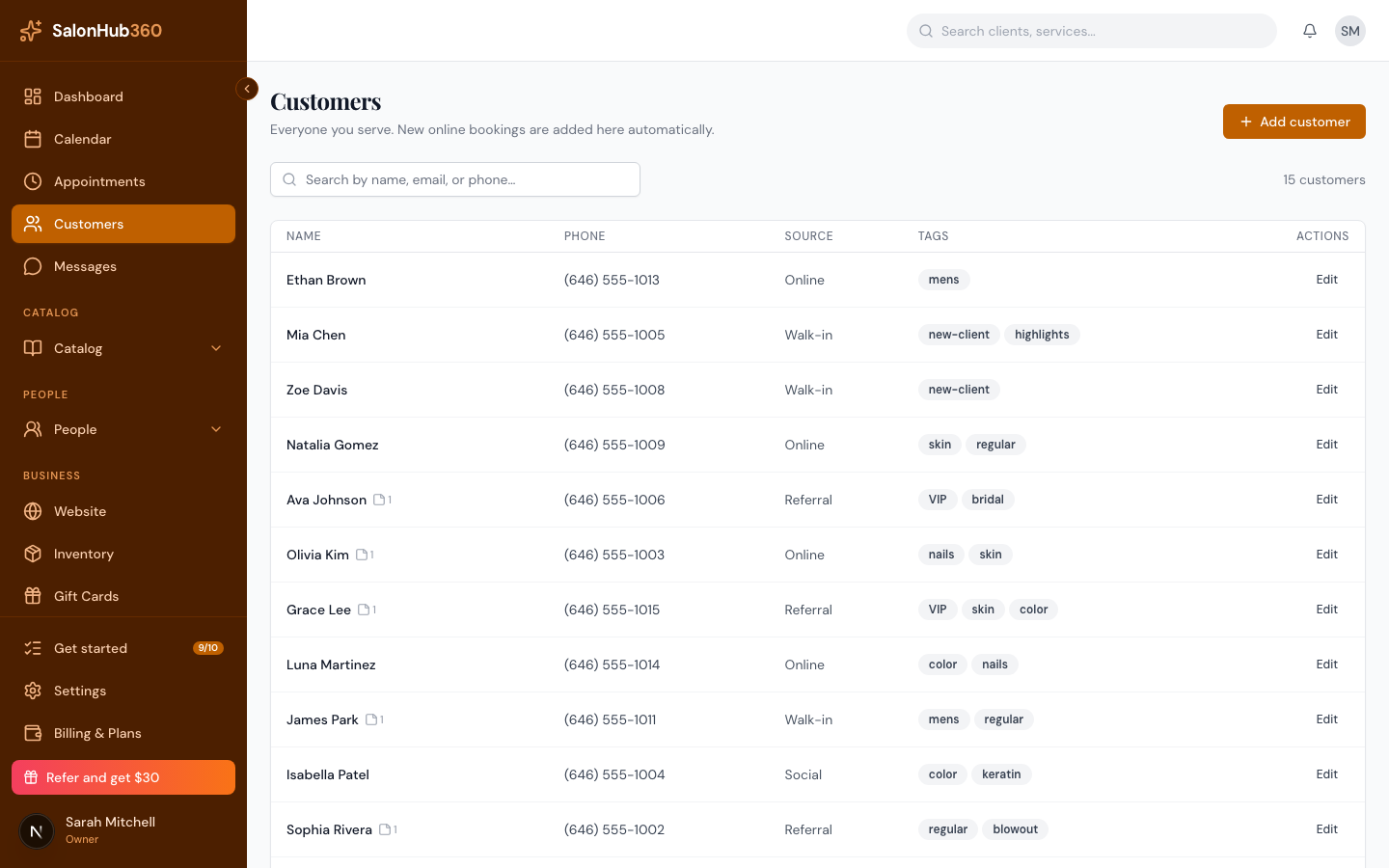
-
The panel slides in from the right, showing the client's name, email, phone, and any tags at the top.
<!-- CAPTURE: route=/customers | login=owner | state=detail panel open | highlight=panel header and tabs | viewport=1440x900 -->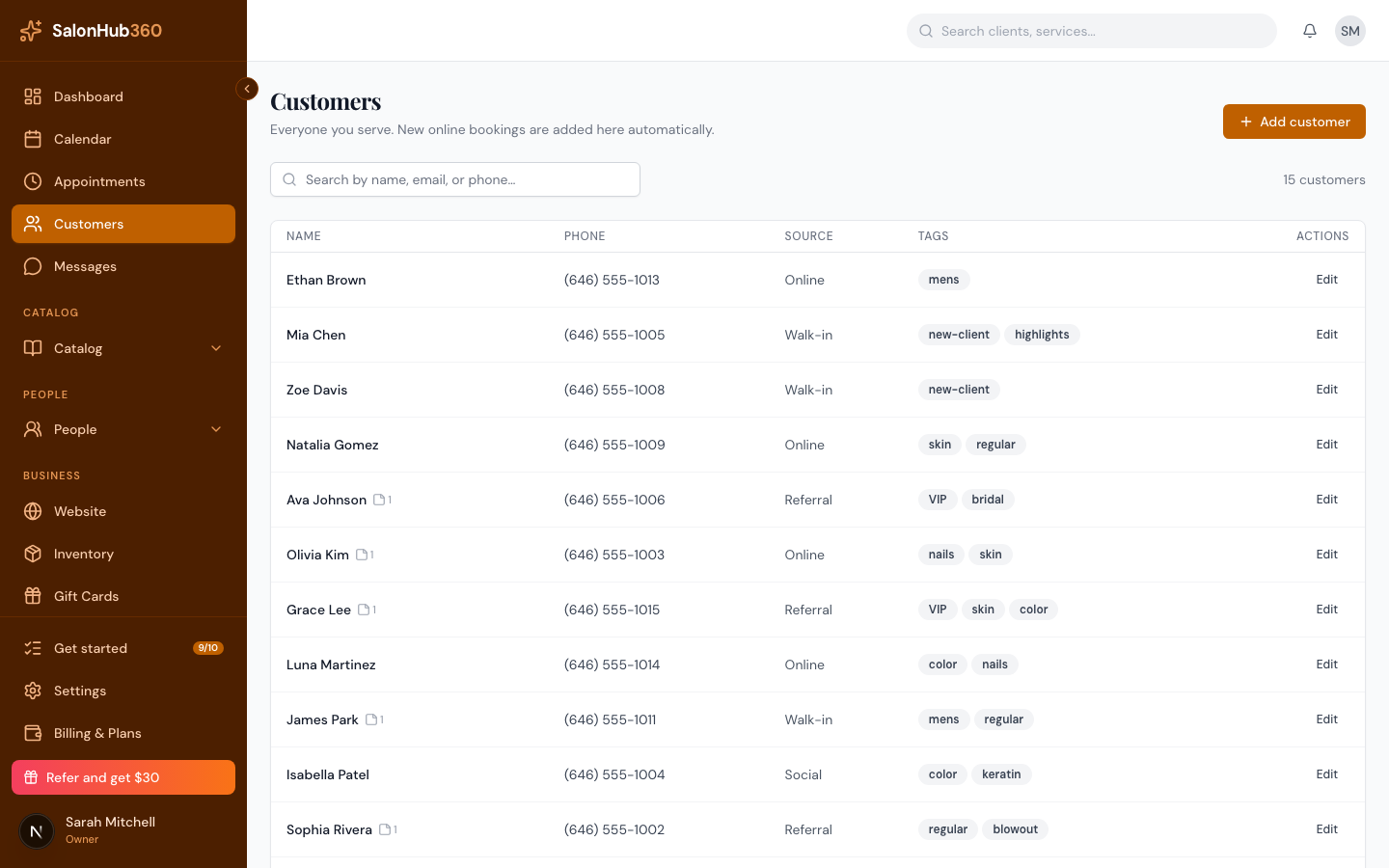
What's in the panel
Use the tab bar to move between sections:
- Appointments — upcoming, cancelled, and past visits, plus totals for visit count, last visit, and lifetime spend.
- Notes — staff notes about the client (see below).
- Photos — client photos (coming soon).
- Members — any active or paused memberships and credits remaining.
- Packages — purchased packages and how many credits are left.
- Cards — cards the client has saved for faster checkout.
From the header you can also Book appointment (opens the calendar with this client pre-filled) or open the More actions menu (the ⋮ button) to edit, ban, or delete the client.
How to add a note or alert
-
In the panel header, click Add note — this jumps to the Notes tab and opens the composer.
<!-- CAPTURE: route=/customers | login=owner | state=detail panel open | highlight=Add note button | viewport=1440x900 -->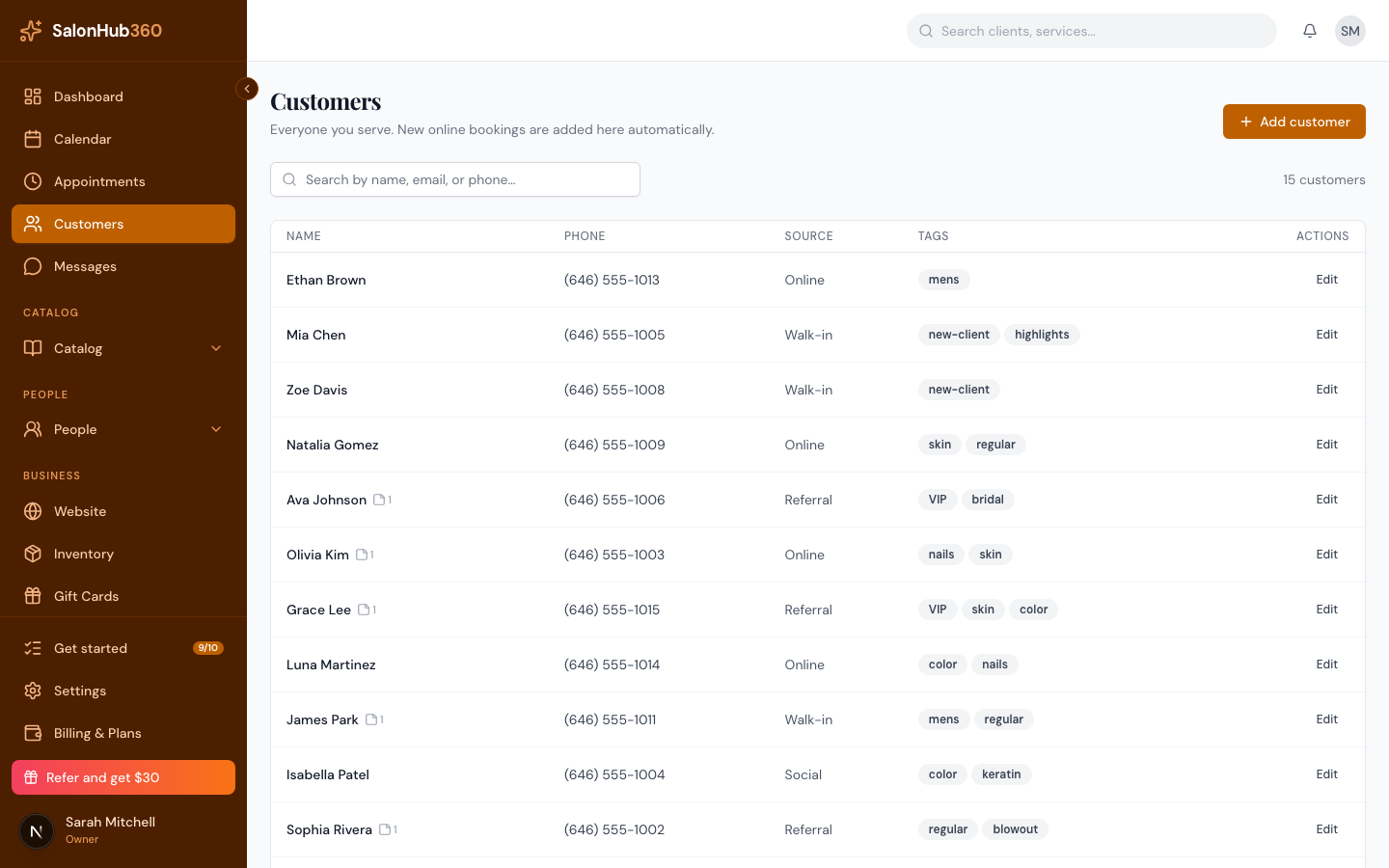
-
Type your note — for example a preference, an allergy, or a heads-up for the front desk.
-
Click Save. The note appears in the client's history with the date.
Note: Notes can be pinned (shown with a yellow Pinned badge) or marked as an alert (a red Alert badge) so the most important details stand out. All notes are staff-only and never visible to the client.
Tip: Allergies, sensitivities, and "do not rebook with…" flags belong in notes or alerts — never in a field a client could see. For the full rules, read How client privacy & data protection work.
Related articles