
How to ban or unban a client
Requirements
- Available on: All plans
- Device access: Web & mobile browser
- Permission: Owner or Manager (any staff with the client-management permission)
Banning a client blocks them from your salon while keeping their record on file. It's the right tool for a repeat no-show or someone you'd rather not rebook — and it's fully reversible.
How to ban a client
-
On the Customers page, click the client's row to open their detail panel.
-
In the panel header, click the More actions button (the ⋮ icon).
<!-- CAPTURE: route=/customers | login=owner | state=detail panel, more-actions menu open | highlight=More actions menu | viewport=1440x900 -->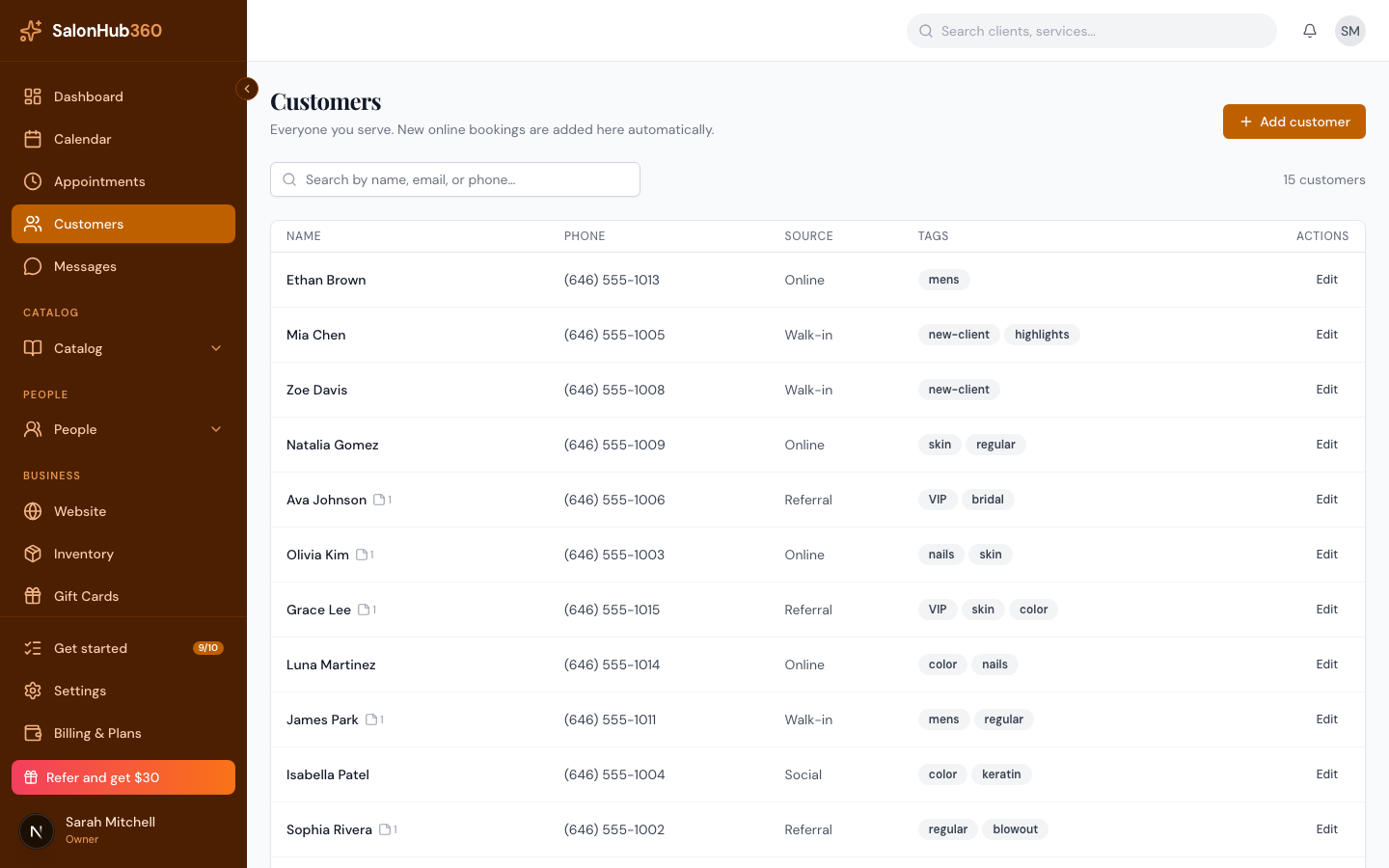
-
Choose Ban client and confirm when prompted.
<!-- CAPTURE: route=/customers | login=owner | state=more-actions menu open | highlight=Ban client item | viewport=1440x900 -->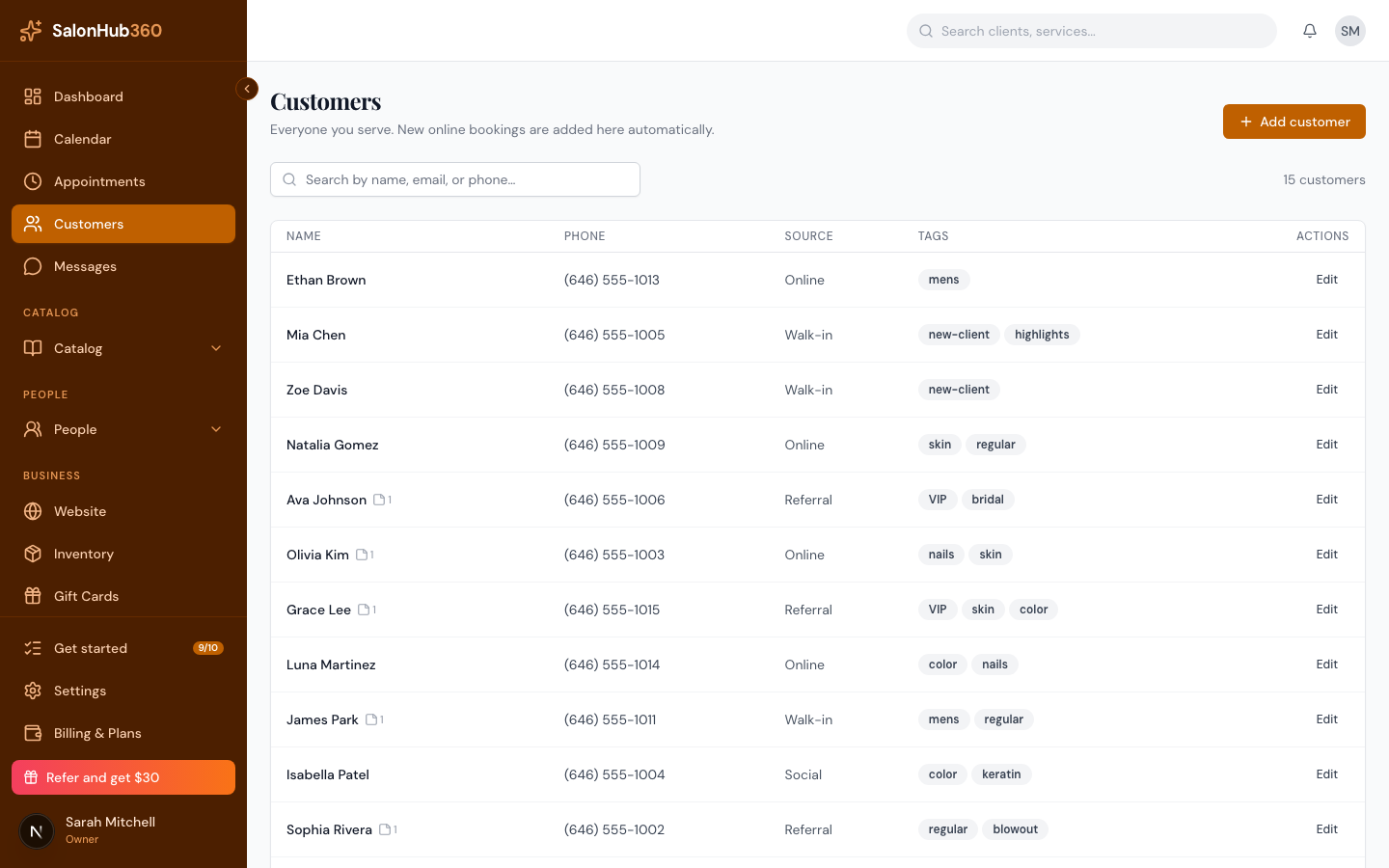
-
The client now shows a red Banned badge on their row and in their profile.
How to unban (reactivate) a client
-
Open the banned client's detail panel.
-
Open the More actions menu and choose Reactivate client, then confirm.
-
The Banned badge is removed and the client can be served again.
Note: Banning keeps the client's full history and notes — it only blocks them from being booked. To remove a client from your list entirely, use Delete client from the same menu (their past appointment history is preserved, but the profile no longer appears in your list).
Tip: Repeat no-shows are often better handled with a deposit or no-show fee than a ban. See Set cancellation & no-show fees.
Related articles