
How to turn on online booking & set your rules
Requirements
- Available on: All plans
- Device access: Web & mobile browser
- Permission: Owner or Manager
Switch on your public booking page and set the rules that decide when and how far ahead clients can book — so self-service bookings always fit your schedule.
How to turn on online booking
-
In the left menu, open Settings, then select the Booking tab.
<!-- CAPTURE: route=/settings | login=owner | state=Booking tab open, Booking rules card visible | highlight=Booking tab | viewport=1440x900 -->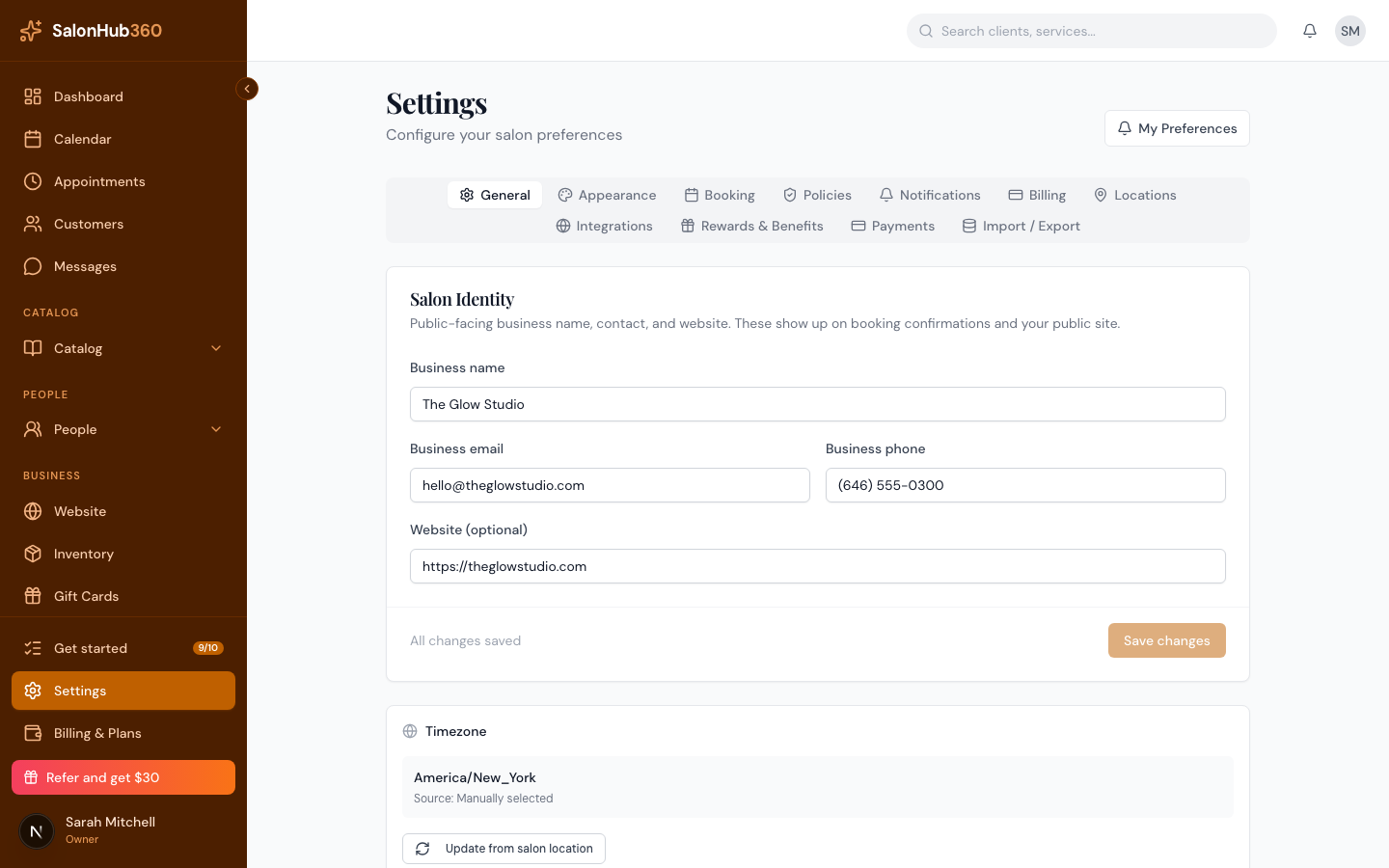
-
In the Booking rules card, turn on Allow online booking. This is the master switch for your public booking page — when it's off, clients can't book online at all.
<!-- CAPTURE: route=/settings | login=owner | state=Booking tab, Allow online booking ON | highlight=Allow online booking toggle | viewport=1440x900 -->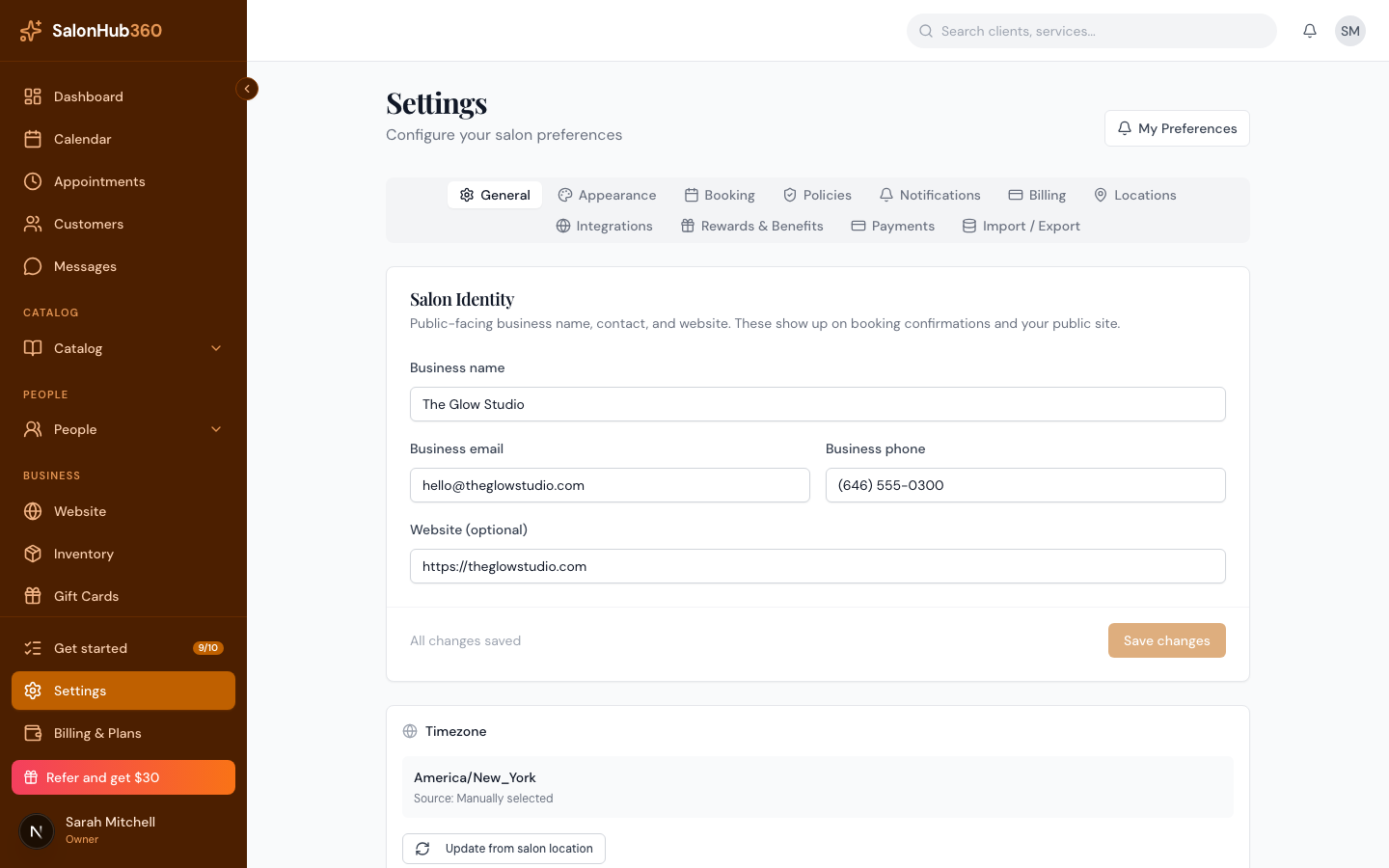
-
Set your timing rules in the fields below. Each one controls a different part of how clients can book:
Setting What it does Default Minimum lead time (minutes) How far in advance a client must book. Blocks last-minute slots. 60 Maximum future booking window (days) The farthest-out date a client can pick. 90 Same-day cutoff (HH:mm) Stops same-day bookings after this time. Leave blank to allow them all day. blank Cancellation/reschedule notice (hours) Minimum notice a client needs to cancel or reschedule online. 24 Slot interval (minutes) How tightly bookable start times are spaced (e.g. 15 = on the quarter-hour). 15
<!-- CAPTURE: route=/settings | login=owner | state=Booking tab, rule fields filled | highlight=rule input fields grid | viewport=1440x900 -->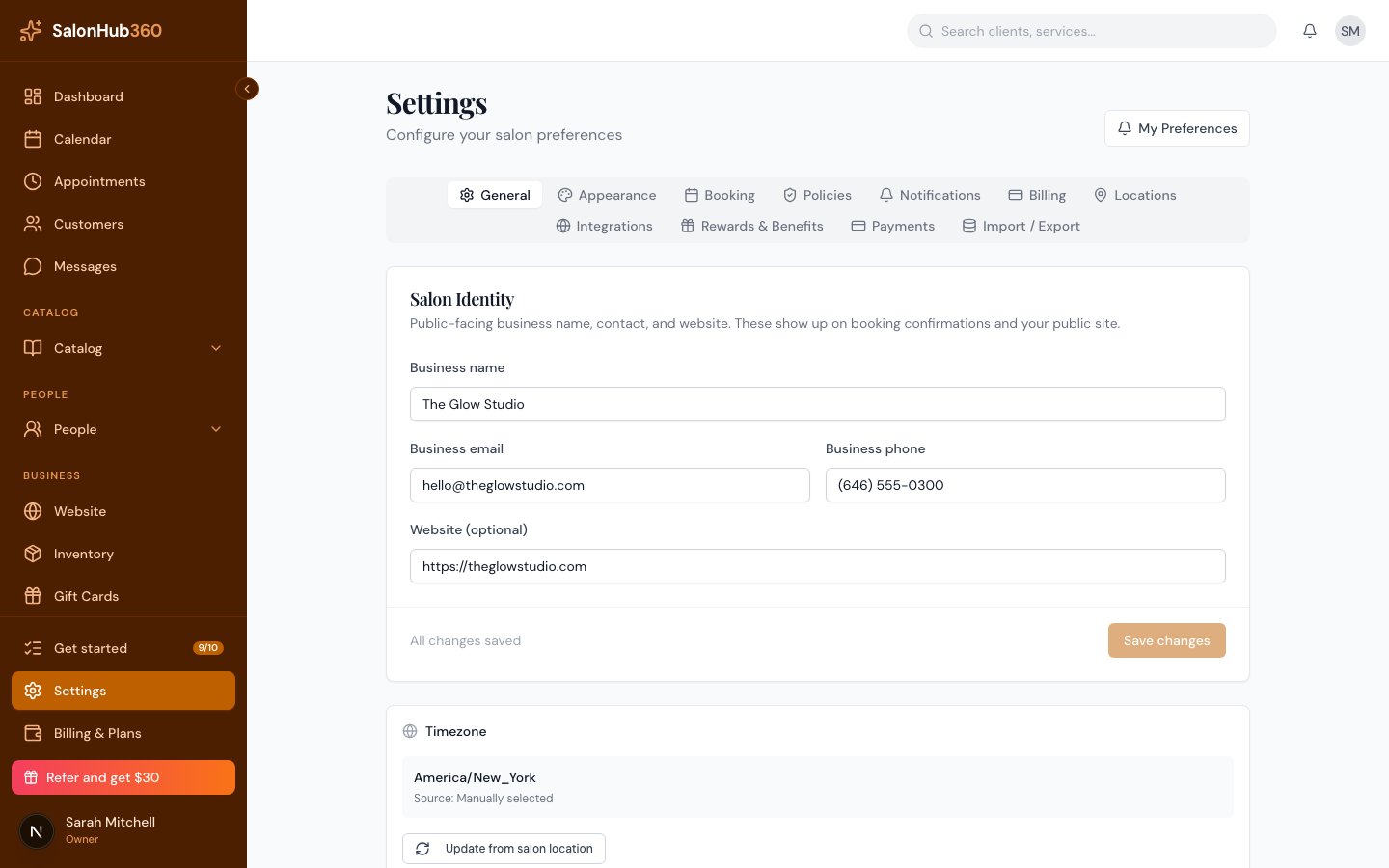
-
Click Save changes.
Note: Enter the same-day cutoff in 24-hour
HH:mmformat — for example,14:00for 2:00 PM. An invalid time won't save.
Tip: Want to review first-time clients before their booking is locked in? See Require approval for new clients.
Related articles