
Message clients from your inbox
Requirements
- Available on: Growth and above
- Device access: Web & mobile browser
- Permission: Owner or Manager
Chat with your clients without leaving SalonHub360. The Messages inbox keeps every conversation in one place — you start the conversation (or a client does by filling out your website's contact form), and from then on your client can reply from their SalonHub360 account while you reply right back, with text and a photo if needed.
How to send a message
-
In the left menu, open Messages to see your conversations. Each row shows the client's name, the latest message, and when it arrived; unread ones are highlighted.
<!-- CAPTURE: route=/messages | login=owner | state=conversations present | highlight=conversation list | viewport=1440x900 -->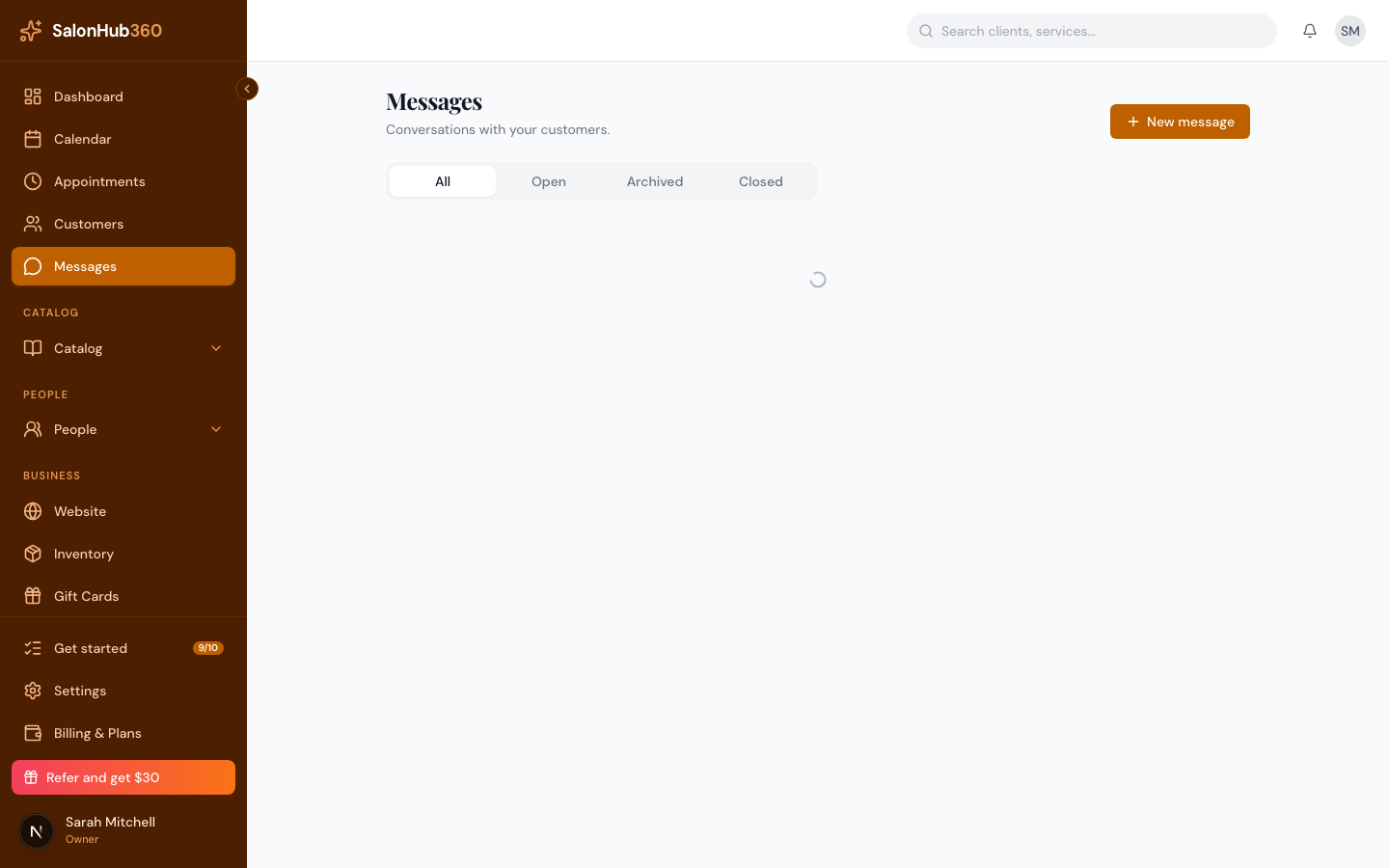
-
To start a fresh conversation, click New message, search for a client, then write your note and click Send message. To reply to an existing thread, just click the conversation.
<!-- CAPTURE: route=/messages | login=owner | state=New message dialog open | highlight=New message button | viewport=1440x900 -->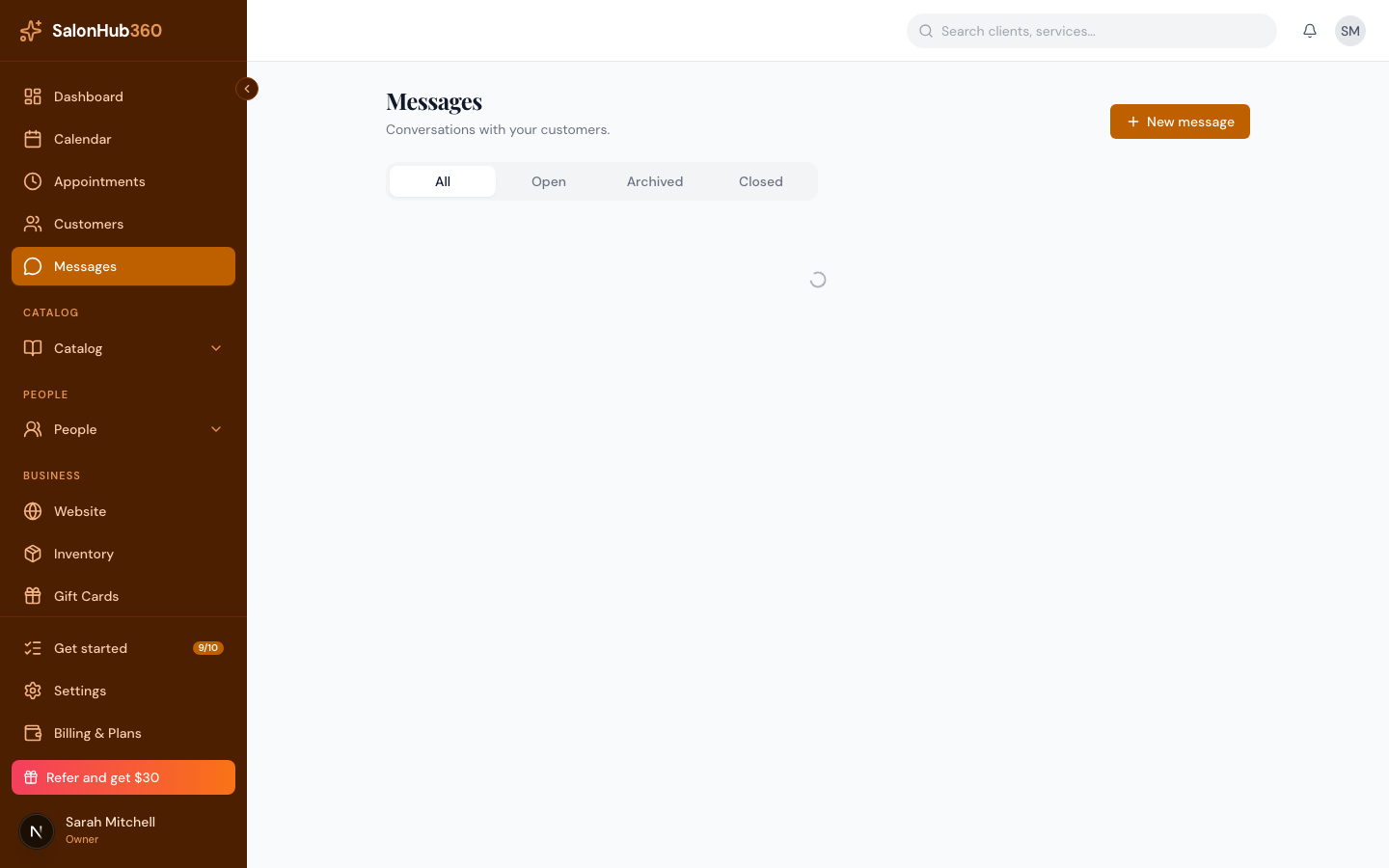
-
In a conversation, type your reply in the composer at the bottom. To attach a photo, click Add photo (one image per message, up to 5 MB), then click Send.
<!-- CAPTURE: route=/messages/[id] | login=owner | state=thread open | highlight=reply composer + Add photo button | viewport=1440x900 -->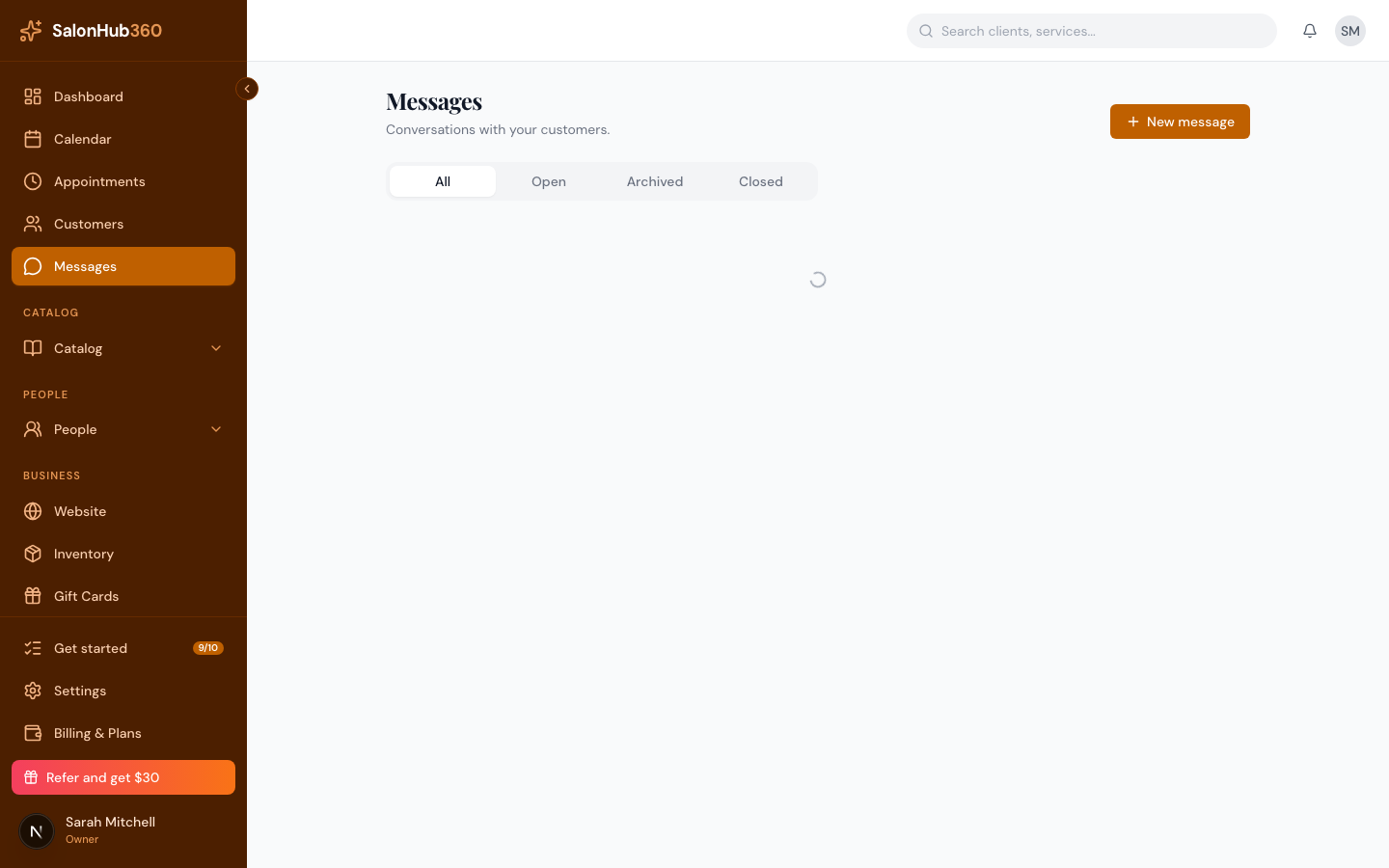
Keep your inbox tidy
- Use the all, open, archived, and closed tabs at the top to filter conversations.
- In an open conversation, click Archive to tuck it away or Close when it's resolved.
- Need it back? Open it and click Reopen — and note that simply replying to an archived or closed thread reopens it automatically.
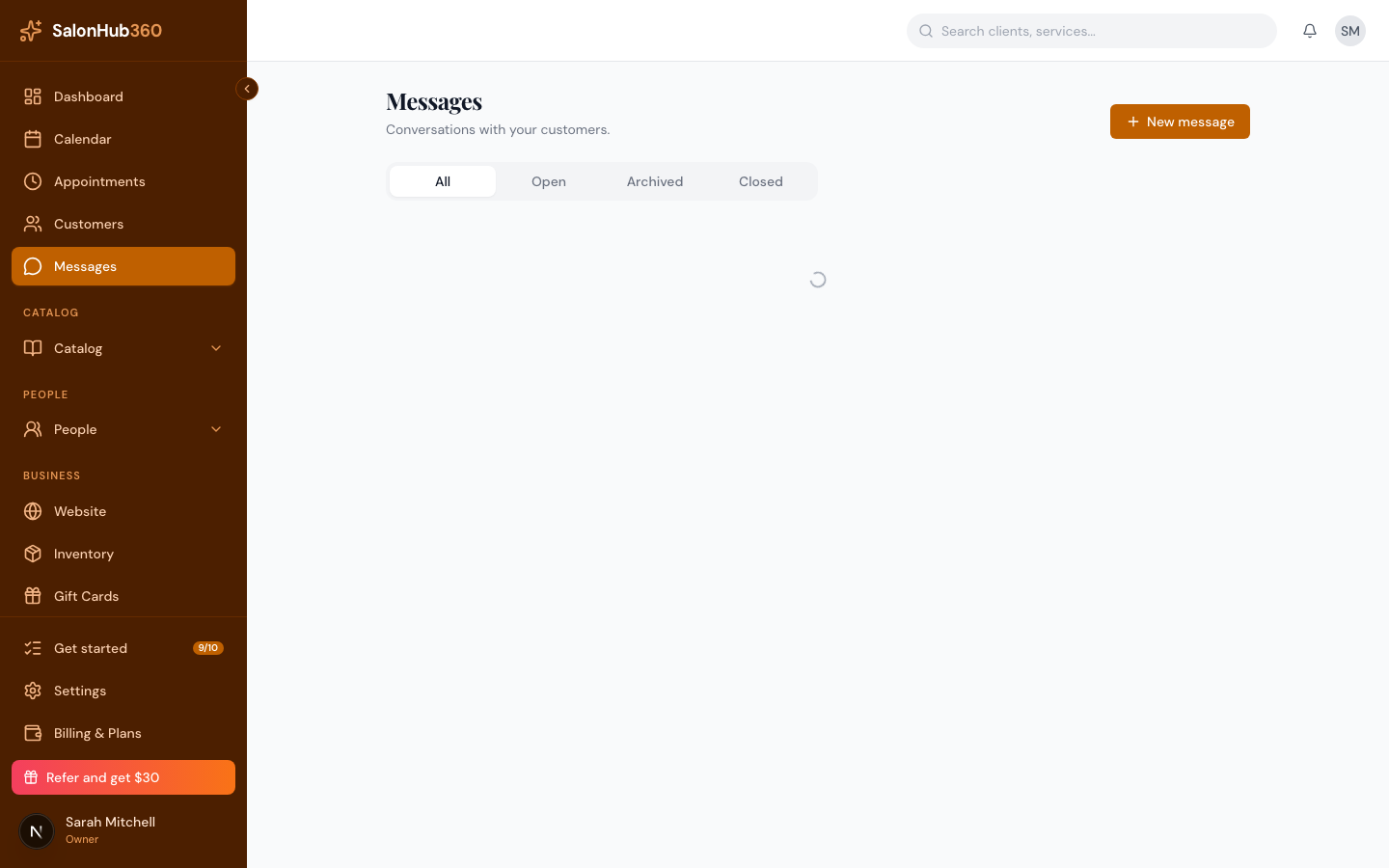 <!-- CAPTURE: route=/messages/[id] | login=owner | state=thread open | highlight=Archive/Close/Reopen controls | viewport=1440x900 -->
Note: Messages is a two-way channel with your clients through their SalonHub360 account — their thread with your salon is private to the two of you, separate from any other salon they message. It's available on the Growth plan and above, and separate from the social messaging buttons on your public website — see Link-based social messaging.
Photos and message history
Photos are automatically resized to 1600 pixels on their longest side when you send them, so you don't need to shrink them yourself first. Messages and photos are kept for a set period under the platform's retention policy; once a photo passes that point it's removed and the conversation shows a "Photo expired" placeholder in its place.
Tip: Want clients to find you on text or social instead? Add social messaging buttons to your public site.
Related articles