
Setting up compensation & commission rules
Requirements
- Available on: Premium and above
- Device access: Web & mobile browser
- Permission: Owner or Manager (separation of duties prevents editing your own compensation when another approver exists)
Configure how each employee is paid — hourly, commission, salary, or a hybrid — and build priority-ordered commission rules for services, categories, and retail products without ever altering past pay periods.
1. Set a staff member's Pay Type & Effective Date
-
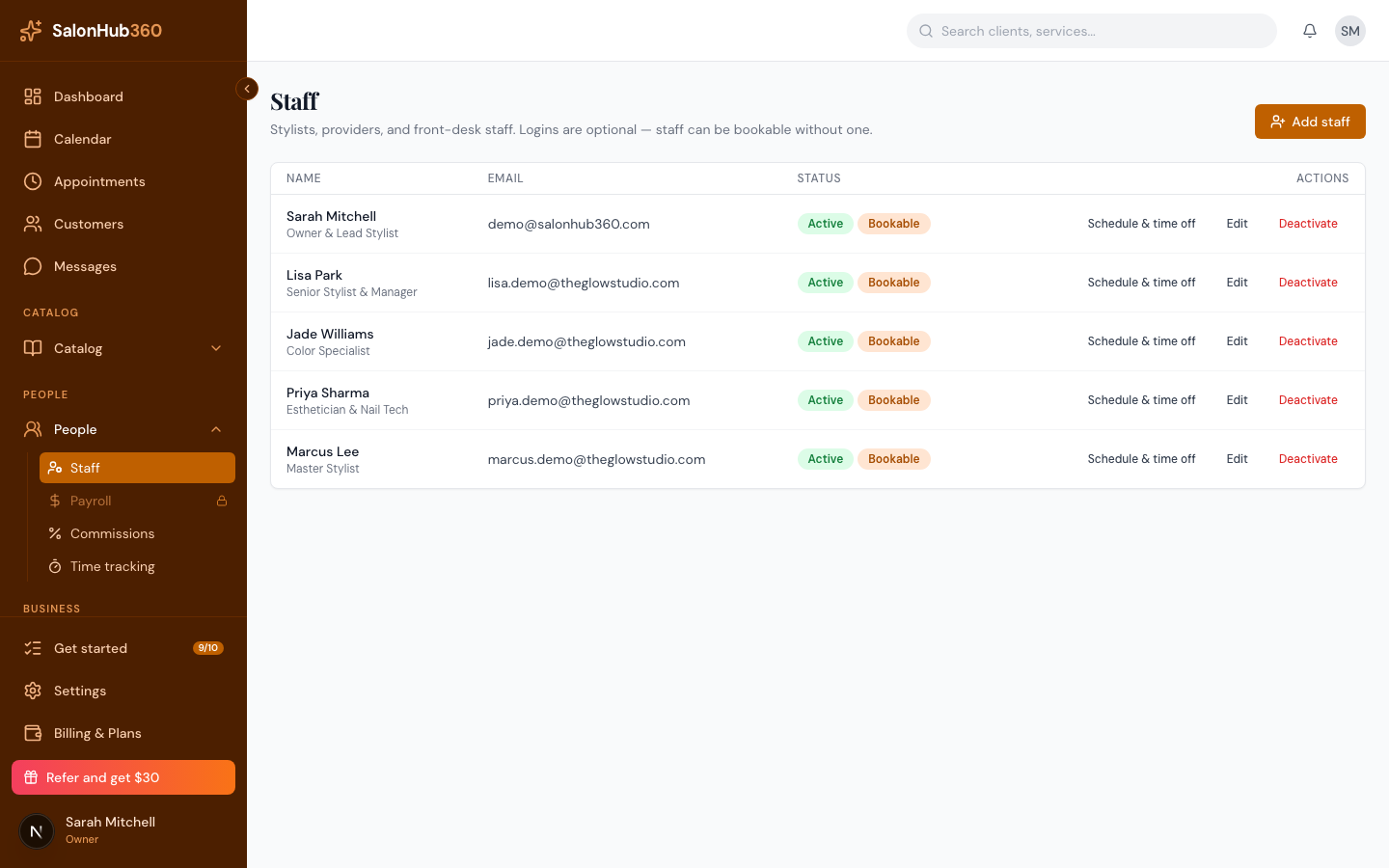
In the left menu, open Staff → Commissions (or open a staff member's profile under Staff and select the Compensation tab).
-
Choose the employee's Pay Type:
- Hourly — paid for approved time-clock hours (plus applicable overtime).
- Hourly + Commission — earns base hourly wages plus service and/or retail commissions.
- Commission Only — paid from service and retail commissions. The payroll worksheet's minimum-wage check covers hourly pay types only, so commission-only staff show as Not checked there.
- Salary — earns a fixed base amount per pay period (plus optional commissions).
-
Enter their Hourly rate or Salary per period, choose the Effective date, and click Save compensation.
Note: Every compensation change is versioned by Effective date ("rate when earned"). Raising someone's hourly rate or commission percentage today applies only from the effective date forward and never recalculates closed or historical pay periods.
2. Create priority-ordered commission rules
You can define default salon-wide rules and per-staff overrides by Service, Service Category, or Retail Product:
-
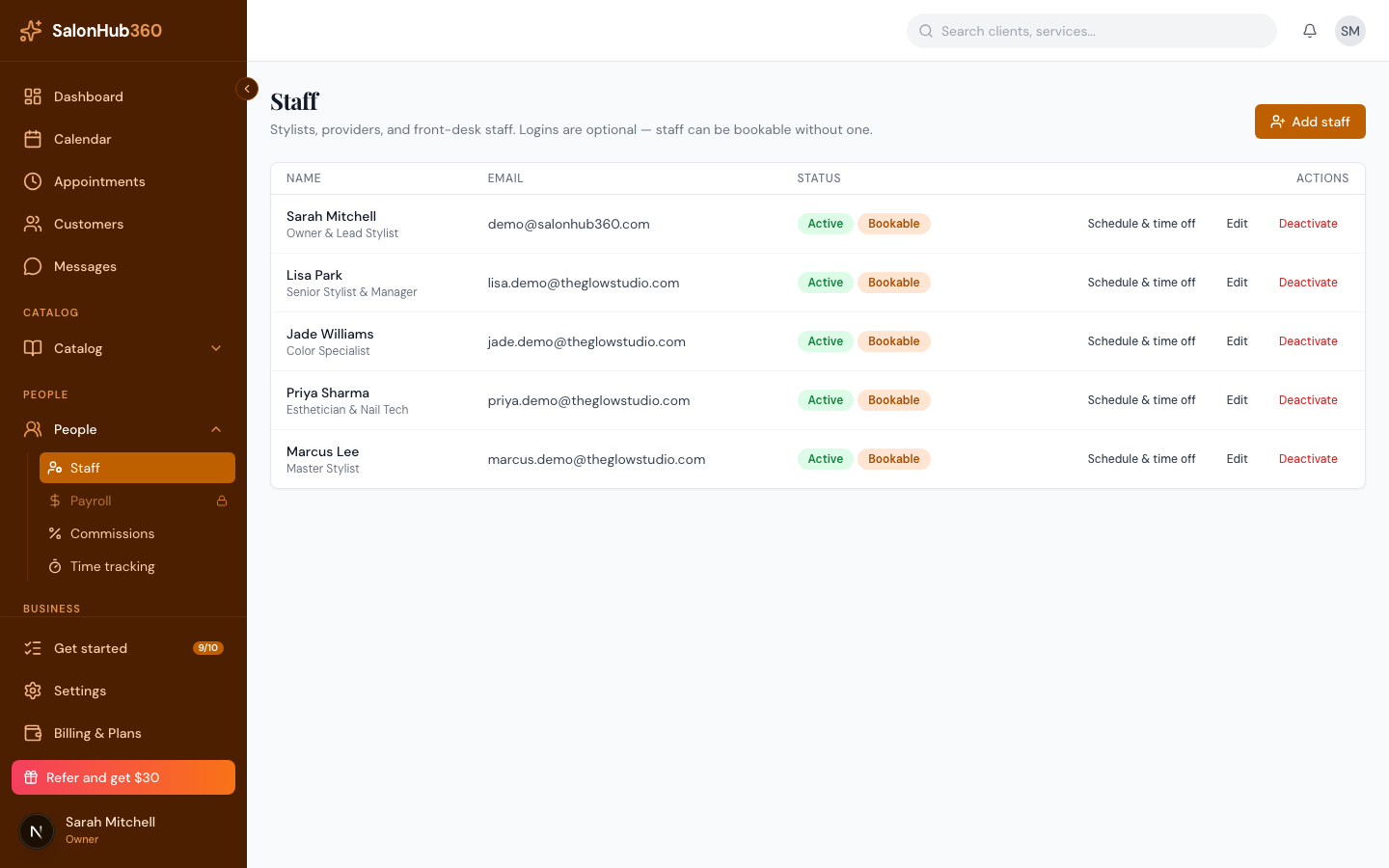
Open Staff → Commissions and select the Commission Rules tab, then click New rule.
-
Pick what the rule applies to (Specific Service, Service Category, All Services, or Retail Products).
-
Filter by Staff member (or leave as All eligible staff) and Location if needed.
-
Choose Percentage (
%) or Flat dollar amount ($), enter the rate, set the Priority order, and click Save rule.
When a sale is completed, SalonHub360 evaluates rules from most specific (a per-staff override for that exact service) to most general (a salon-wide default rule).
3. Configure commission basis & multi-staff splits
Under Staff → Commissions → Settings, set how commissions are calculated across your salon:
- Commission basis (
Grossvs.Net of Discounts): Choose whether service commission is calculated on the original list price (Gross) or the price after coupons, package discounts, or loyalty rewards (Net of Discounts). - Multi-staff service splits: When two technicians share a service (for example, a colorist and a blowout specialist, or a manicure/pedicure duo), split the service attribution by percentage (such as
50% / 50%or70% / 30%) on the appointment before checkout. Each technician receives their exact share of the commission automatically. - Retail attribution: Assign the retail product seller at checkout so product commission goes to the stylist who recommended it, even if a receptionist rings up the ticket.
4. How refunds & clawbacks work
When you issue a full or partial refund on an appointment (see How to issue a refund):
- Unpaid / open payroll period: SalonHub360 automatically reduces or reverses the commission on that sale in proporcional share to the refunded service or retail amount.
- Already locked in an
ApprovedorPaidpayroll period: Historical pay periods are never mutated silently. Instead, SalonHub360 creates a proposed Refund Clawback Adjustment for the next open pay period so the owner or manager can review, approve, or waive it before payroll runs.
5. Separation of duties
To protect your salon's payroll integrity, a Manager cannot edit or approve their own compensation rates, commission overrides, or manual adjustments whenever another Owner or Manager exists on the account. Another authorized Owner or Manager must save or approve those changes.
Related articles